
Estimated reading time: 15 minutes
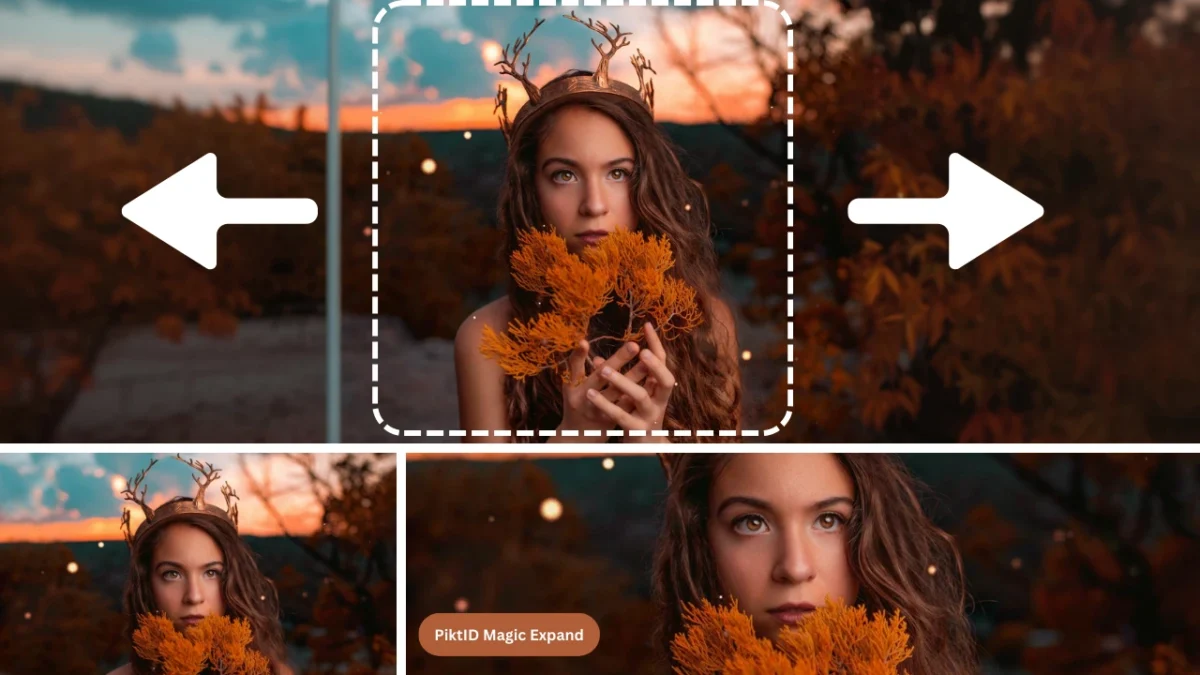
AI outpainting is a technique that allows images to be extended beyond their original borders in a natural and visually consistent way. Instead of cropping important elements or stretching backgrounds, AI outpainting intelligently generates new image areas that blend seamlessly with the original content. This makes it possible to reframe images, change aspect ratios, or add space around subjects without losing visual quality.
Unlike simple resizing or background fill tools, AI outpainting understands the context of the image. It analyzes colors, textures, lighting direction, depth, and perspective to predict what should exist beyond the visible frame. The result is an expanded image that looks complete and intentional, not artificially edited.
PiktID Expand is built specifically for high-quality AI outpainting. It focuses on realistic image extension by preserving lighting consistency, surface textures, and scene depth. Whether you need more space for text, wider compositions, or flexible formats, the tool produces clean and professional results.
Common use cases include marketing banners, e-commerce product images, social media creatives, website hero sections, and design projects where images must adapt to multiple layouts without re-shooting or redesigning.
1. What Is AI Outpainting? Image Extension Explained
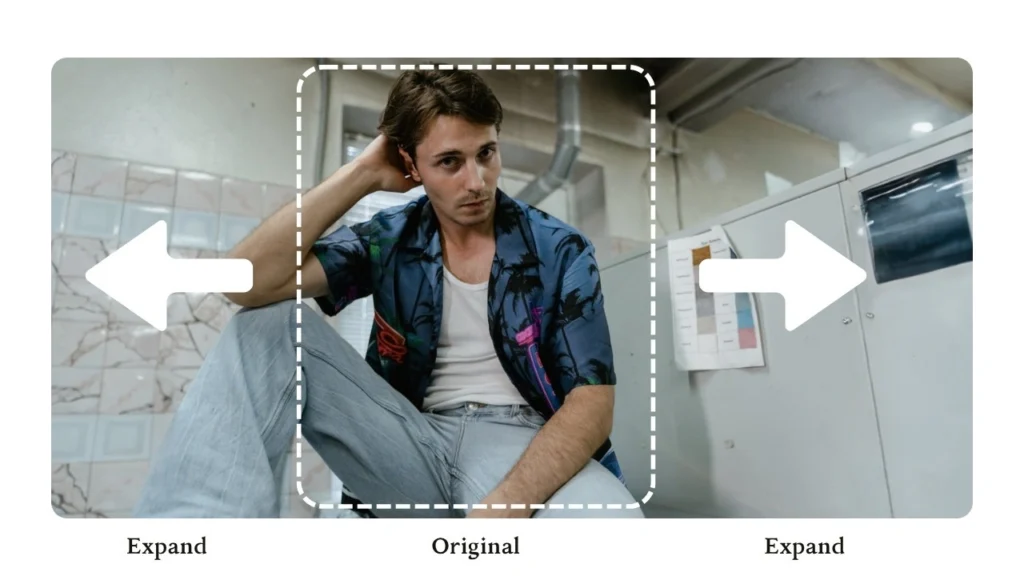
AI outpainting is the process of extending an image beyond its original boundaries using artificial intelligence. The AI studies the existing image and generates new visual content that continues the scene naturally outside the frame. This includes matching colors, textures, lighting, and spatial relationships so the expanded areas feel like a true extension of the original image.
At a technical level, AI outpainting works by predicting what could logically exist beyond the visible edges. It looks at patterns such as background gradients, repeating textures, architectural lines, or environmental elements, and then creates new pixels that align with those patterns. This allows the image to grow without obvious seams or visual breaks.
AI outpainting can extend images in multiple ways:
- Horizontally, by adding space to the left or right
- Vertically, by expanding the top or bottom
- Diagonally, by growing corners naturally
- In all directions, for full canvas expansion
This approach is far more advanced than background replacement or padding. Background replacement swaps the scene entirely, often breaking realism. Padding simply adds empty or blurred space without context. AI outpainting, by contrast, generates meaningful visual content that respects the original composition and intent of the image, making it suitable for professional and commercial use.
2. Why AI Outpainting Matters for Modern Content Creation

Modern content is no longer created for a single platform. A single image may be used across websites, social media, ads, and marketplaces, each with different size and layout requirements. AI outpainting solves this challenge by allowing creators to extend images beyond their original boundaries instead of cropping or resizing them.
Traditional image resizing often creates problems that reduce visual quality and impact:
- Important parts of the subject get cropped
- Backgrounds feel incomplete or stretched
- Composition and balance are lost
- Visual consistency breaks across platforms
AI outpainting approaches image editing differently. Instead of shrinking or cutting the image, it intelligently expands the canvas while preserving the original scene. The AI analyzes surrounding pixels and generates new areas that feel natural and visually coherent.
Key elements preserved using AI outpainting include:
- Original image context and composition
- Lighting direction and shadow continuity
- Perspective, depth, and background patterns
For creators, brands, and marketers working at scale, this capability is critical. Campaigns often require dozens of image sizes for platforms like Instagram, Google Ads, Shopify, and landing pages. AI outpainting reduces production time, eliminates manual editing, and ensures brand visuals remain consistent across every format.
3. Common Use Cases for AI Outpainting

AI outpainting is used across creative and commercial workflows where image flexibility and quality matter. It allows teams to adapt visuals without reshoots or redesigns, making it a practical tool for everyday content production.
Social Media and Digital Platforms
Different platforms require different aspect ratios. AI outpainting helps extend images for:
- Instagram posts, stories, and reels
- YouTube thumbnails
- LinkedIn banners
- Pinterest and ad creatives
Instead of cropping faces or products, the image is expanded naturally.
E-commerce and Product Photography
Online stores often need clean, wider backgrounds for product listings. AI outpainting enables:
- Expanding studio backgrounds
- Adjusting product framing without reshooting
- Maintaining consistent presentation across catalogs
Marketing and Advertising
For banners and ads, space is essential for text and design elements. AI outpainting helps by:
- Extending backgrounds for display ads
- Creating horizontal and vertical ad variations
- Preserving brand aesthetics across campaigns
Websites and Landing Pages
Hero sections and landing pages often need wide visuals. AI outpainting allows:
- Expanding images to fit full-width layouts
- Maintaining visual balance without distortion
- Creating high-impact first impressions
Photography and Creative Workflows
Photographers and designers use AI outpainting to reframe images after a shoot. This avoids reshoots while enabling:
- Better storytelling through composition
- Flexible cropping for different outputs
Fashion, Lifestyle, and AI-Generated Content
AI outpainting is especially valuable for fashion and lifestyle imagery where backgrounds play a key role. It also helps refine AI-generated images by extending scenes and adding visual context, making them look more complete and realistic.
4. Introducing PiktID Expand: AI Outpainting Built for Realism

PiktID Expand is a professional AI outpainting tool designed to extend images beyond their original borders without breaking visual continuity. Instead of stretching pixels or repeating background patterns, it intelligently generates new image areas that blend naturally with the existing scene.
AI outpainting with PiktID Expand is built for creators and businesses that need realistic image expansion for commercial use. The tool understands context, depth, and lighting, which allows it to produce results suitable for marketing, e-commerce, design, and photography workflows.
What Makes PiktID Expand Different
PiktID Expand focuses on image realism rather than decorative fills. Each AI outpainting generation is guided by the visual information already present in the image.
Key capabilities include:
- Extending images in every direction, including top, bottom, left, and right
- Preserving original lighting direction and natural shadows
- Maintaining texture consistency across backgrounds and surfaces
- Matching existing color grading and visual depth
- Avoiding visible seams, blur, or artificial edges
This makes AI outpainting results look intentional, not generated.
Integration with the PiktID Studio Ecosystem
PiktID Expand works seamlessly with other tools in the PiktID Studio, allowing full image refinement in a single workflow:
- Upscale can be applied after AI outpainting to increase resolution and sharpen textures
- Edit Background allows further cleanup or stylization of extended areas
- Create Image can be used to generate new visual elements that blend into the expanded scene
This integrated approach ensures that AI outpainting is not a standalone step, but part of a complete visual production pipeline.
5. Step-by-Step: How to Use AI Outpainting with PiktID Expand

Using AI outpainting in PiktID Expand is simple and flexible, even for first-time users. The interface allows precise control over how and where your image is extended.
Step 1: Load an Image
Upload your image using the upload box. The tool supports drag-and-drop for quick access. High-resolution images with clear lighting produce the best results.
Step 2: Adjust Expansion Sides
Choose how much space you want to add on each side of the image.
You can:
- Enter pixel values for top, bottom, left, and right
- Drag the image edges directly in the preview for visual control
This allows you to expand the image in a single direction or evenly in all directions.
Step 3: Select Aspect Ratio (Optional)
If you are designing for a specific platform, use the aspect ratio selector.
This helps maintain consistency for:
- Social media posts
- Website banners
- Product listings
- Advertising creatives
The AI outpainting engine automatically adjusts the expansion to match the selected ratio.
Step 4: Set Advanced Options (Optional)
For more control, open the Advanced panel.
Here, you can:
- Add a prompt to guide the AI outpainting style
- Use a seed value to reproduce similar results across multiple images
This is useful when expanding multiple visuals for the same campaign or brand.
Step 5: Generate the Outpainted Image
Click Generate to start the AI outpainting process.
Once completed, all generated images from your session can be accessed through the History tab for easy review and download.
Important Note on Image Storage
All uploaded and edited images are automatically deleted after 24 hours. This process is irreversible, so make sure to download your results before the time limit expires.
6. Best Practices for High-Quality AI Outpainting Results

AI outpainting works best when the original image gives the model enough visual context to extend the scene naturally. Following a few practical guidelines can significantly improve realism, continuity, and final output quality.
Start with clear, high-resolution images
AI outpainting relies heavily on existing visual information. Images with higher resolution provide more detail for the AI to understand textures, lighting gradients, and scene depth.
- Sharp edges and clean details help generate realistic extensions
- Low-resolution or blurry images often lead to soft or inconsistent outpainted areas
- High-quality inputs reduce the need for multiple regenerations
Avoid extreme cropping near important subjects
If a subject is cropped too tightly, the AI has limited context to predict what should appear beyond the frame.
- Leave enough surrounding space around faces, products, or key objects
- Tight crops increase the risk of distorted anatomy or unnatural background patterns
- AI outpainting performs better when it can infer the scene logically
Ensure consistent lighting in the original photo
Lighting consistency is one of the most important factors for believable AI outpainting.
- Even lighting produces smoother transitions between original and extended areas
- Strong shadows or mixed lighting sources can confuse the model
- Natural daylight or controlled studio lighting usually gives the best results

Expand gradually for complex scenes
For detailed environments such as cityscapes, interiors, or fashion shoots, gradual expansion delivers better continuity.
- Extend one direction at a time for complex images
- Review each expansion before continuing
- This approach helps maintain perspective, scale, and background coherence
Use Upscale after AI outpainting for sharper results
Once the image has been extended, running it through an upscaling process improves overall quality.
- Enhances textures in newly generated areas
- Improves clarity for print, ads, or large displays
- Helps unify original and outpainted regions
Know when to regenerate for better continuity
Sometimes the first result may not perfectly match the original image.
- Regenerate if textures repeat unnaturally
- Retry if perspective or depth feels incorrect
- Minor variations can significantly improve realism
AI outpainting is most effective when treated as a refinement process rather than a one-click action.
7. AI Outpainting vs Traditional Image Editing Methods

Before AI outpainting, extending images required manual design work or visual compromises. Comparing modern AI outpainting with traditional methods highlights why it has become the preferred solution.
Manual Photoshop background extension
Traditional background extension involves cloning, masking, and painting by hand.
- Requires advanced design skills
- Time-consuming and difficult to scale
- High risk of visible repetition or pattern artifacts
- Not practical for large volumes of images
AI outpainting automates this process by understanding context and generating new content intelligently, reducing hours of manual effort to seconds.
Content-aware fill limitations
Content-aware fill works well for small gaps but struggles with larger expansions.
- Often repeats nearby textures unnaturally
- Limited understanding of depth and scene logic
- Breaks down when extending beyond simple backgrounds
AI outpainting goes beyond patching gaps and instead creates new, context-aware visuals that align with the original composition.
Stock background overlays
Using stock images to extend or replace backgrounds introduces visual inconsistency.
- Mismatched lighting and perspective
- Hard to blend edges naturally
- Results often look artificial or staged
AI outpainting generates extensions that match the original image’s lighting, color tone, and depth, creating a seamless result.
Resizing and cropping compromises
Resizing or cropping images to fit different formats often sacrifices composition.
- Important elements may be cut off
- Visual balance is lost
- Limited flexibility across platforms
AI outpainting solves this by expanding the image instead of shrinking it, preserving the original intent and subject placement.
Why AI Outpainting Is the Better Approach
AI outpainting offers clear advantages for modern workflows:
- Faster image expansion without manual editing
- More natural results that respect lighting and texture
- Lower production costs compared to design-heavy methods
- Easy scalability for marketing, e-commerce, and content teams
- Consistent results across multiple formats and platforms
For creators and businesses that need flexibility without sacrificing quality, AI outpainting represents a significant upgrade over traditional image editing techniques.
8. Comparison Table: PiktID Expand vs Other AI Outpainting Tools

Not all AI outpainting tools are reveal built for extending images in a professional or commercial context. Many popular tools focus on quick edits or creative experiments, while others require technical setup or produce inconsistent results. The table below compares PiktID Expand with commonly used AI outpainting solutions, highlighting where each tool performs well and where limitations exist.
Key Comparison Criteria Explained
Before looking at the table, here’s what each factor means in real-world usage:
- Directional expansion support refers to whether the tool can extend an image on all sides (left, right, top, bottom) rather than a fixed canvas.
- Texture and lighting preservation measures how well the AI maintains shadows, color grading, depth, and surface detail in newly generated areas.
- Ease of use evaluates how quickly non-technical users can produce clean results.
- Output resolution matters for print, ads, and high-quality digital assets.
- Commercial usage readiness reflects licensing clarity and suitability for business use.
- Free usage availability indicates whether users can test this tool without payment.
AI Outpainting Tool Comparison
| Feature / Tool | PiktID Expand | Canva | Adobe Firefly | DALL·E Outpainting | Runway |
| Directional image expansion | Yes – all directions | Limited | Partial | Partial | Limited |
| Texture and lighting preservation | High, consistent | Medium | High | Medium | Medium |
| Ease of use | Very easy, no learning curve | Easy | Moderate | Easy | Moderate |
| Output resolution | High-resolution export | Medium | High | Medium | Medium |
| Commercial usage readiness | Fully supported | Limited | Supported | Unclear | Limited |
| Free AI outpainting access | Yes (free credits) | Limited | Limited | Limited | Trial-based |
Why PiktID Expand Performs Better for AI Outpainting
PiktID Expand is designed specifically for image extension, not general design or experimental generation. This focus allows it to deliver more reliable results when extending images in every direction.
Key advantages include:
- Consistent lighting and shadow continuation across expanded areas
- Natural texture generation that matches the original image
- Simple controls that do not require prompt engineering
- Clean exports suitable for e-commerce, marketing, and web use
- Clear commercial usage rights
In contrast, many tools listed above treat AI outpainting as a secondary feature, which often leads to cropped results, mismatched textures, or limited control over expansion direction.
When Other AI Outpainting Tools May Be Useful
Other tools can still be useful depending on the goal:
- Canva works well for simple design layouts but struggles with realistic image extension.
- Adobe Firefly offers strong quality but limited flexibility and free usage.
- DALL·E outpainting is useful for creative experimentation rather than precise extensions.
- Runway focuses more on video and creative workflows than still-image accuracy.
- Stable Diffusion-based editors offer flexibility but require technical knowledge and tuning.
9. Ethical, Legal, and Creative Considerations

As AI outpainting becomes more common, responsible usage is essential, especially for commercial and public-facing content.
Using AI Outpainting Responsibly
AI outpainting should enhance an image without misrepresenting reality. It is best used to extend backgrounds, improve framing, or adapt images for different formats rather than altering the core subject in misleading ways.
Responsible usage includes:
- Extending environments, not fabricating false context
- Preserving the original intent of the image
- Avoiding manipulation that could mislead viewers
Avoiding Misleading or Deceptive Visuals
In marketing and media, AI outpainting should not be used to imply scenes or settings that did not exist. For example, extending a background to suggest a larger space is acceptable, but altering surroundings to change the narrative of an image may be misleading.
Transparency builds trust, especially in advertising and editorial content.
Copyright Considerations
AI outpainting should only be applied to images you own, license, or have permission to modify. Using copyrighted material without authorization can lead to legal issues, even if the AI generates new pixels.
Best practices include:
- Using original photos
- Using licensed stock images
- Avoiding protected or branded content
When AI Outpainting Is Acceptable for Commercial Content
AI outpainting is widely accepted for:
- Marketing banners
- Website hero images
- E-commerce product photos
- Social media creatives
- Fashion and lifestyle imagery
It becomes problematic only when it alters factual claims or misrepresents products or locations.
Maintaining Transparency in Edited Images
For professional credibility, it is good practice to disclose AI-assisted edits when relevant. Many brands already note when visuals are AI-enhanced, which helps maintain ethical standards while still benefiting from workflows.
Used correctly, AI outpainting enables faster production, better design flexibility, and consistent visuals without compromising trust or legality.
10. Conclusion

AI outpainting has changed how images are adapted for modern digital use. Instead of cropping important elements or stretching backgrounds unnaturally, AI outpainting allows images to be extended in every direction while keeping the original scene intact. This makes it possible to reuse a single image across multiple formats without losing composition or visual quality.
With AI outpainting, creators can:
- Expand images horizontally or vertically for different aspect ratios
- Add realistic background space around subjects
- Preserve original lighting, perspective, and depth
- Avoid time-consuming manual edits or reshoots
PiktID Expand is built specifically for this purpose. It analyzes the existing image and generates new areas that blend naturally with the original content. Textures remain consistent, lighting flows correctly into the extended regions, and the final image looks cohesive rather than artificially filled.
For creators, marketers, and businesses, adopting AI outpainting means faster workflows and more flexibility. One image can now be adapted for websites, ads, social media, and marketing banners without starting from scratch. This reduces production effort while maintaining professional visual standards.
Ready to extend your images effortlessly? Try PiktID Expand with 10 free credits.
Visit https://studio.piktid.com/expand to get started today.
11. FAQs for AI Outpainting

1. What is AI outpainting?
AI outpainting is a technique that extends an image beyond its original borders using artificial intelligence. The AI predicts and generates new visual content that matches the existing scene, allowing the image to grow in any direction while remaining realistic.
2. How does AI outpainting extend images in every direction?
AI outpainting analyzes the colors, textures, lighting, and patterns in the original image. Based on this context, it creates new pixels outside the frame that align with the existing environment. This process works horizontally, vertically, and diagonally, making full-image expansion possible.
3. Is AI outpainting free to use?
Some tools offer limited free usage. PiktID Expand allows users to try AI outpainting with free credits, making it easy to test image expansion before committing to larger projects.
4. How is AI outpainting different from inpainting?
AI outpainting adds new content outside the image boundaries, while inpainting fills missing or removed areas within an image. Outpainting is used for image extension, whereas inpainting focuses on repair or object removal.
5. Does AI outpainting affect image quality?
When done correctly, AI outpainting preserves image quality. Using high-resolution source images helps ensure that textures and details remain sharp. Tools like PiktID Expand are designed to maintain consistency in lighting and depth across the extended areas.
6. Can I use AI outpainting for commercial projects?
Yes, AI outpainting can be used for commercial purposes as long as you own the rights to the original image. Many brands use it for marketing creatives, product images, and website visuals.
7. Which images work best for AI outpainting?
Images with clear subjects, consistent lighting, and minimal visual noise tend to produce the best results. Photos with natural backgrounds and sufficient detail give the AI more context to generate realistic extensions.
8. How accurate is PiktID Expand for background extension?
PiktID Expand is designed for high accuracy. It maintains visual continuity by matching textures, shadows, and perspective, which makes the extended areas blend smoothly with the original image.
9. Can I outpaint images for social media and ads?
Yes, AI outpainting is commonly used to adapt images for different aspect ratios required by social media platforms and advertising networks. It allows one image to fit multiple layouts without cropping key elements.
10. Where can I try AI outpainting for free?
You can try AI outpainting using PiktID Expand, which offers free credits to get started. Visit https://studio.piktid.com/expand to upload an image and extend it in any direction.