
Estimated reading time: 17 minutes
Summarizing the Need for Image Expansion
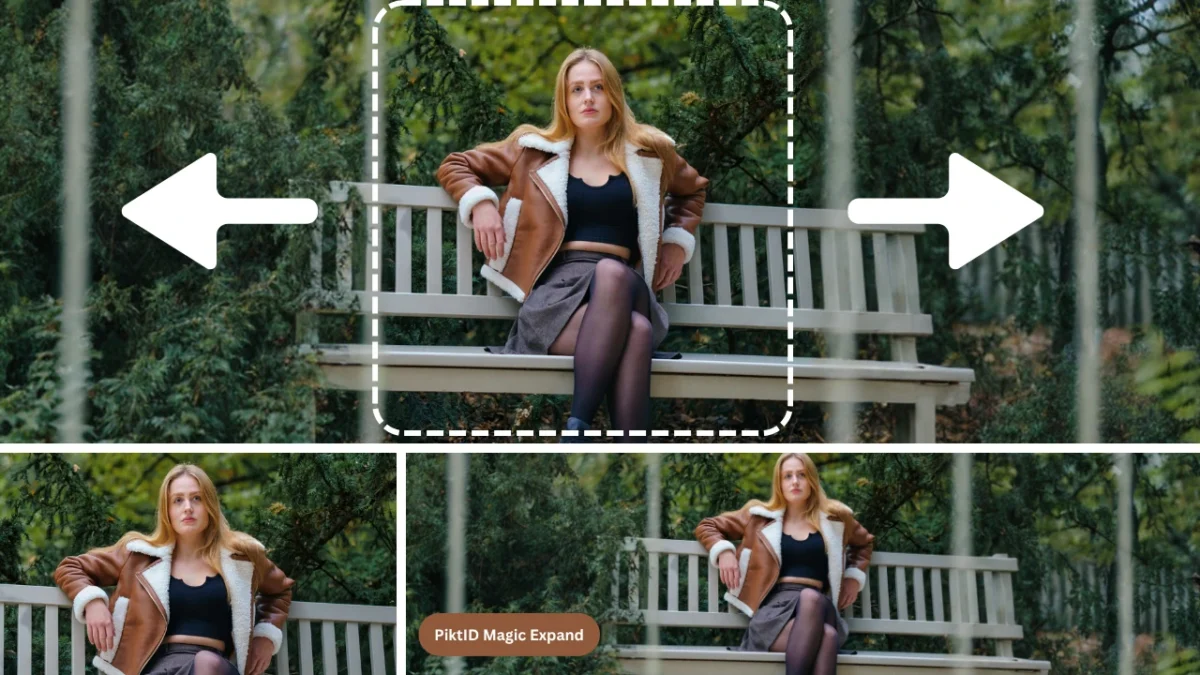
In modern digital design and marketing, the need to stretch image layouts arises when visuals must fit specific space requirements without losing quality or coherence. Simply enlarging an image by pulling pixels often leads to distortion, where subjects look warped, edges blur, and textures break down.
These problems are especially visible when images are used in banners, ads, responsive web layouts, and print where format precision matters.
Traditional image manipulation techniques often fall short because they treat images as fixed grids of pixels. When you stretch an image in these tools, every pixel is pulled outward, which can flatten facial features, distort product shapes, and make backgrounds appear smeared or unnatural.
The modern answer to this challenge lies in AI-powered approaches such as outpainting, where new image content is generated beyond the original borders in a visually coherent way. This technique goes beyond manual scaling, adding contextually appropriate background and detail rather than merely stretching what already exists.
Table of Contents
1. Why Stretching an Image Matters in Professional Workflows

In professional settings, the need to stretch image layouts is not about aesthetic experimentation — it is a practical necessity driven by platform requirements, design standards, and asset reuse. When these requirements are not met, visuals appear unprofessional, leading to a loss of audience trust and engagement.
Difference Between Resizing and Stretching
Understanding the distinction between resizing and stretching helps clarify why simple image tweaks can fail:
- Resizing changes the overall size of an image while keeping its original proportions intact.
- Stretching changes the width or height independently, which can alter how subjects and elements appear.
- When you stretch image dimensions without generating new content, pixels are redistributed unevenly, and this affects realism and visual balance.
Correct image expansion should do more than just enlarge dimensions; it should maintain content integrity while adapting to new formats.
Why Traditional Tools Fail
Traditional image editors, including conventional photo resizing tools, often lack awareness of what is in the image. These tools operate on the raw pixel layer rather than the scene context, which leads to several failure points when trying to stretch image layouts:
- They do not distinguish between people, products, or background elements.
- They apply uniform stretching across the entire image, which leads to warped subjects.
- They cannot add new visual content beyond the original frame.
Because of these limitations, simply stretching an image with legacy tools often results in distortion rather than a visually coherent expansion.
Impact on Brand Credibility
Visual quality directly influences user perception. If viewers notice distortion around faces, bodies, or products, they may associate this with low production values or inconsistency in brand experience. Common consequences include:
- Lower engagement on social posts or digital ads
- Reduced trust in e-commerce product imagery
- Poorer viewer response in design and multimedia contexts
Professional environments demand that images perform well across formats without distortion, which is why intelligent image expansion methods are critical.
2. When stretching is unavoidable
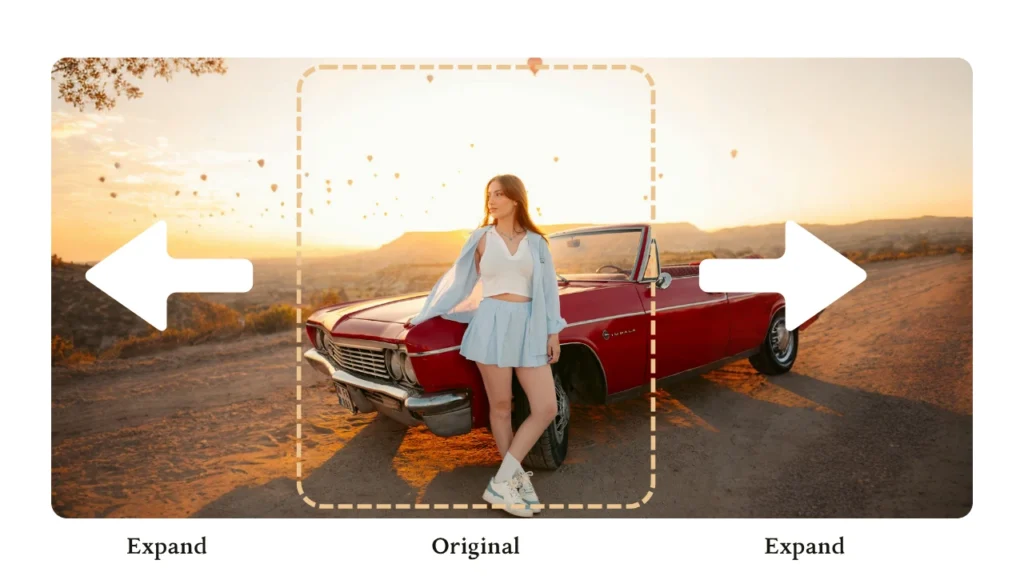
In real projects, “perfect sizing” is rarely an option. Teams often need to stretch image layouts because the same visual must fit multiple formats without doing a new photoshoot.
Common situations where you must stretch image layouts (or expand them) include:
i. Adapting vertical images for banners
A portrait photo may need to fit a wide website header or a YouTube cover. Cropping can cut out the subject. Resizing can leave empty space. Stretch image workflows are used to create extra width while keeping the subject intact.
ii. Responsive web layouts
Web pages change shape across mobile, tablet, and desktop. A hero image that looks perfect on mobile can look too tight on desktop. Stretch image workflows (done correctly) help add “breathing room” around the subject so the layout remains clean across screen sizes.
iii. Marketplace requirements
Marketplaces and ad platforms often enforce strict aspect ratios. If a product photo is too tight, you either crop (risking loss of important detail) or use a stretch image workflow to expand background space and keep the product fully visible.
iv. Print formats
Print sizes can force layout changes (posters, flyers, catalogs). If the image is slightly too narrow or too short, stretching pixels will look soft in print. A stretch image workflow should focus on extending backgrounds and then restoring sharpness for production output.
How PiktID fits this requirement:
PiktID supports professional stretch image needs by expanding or regenerating background areas and then improving final clarity, which is the core pattern used in modern “no distortion” workflows.
3. Common problems when you stretch image

Most stretch image issues happen when pixels are pulled directly instead of expanding the scene intelligently. Here are the failures that show up most often in real commercial work.
Aspect ratio distortion
This is the fastest way to make an image look “wrong” to the human eye.
What it looks like:
- Faces appear wider or taller than natural proportions
- Bodies look compressed or elongated
- Products lose their intended shape (bottles look squashed, boxes look warped)
Why it happens:
- The image is stretched from the sides or top/bottom without protecting the subject
- The workflow treats the entire image as equally stretchable
How to reduce it in a stretch image workflow:
- Keep the subject “protected” and expand background areas instead (the approach emphasized in content-aware stretching methods)
- If you must change aspect ratio, do it by adding space (outward expansion) rather than pulling the subject wider/taller
Texture and fabric deformation
Even when distortion is subtle, textures usually reveal the edit.
What it looks like:
- Broken fabric folds or unnatural clothing patterns
- Skin texture becomes smeared or “rubbery”
- Surfaces like leather, metal, wood, or walls show stretched grain and repeated artifacts
Why it happens:
- Pixel stretching spreads texture details too thin
- Background and subject edges get blended incorrectly
How to reduce it in a stretch image workflow:
- Expand backgrounds using intelligent regeneration rather than pixel pulling
- Avoid stretching areas with high-detail texture (fabric, hair, skin)
- Finalize with a quality-restoration step (upscaling) to recover micro-detail after layout changes
Loss of resolution
This is a commercial-grade issue because what “looks okay” on screen can fail on ads and print.
What it looks like:
- Blurry visuals after you stretch image dimensions
- Edges look soft around the subject
- Textures lose crispness, especially on fabric and product surfaces
- Print output reveals softness and pixel artifacts
Why it happens:
- Stretching increases the image area without adding real detail
- The image is effectively being “pulled” beyond its original information
How to reduce it in a stretch image workflow:
- Avoid enlarging the subject area through stretching
- Perform resolution recovery after you finish layout changes (upscaling is typically recommended after resizing/enlargement to restore clarity)
- For print: validate at intended output size early, because print reveals softness faster than social previews
4. How AI Changes the way you Stretch Image
When people search “stretch image,” they usually mean one of two things:
- “Make this fit a wider/taller space without making people or products look weird.”
- “Change dimensions for ads, websites, or listings without losing quality.”
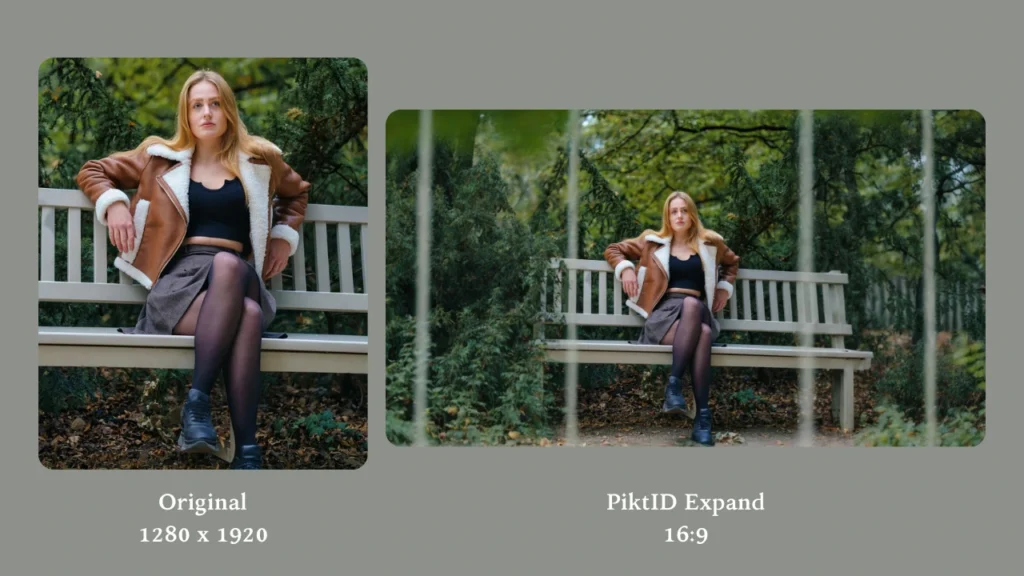
Traditional stretching pulls pixels. AI-based stretching is different because it understands what the pixels represent (subject vs background), then stretches only what can safely change.
Content-aware stretching
Content-aware methods focus on protecting important areas and redistributing change into less noticeable regions. This is the core concept highlighted in leading “stretch image without distortion” tutorials and documentation.
Practical outcomes of content-aware stretching:
- The tool identifies “high importance” regions (faces, bodies, products, logos, text).
- It reduces deformation in those areas.
- It shifts expansion into backgrounds, empty space, or low-detail regions.
Why this matters in real projects:
- A stretched background is rarely noticed.
- A stretched face or product is noticed immediately.
Selective stretching
Selective stretching means you do not stretch the entire frame equally. Instead, the workflow targets the safest areas.
Common “stretch image” scenarios where selective stretching is the right approach:
- Extending a hero banner without widening the subject
- Creating more negative space for ad copy
- Adapting product shots to marketplace ratios
Subject protection
Subject protection is the “make-or-break” factor for realistic results.
AI subject protection typically aims to preserve:
- Face proportions (no widening or squashing)
- Product geometry (no warped shapes)
- Brand elements (no distorted logos or typography)
This is the same principle described in professional “preserve visual content” scaling approaches.
Subject-aware expansion
Subject-aware expansion goes one step further: instead of only minimizing distortion, AI expands around the subject.
What subject-aware expansion does when you stretch image layouts:
- Keeps faces and products intact
- Expands the surrounding environment
- Maintains perspective and lighting continuity
This approach aligns with what users actually want from a “stretch image” workflow: change the layout, not the subject.
5. Why PiktID for Image Stretching
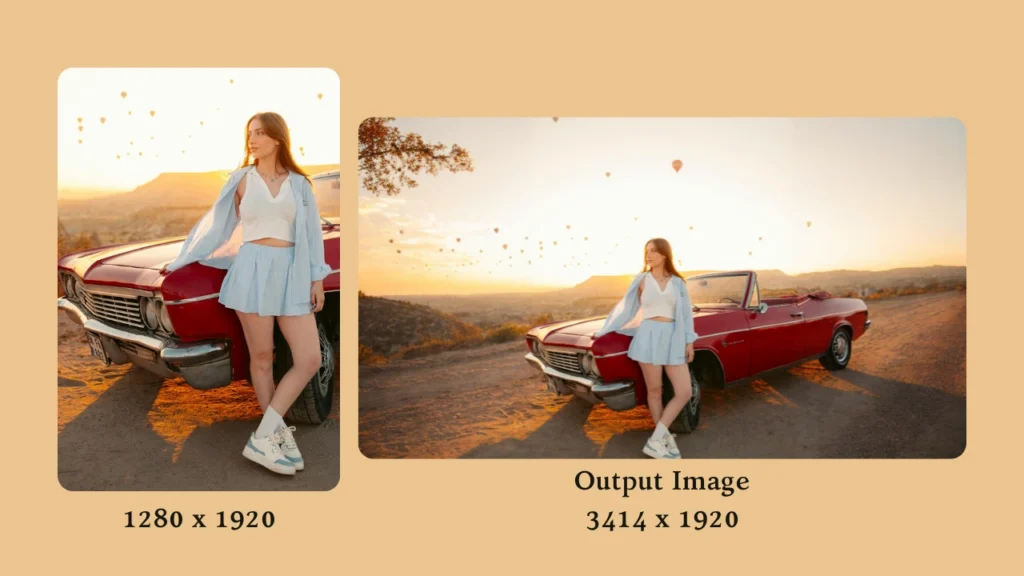
Most tools that “stretch image” dimensions are built for general editing. PiktID is designed for professional, commercial-grade realism. The difference is not just output quality—it is how the workflow protects identity, edges, and textures.
Subject preservation
PiktID prioritizes subject preservation so the “stretch image” process does not deform the most important elements.
This is critical for:
- People (faces, skin detail, body proportion)
- Products (shape, symmetry, label integrity)
- Brand visuals (clean edges, consistent look)
Result:
- The layout changes, but the subject stays believable.
Background expansion
Instead of stretching everything, PiktID focuses on expanding the background or negative space to achieve the target dimensions.
- Background changes are less noticeable than subject distortion
- You can create space for banners, thumbnails, and ad text
- You can meet strict platform ratios without reshoots
This follows the same high-level logic you see in content-aware stretching best practices: protect what matters, expand what can safely change.
Texture and edge retention
Stretching often harms quality in two visible ways:
- Softness (loss of sharpness)
- Edge artifacts (haloing, jagged cut lines, “pulled” textures)
Professional workflows need texture and edge retention to keep outputs usable for:
- E-commerce zoom and high-resolution product views
- Paid ads (where softness reduces perceived quality)
- Print production
Quality preservation is consistently emphasized in image resizing and “avoid distortion” guidance. PiktID’s outpainting guide provides the best use-case of the tool.
6. PiktID Tools used to Stretch Image Professionally
Professional workflows require more than basic stretching. They require realism, subject protection, and production-ready output. PiktID approaches stretch image workflows using specialized AI tools instead of simple pixel manipulation.

Magic Expand – Enlarged Image Layouts
In campaigns requiring multiple layouts, cropping the image is not an option to sacrifice the image quality and subject matter.
Expand helps you:
- Keep the same subject across stretched layouts
- Maintain brand continuity
- Ensure visual uniformity in ads
This feature differentiates PiktID from basic stretch image tools that cannot manage layout control.
Edit Background – Change Without Distortion
Edit Background is the primary tool used when you need to change the background of a subject or product within the image safely.
Instead of pulling pixels outward, it:
- Expands the canvas around the subject
- Protects faces, bodies, and products
- Maintains lighting and edge separation
- Prevents warped proportions
This is critical because most free stretch image tools distort the subject when resizing unevenly.
Best use cases:
- Converting vertical images into horizontal banners
- Adding breathing space for ads
- Adjusting marketplace image dimensions
Create Image – AI-Based Image Development
Sometimes stretching requires generating new content rather than extending existing pixels.
Create Image allows you to:
- Develop new background areas using prompts
- Add realistic environmental continuation
- Maintain style consistency
Unlike traditional stretch image tools that duplicate pixels, this approach creates logical visual extensions.
This is especially useful when:
- The original image has tight cropping
- There is no natural background space to expand
- You need clean visual composition
Upscale – Restore Quality After You Stretch Image
When you stretch image layouts, resolution may drop or appear soft.
Upscale restores clarity by:
- Enhancing edge sharpness
- Improving texture detail
- Making images print-ready
- Optimizing for high-resolution displays
7. Step-by-Step using PiktID to Stretch Image
Below is a professional-grade workflow designed for realistic expansion.
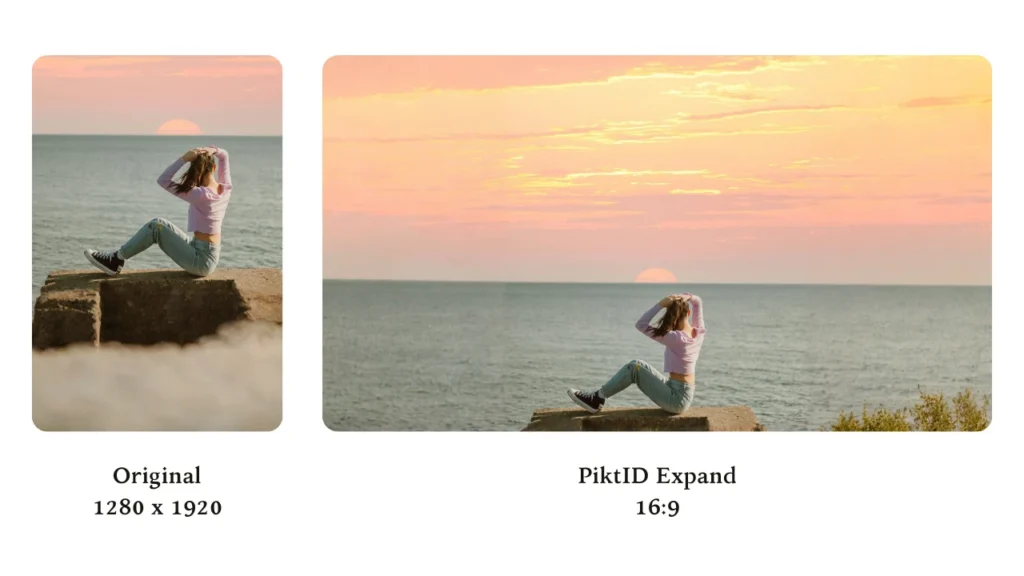
Step 1 – Load an Image
Start by uploading your image into PiktID Expand. You can:
- Drag and drop the image
- Upload directly through the image box
For best results:
- Use high-resolution images
- Ensure clear subject separation
- Avoid heavy shadows on key elements
Higher quality input produces better stretch image results.
Step 2 – Adjust Expansion Sides
Instead of scaling the entire image, choose how much to expand each side.
You can:
- Add pixels to the top
- Expand bottom space
- Extend left or right
This controlled expansion ensures you stretch image layouts selectively instead of distorting the subject. You have the option to manually input your layout based on the number of pixels required within the image.
Step 3 – Select Aspect Ratio
If you need a specific format, use the aspect ratio selector.
This helps:
- Automatically maintain proportional balance
- Fit marketplace or ad requirements
- Prepare images for banners or social posts
PiktID goes further by combining ratio control with intelligent expansion.
Step 4 – Set Advanced Options (Optional)
For greater control, use Advanced settings.
You can:
- Add prompts to guide background generation
- Use a seed value for consistent results
- Fine-tune how the image extends
This is useful when you want consistent stretch image results across multiple versions.
Step 5 – Generate
Click Generate to begin the outpainting and expansion process.
PiktID will:
- Analyze the original image
- Expand the selected sides
- Maintain lighting and perspective
- Protect the subject
The result is a stretched image layout that looks natural, not manipulated.
Step 6 – Access Your Generated Images
All expanded images are saved in the History tab. You can:
- Download final versions
- Compare variations
- Re-edit previous generations
This makes iterative stretch image workflows efficient and organized. Read more about AI Outpainting.
8. Best Practices When You Stretch Image Layouts

If you want professional results when you stretch image dimensions, the process must be controlled. Here are the proven best practices.
Stretch Background, Not Subject
When you stretch image layouts incorrectly, distortion usually affects the subject first.
To prevent that:
- Expand empty or background areas only
- Keep faces, bodies, and products untouched
- Treat the subject as a fixed anchor
Human perception detects proportion errors immediately. Even slight distortion in a face or product reduces trust.
Professional workflows focus on extending space around the subject rather than pulling the subject itself.
Maintain Aspect Ratio Whenever Possible
Many online tutorials recommend resizing before stretching. That advice remains valid.
Before you stretch image dimensions:
- Try proportional resizing first
- Evaluate whether cropping solves the layout issue
- Stretch only when required by format constraints
Maintaining the original aspect ratio reduces visual artifacts and preserves realism.
If stretching is unavoidable, combine it with intelligent background expansion instead of uniform scaling.
Use AI Regeneration Instead of Pixel Stretching
Traditional tools stretch pixels. AI tools regenerate context.
The difference is critical.
Pixel stretching causes:
- Blurred textures
- Warped shapes
- Repeated patterns
AI regeneration allows you to stretch image layouts by generating new background content that matches:
- Lighting
- Perspective
- Texture continuity
This approach aligns with how modern professional platforms handle commercial image extension.
Always Upscale After Layout Changes
When you stretch image dimensions, resolution often decreases. Even if the change looks minor on screen, larger displays or print will reveal softness.
After stretching:
- Apply AI upscaling
- Restore edge clarity
- Enhance fabric and skin detail
- Prepare for high-resolution output
Upscaling should always be the final step, not the first. For more reference visit the following guide about AI Image Stretcher by PiktID
9. Use Cases Where Professionals Stretch Image Layouts

i. E-commerce & Fashion
Online marketplaces enforce strict image ratios.
Brands frequently need to stretch image layouts to:
- Convert square product images into horizontal banners
- Add white space for listing requirements
- Fit images into promotional carousels
In fashion:
- Garment proportions must remain accurate
- Fabric texture must not distort
- Model realism must be preserved
Even small errors reduce purchase confidence. Professional image stretching focuses on background expansion, not body manipulation.
ii. Marketing & Advertising
Campaign creatives often require multiple formats from one base image.
Teams stretch image compositions to:
- Adapt hero images to different banner sizes
- Create social media variations
- Fit display ads across networks
Reshooting for every format is expensive.
Stretch image workflows powered by AI allow scalable adaptation without damaging subject integrity.
Consistency across platforms increases brand recall and perceived professionalism.
iii. Design & Publishing
Designers regularly adjust layouts for:
- Website headers
- Magazine spreads
- Print advertisements
- Brochures and catalogs
In publishing, stretching an image incorrectly can:
- Break composition balance
- Distort perspective
- Reduce print clarity
Professional design teams stretch image backgrounds carefully to maintain structure and layout harmony.
iv. Enterprise Media & Corporate Content
Large organizations manage thousands of visual assets.
They often need to stretch image layouts to:
- Standardize internal templates
- Localize global campaigns
- Adjust visuals for presentations
- Maintain consistent brand framing
Enterprise workflows require:
- Predictable output
- Realistic expansion
- Compliance with brand and privacy guidelines
AI-based image stretching ensures scalability without sacrificing control.
10. Ethics & Compliance

When businesses stretch image layouts for commercial use, ethical responsibility is just as important as technical accuracy. Professional image expansion should improve layout flexibility, not mislead viewers.
Below are key ethical and compliance principles to follow whenever you stretch image content in marketing, e-commerce, publishing, or enterprise media.
i. Avoid Misleading Manipulation
When you stretch image dimensions, the goal is layout adaptation — not visual alteration of meaning.
You should never:
- Change body proportions to make someone appear thinner or taller
- Alter product size to exaggerate features
- Modify packaging dimensions to mislead customers
- Stretch image content in a way that changes context or perception
In e-commerce and advertising, misleading manipulation can reduce consumer trust and increase refund rates or complaints. Even subtle distortion introduced while you stretch image layouts can damage credibility.
Best practice:
- Expand background areas instead of altering subjects
- Maintain original proportions of people and products
- Ensure visual accuracy reflects real-world appearance
ii. Preserve Identity
Whenever you stretch image layouts that include real people, identity preservation is critical.
Improper stretching can:
- Distort facial structure
- Misrepresent body shape
- Create unrealistic expressions
In professional workflows, subject-aware AI tools should be used to protect identity while adapting layouts.
Recommended safeguards:
- Keep facial geometry intact
- Avoid stretching through the subject’s face or body
- Verify realism before publishing
If identity cannot be preserved accurately, consider alternatives such as synthetic identity generation.
iii. Follow GDPR and Privacy Guidelines
While many blogs about how to stretch image files focus on technical execution, commercial usage requires regulatory awareness.
If the image includes identifiable individuals:
- Confirm usage rights and consent
- Avoid unnecessary modification of personal data
- Maintain documentation of image editing processes
GDPR and other data protection regulations may apply if content reaches European audiences.
When you stretch image layouts in commercial environments, compliance is not optional — it protects both brand reputation and legal standing.
iv. Use Synthetic Identities When Required
In some cases, modifying real human images — even when technically accurate — may introduce privacy or consent risks.
Synthetic identities are often preferred when:
- Model releases are unavailable
- Large-scale campaign variation is required
- Localization demands multiple demographic versions
- Enterprise risk mitigation is a priority
Using AI-generated identities allows teams to stretch image layouts freely without compromising personal data or consent requirements.
v. Why Ethics Matter When You Stretch Image Content
In commercial workflows, preserving integrity is equally important. When businesses stretch image layouts responsibly:
- Trust remains intact
- Brand credibility improves
- Legal exposure is reduced
- Customer perception stays positive
Stretching images should enhance usability — not distort reality. Professional AI workflows, such as those offered by PiktID, are designed to:
- Protect subject integrity
- Maintain realistic proportions
- Support privacy-conscious editing
- Deliver production-ready visuals suitable for regulated industries
Ethical outpainting and stretch image workflows ensure that visual adaptation supports business growth without compromising authenticity, compliance, or consumer trust. Visit Expand by PiktID
11. Frequently Asked Questions About Stretch Image
1. What does it mean to stretch an image?
To stretch image content means adjusting its width or height independently to fit a new layout. This is often required for banners, ads, marketplace listings, and print formats.
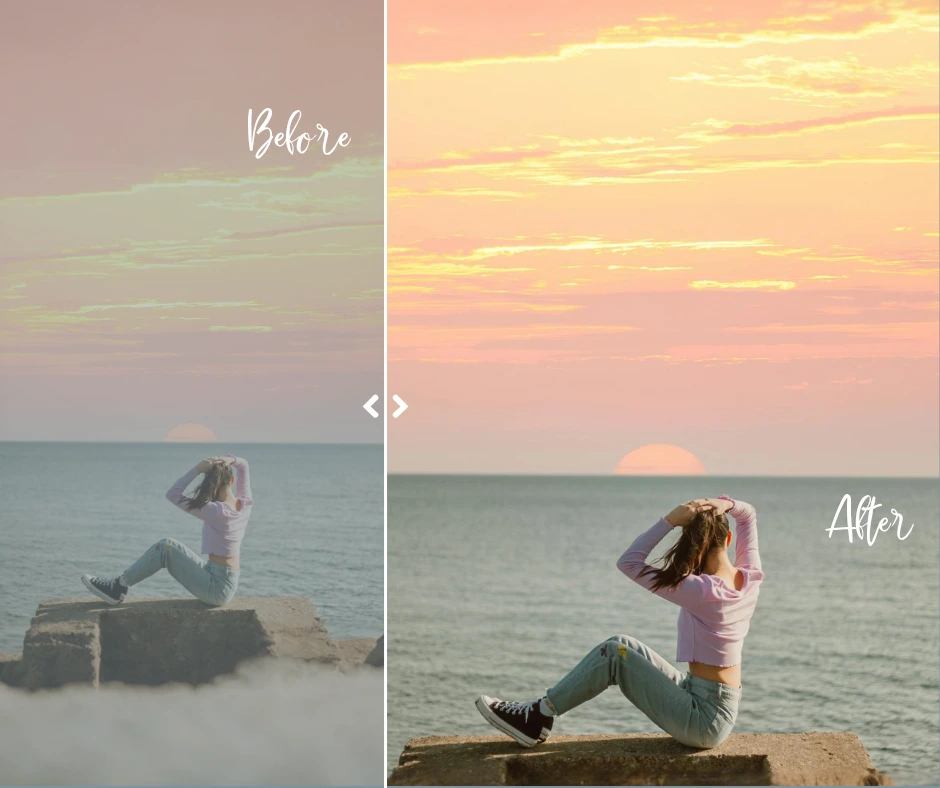
However, traditional stretch image methods simply pull pixels outward, which can distort faces, products, and textures. A more advanced solution is to use AI-powered tools like Magic Expand by PiktID, which intelligently expands images without distorting the subject.
2. How can I stretch an image without distortion?
The safest way to stretch image layouts without distortion is to avoid stretching the subject directly. Instead:
- Expand the background, not the person or product
- Preserve original proportions
- Use AI that understands image structure
Magic Expand by PiktID uses subject-aware AI to generate new background space instead of stretching pixels, ensuring natural and realistic results suitable for commercial use.
3. What is the difference between resizing and stretching an image?
Resizing scales an image proportionally. Everything becomes larger or smaller evenly. Stretching changes only the width or height, which can distort shapes if done incorrectly. When you stretch image dimensions using basic tools, distortion is common. Magic Expand by PiktID solves this by adding new visual content around the subject rather than stretching existing pixels.
4. Why does stretching an image reduce quality?
When traditional tools stretch image pixels, they redistribute existing detail without adding new information. This often causes:
- Blurriness
- Warped shapes
- Texture distortion
- Reduced sharpness
Magic Expand by PiktID avoids this by generating realistic background extensions and allowing users to upscale the final output for high-resolution clarity.
5. Is stretching an image the same as outpainting?
Not exactly. Stretching typically pulls existing pixels. Outpainting generates new content beyond the image borders. Magic Expand by PiktID uses AI-powered outpainting techniques to stretch image layouts safely by expanding backgrounds instead of distorting subjects.
6. How do professionals stretch image layouts for ads?
Professionals rarely rely on simple pixel stretching. Instead, they:
- Expand the canvas
- Protect the subject
- Maintain lighting and perspective
- Enhance resolution before publishing
Magic Expand by PiktID combines intelligent background expansion with resolution recovery, making it suitable for advertising, e-commerce, and enterprise workflows.
7. Can stretching an image affect print quality?
Yes. Directly stretching image pixels can cause soft edges and pixelation, especially in print. Magic Expand by PiktID allows users to expand layouts while maintaining realism and then apply AI-based upscaling for print-ready quality.
8. What is the safest way to stretch image content for e-commerce?
For e-commerce, accuracy is critical. You should never distort product size or proportions. The safest method is:
- Keep the product unchanged
- Expand background space
- Preserve realistic lighting and shadows
Magic Expand by PiktID is designed for commercial workflows, ensuring stretch image adjustments remain truthful and conversion-friendly.
9. Can I stretch an image online for free?
Many free online tools allow you to stretch image files, but most rely on simple pixel stretching and may produce distortion. Magic Expand by PiktID provides professional AI-based image expansion that maintains realism and brand integrity, making it suitable for business use.
10. What is the best tool to stretch image layouts professionally?
The best tool should:
- Protect subject proportions
- Expand backgrounds intelligently
- Maintain lighting and perspective
- Deliver high-resolution output
- Support commercial compliance
Magic Expand by PiktID meets these standards and is specifically built for professional image workflows in e-commerce, advertising, publishing, and enterprise media.