
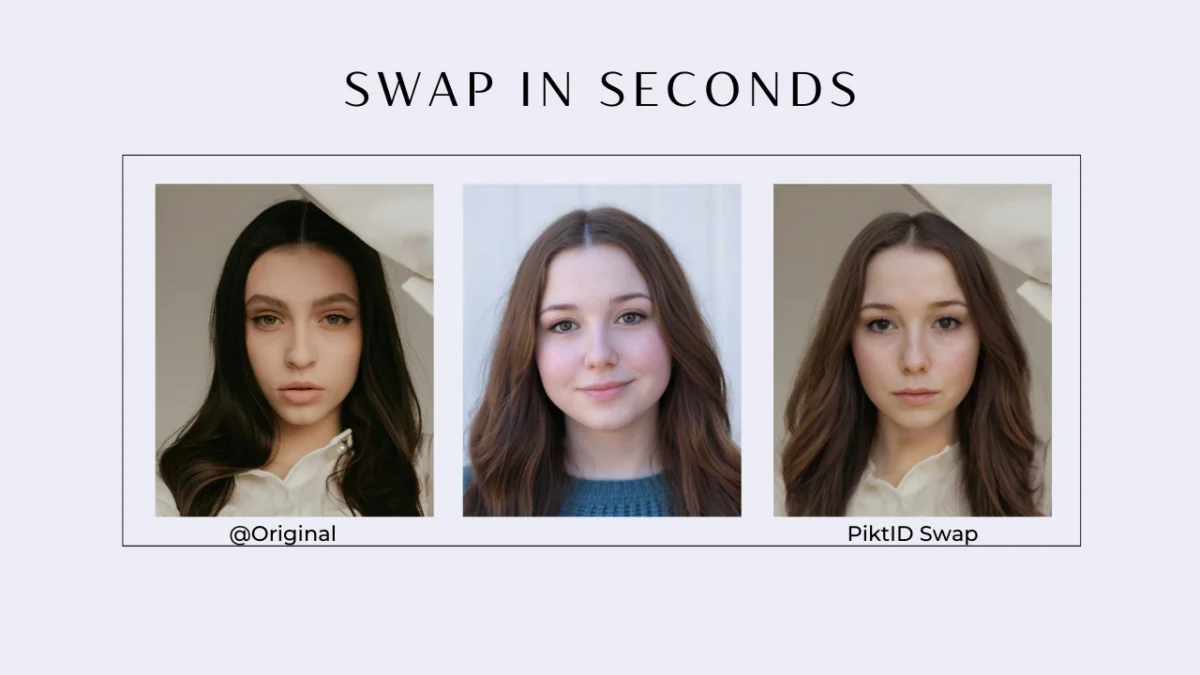
In modern AI editing, the phrase put my face on another body refers to using AI to replace a person’s face on another figure while keeping lighting, pose, and body structure intact. This used to require advanced Photoshop skills, layer masks, and manual blending. Today, AI tools can perform the same process in seconds with far better realism.
PiktID’s Swap feature offers one of the most advanced and natural results in this space. It is built for creators and businesses who need realistic blends, accurate lighting alignment, identity preservation, and model-grade output. Whether someone wants to put my face on another body for fashion samples, thumbnails, campaigns, or fun edits, PiktID delivers consistent results.
1. Why People Want to Put Their Face on Another Body
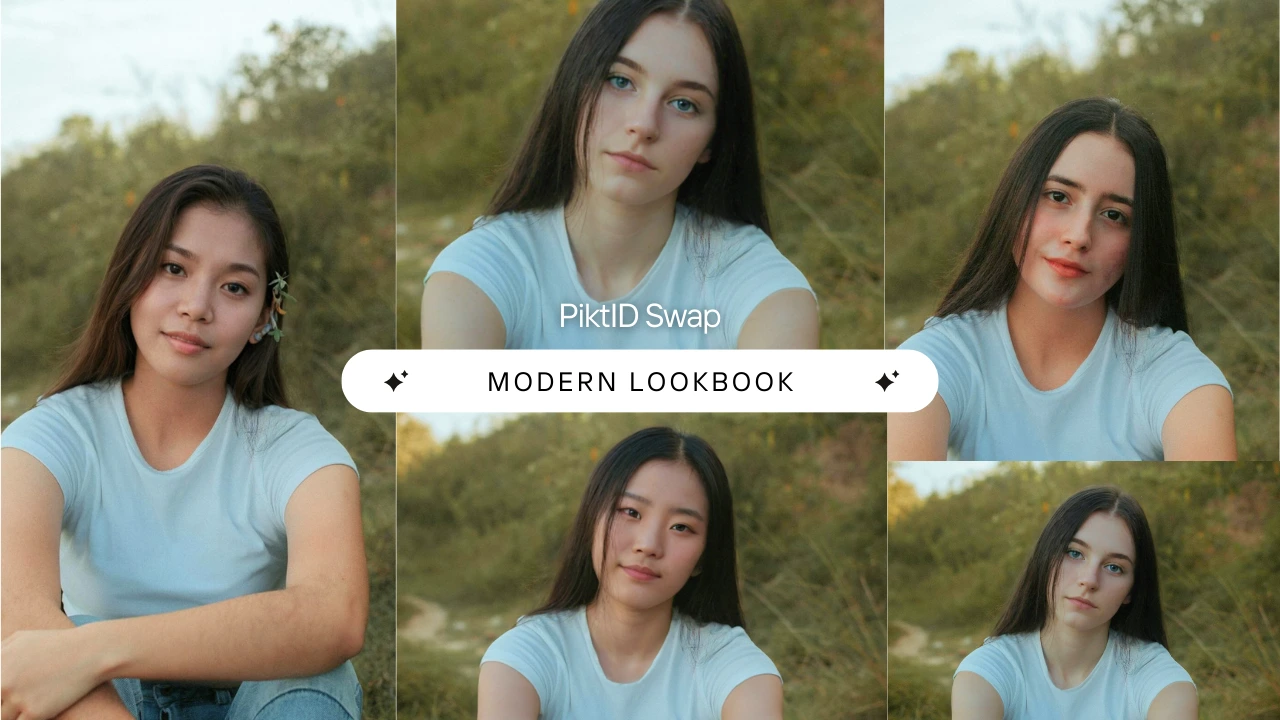
1.1 Growing Popularity of AI Face Swap Searches
The rise in searches related to put my face on another body is driven by mainstream short-form content and social trends. This is no longer a niche editing trick—it’s a mass-adopted format.
Key trends driving demand:
- TikTok and Instagram Reels popularized transformation edits and character swaps.
- YouTube Shorts creators use face swaps for skits, reactions, and cinematic edits.
- “Try-on” culture encourages people to preview themselves in:
- Different outfits
- Movie scenes
- Gym bodies
- Cosplay and costumes
1.2 Use Cases Across Creators and Businesses
The need to put my face on another body stretches far beyond entertainment. AI face swap is now a practical tool across multiple industries.
Key use cases include:
- Fashion brands:
- Creating virtual try-on samples
- Testing outfits on a consistent model identity
- Influencers & creators:
- Generating cinematic thumbnails
- Recreating movie scenes or edits without reshooting
- E-commerce:
- Applying a single model identity across product pages
- Speeding up catalog production
- Personal use:
- Memes, posters, Halloween edits, fun social content
- Professional environments:
- Identity masking for privacy
- Editorial prototypes
- Casting previews and mood boards
1.3 What Users Look For
When people search for a tool to put my face on another body, they want results that look natural—not like a rough cut-and-paste job.
What matters most:
- Realistic skin tone matching
- Lighting accuracy (direction, warmth, shadows)
- Natural hairline integration
- Clean facial structure (eyes, teeth, and jaw preserved without distortion)
- High-resolution output
- Fast processing for quick edits or bulk workflows
- Privacy-safe platforms that offer GDPR-compliant identity handling
Why this matters:
Creators and brands rely on realism to maintain trust, visual quality, and professional consistency across campaigns and product photos.
2. What Makes a Good AI Face Swap?
A high-quality AI face swap requires far more than simply pasting one face over another. When creators search for tools that can put my face on another body realistically, the underlying technology determines whether the final output looks natural or obviously artificial. Most free tools in the market still rely on older GAN pipelines or pixel-level blending, which often results in mismatched lighting, distorted proportions, or plastic-looking skin. PiktID’s Swap engine solves these issues by using a newer generation of diffusion and identity-mapping models built specifically for model photography, product visuals, and high-resolution content creation.
The core technical components required for a realistic result include:
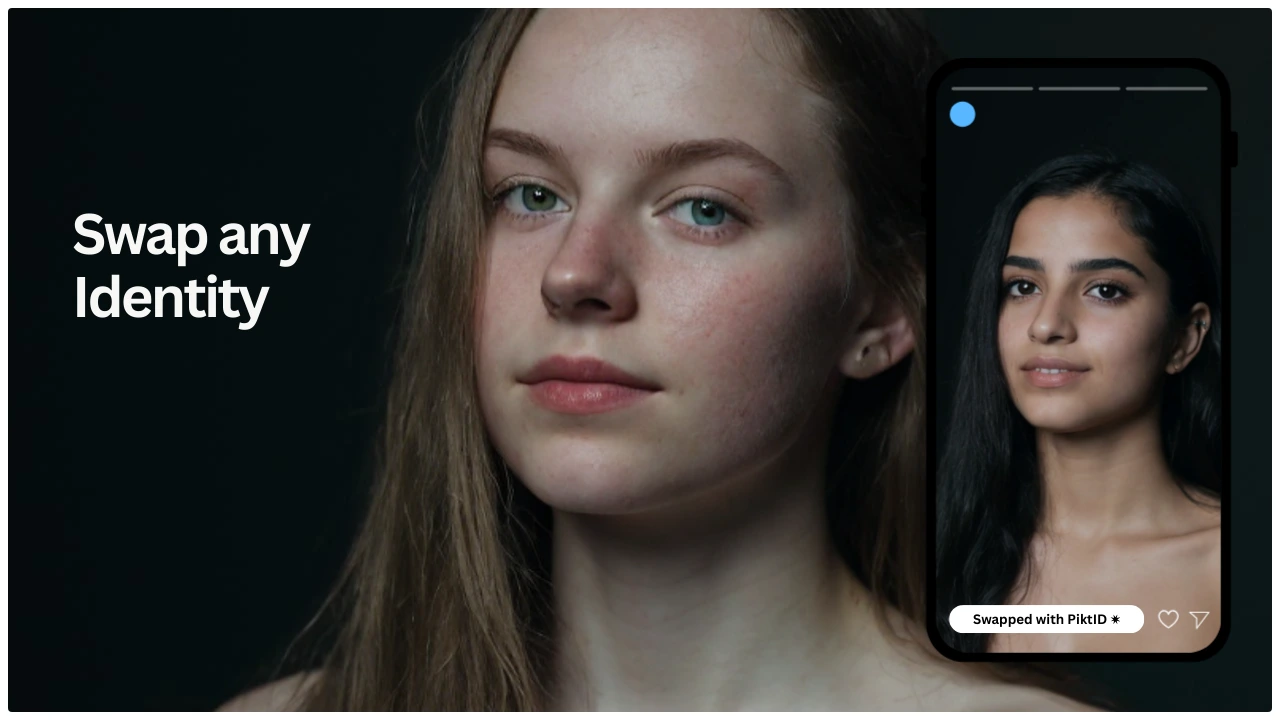
i. Face Alignment
The model must align the source face with the target body image, matching angle, tilt, and spatial orientation. Incorrect alignment is one of the main reasons many tools struggle with natural-looking swaps.
ii. Skin-Tone Normalization
A professional swap requires tone-aware blending. When trying to put my face on another body, mismatched undertones or incorrect exposure levels immediately reveal digital manipulation. Advanced tone matching ensures seamless facial integration.
iii. Shadow and Highlight Adjustment
The lighting in the source face rarely matches the lighting in the body image. A robust system must reconstruct shadows, recreate highlights, and adapt local illumination so the face does not appear flat or artificially bright.
iv. Pose Matching
One of the most challenging aspects of face swapping is adapting the facial identity to the target pose. Whether the image has a slight head tilt or partial profile, the system must preserve identity without stretching or warping.
v. Depth-Aware Reconstruction
Depth-aware models rebuild three-dimensional structure inside the swap, which is especially important in scenarios where users want to put my face on another body for fashion shoots, product modeling, or lookbook photography. Without depth-aware reconstruction, the face appears pasted rather than integrated.
Why PiktID’s Diffusion + Identity Mapping Is Superior
PiktID uses a hybrid engine powered by diffusion models enhanced with identity-mapping techniques. Older GAN-based tools rely heavily on pixel blending and heuristic corrections, which can lead to uncanny textures, incorrect lighting, or blurred details. Diffusion models generate more consistent skin texture, preserve micro-details, and achieve higher accuracy in lighting and pose recreation.
This combination is the reason PiktID delivers results suitable for professional model photos, while many free tools fail to create a convincing put my face on another body effect.
3. Introducing Swap by PiktID
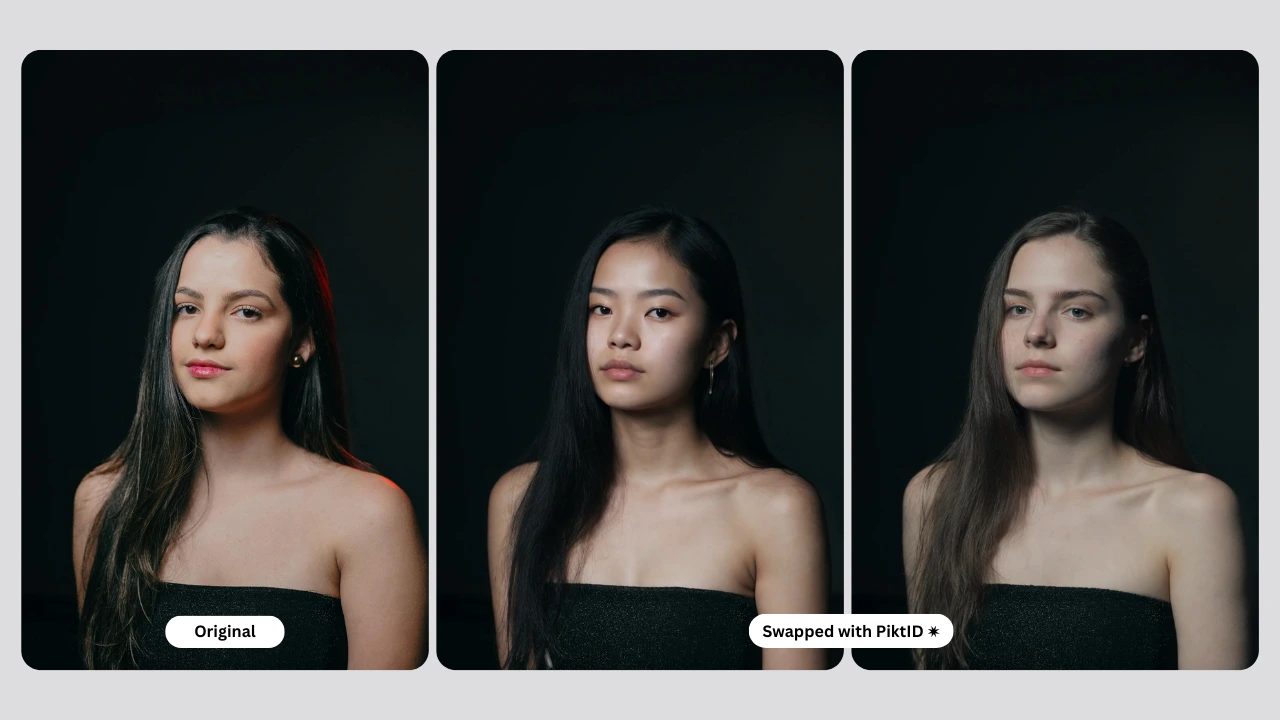
3.1 What the Tool Does
Swap by PiktID is designed for users who want to put my face on another body while maintaining professional-grade accuracy. The workflow is simple: upload a selfie, upload the target body image, and the system produces a natural, high-resolution face swap. The engine automatically handles:
- consistent lighting and exposure
- angle-correct facial alignment
- authentic, non-plastic skin texture
- natural blending around the chin, ears, hairline, and forehead
3.2 Key Features
Swap by PiktID offers several advantages for creators, brands, and e-commerce users:
- No watermarks
- High-resolution export suitable for commercial use
- Ultra-realistic, tone-aligned blending
- Works with all outfits, genders, and body shapes
- Suitable for photos of models, characters, celebrities, and synthetic identities
- Supports reusable identities through the Anonymize + Swap workflow, enabling users to repeatedly put my face on another body with consistent visual style across multiple images
3.3 Why PiktID Beats Competitors
Compared to Remaker AI, Higgsfield, MagicHour, VModel, Live3D, and Vidnoz, PiktID consistently produces results that are more realistic, better lit, and more aligned with the demands of modern fashion and e-commerce content. Competitors often struggle with mismatched tones, incorrect shadows, or unnatural hair transitions.
PiktID outperforms other tools through:
- More reliable lighting and tone correction
- Superior hair and forehead integration
- Better handling of side profiles, tilted heads, and complex poses
- The ability to combine multiple modules—Upscale, Edit Background, Change Expressions—for a complete workflow
4. Step-by-Step Guide: How to Put Your Face on Another Body Using PiktID
This section walks you through two complete workflows: a simple Studio workflow for everyday users who want to put my face on another body without technical steps, and a powerful API workflow for developers or businesses who need to automate hundreds of swaps at scale. Whether you are creating fashion catalogs, e-commerce visuals, influencer content, or brand-ready model images, PiktID’s system ensures lighting consistency, identity integrity, and natural blending throughout the process.
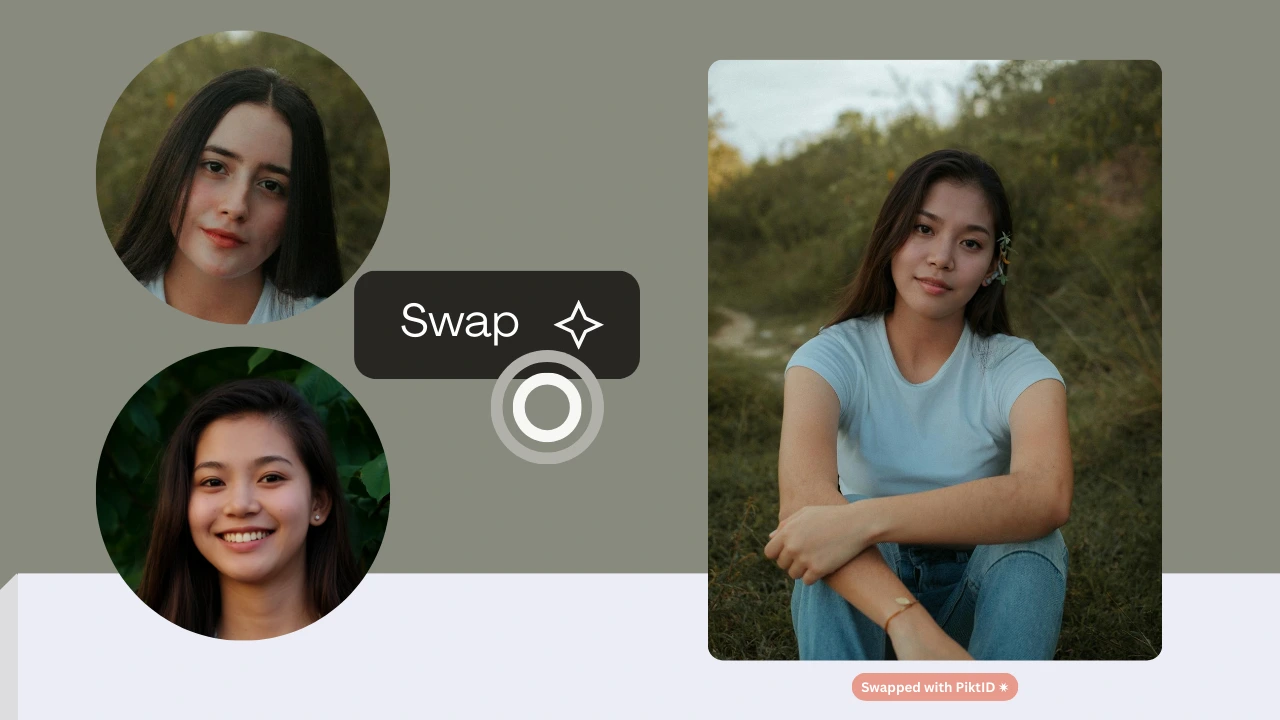
4.1 Studio Workflow
The Studio workflow is designed for individuals who want to put my face on another body with minimal effort while achieving photorealistic quality. Follow the steps below to create a clean, natural-looking output.
Open the Swap tool inside PiktID Studio. This is the fast and user-friendly interface for anyone looking to put my face on another body in a matter of seconds.
Step 2: Upload your face photo
Choose a high-quality, front-facing image. Ensure good lighting, a clear jawline, and minimal obstructions like hair covering the face. These factors improve the AI’s ability to align facial structure and blend skin tones accurately.
Step 3: Upload the target photo
This is the image containing the body, model, or pose you want to apply your identity to. The better the match in pose and lighting, the more natural the result when you put my face on another body.
Step 4: Generate and preview
The AI analyzes structure, lighting, facial depth, and head pose before producing a natural swap. Preview the result to ensure the alignment looks correct and the blend feels seamless.
Step 5: Download high-resolution output
Export the final image in high resolution for social posts, product photos, lookbooks, or professional campaigns. PiktID ensures you can put my face on another body without compromising print quality.
Step 6: Optional Enhancements
To refine the image further, you can use other tools inside the PiktID ecosystem:
- Upscale to enhance clarity and remove compression
- Edit Background to place the model in a professional setting
- Change Expression to adjust gaze or micro-expressions
- Generate consistent model identities for reusable brand-specific personas
4.2 API Workflow (Developers / Businesses)
The Swap API is built for brands, marketplaces, agencies, and developers who need to programmatically put my face on another body or process large batches of model photos automatically. Below is an expanded explanation of how to use the API correctly, along with easy application ideas.
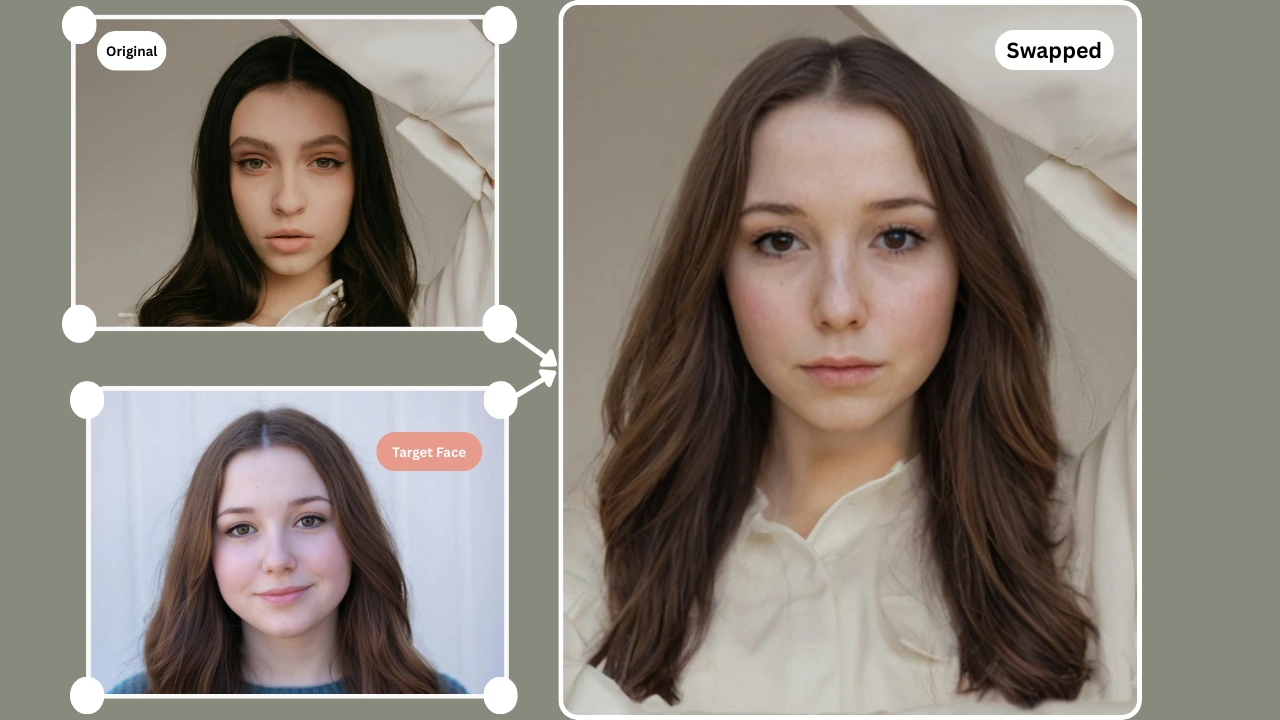
When to Use the API
- Automate hundreds of face swaps for e-commerce catalogs
- Create consistent synthetic models across all product listings
- Integrate model swaps into mobile apps
- Build virtual try-on systems
- Maintain a library of identities for recurring visual production
- Build tools where users can put my face on another body directly inside your platform
Step 1: Upload a Target Image
Use the endpoint:
POST
/api/consistent_identities/upload_target
This uploads the base photo containing the body. The API returns an IMAGE_ID and detected FACE_IDs.
Ideal for workflows where a business needs to put my face on another body for multiple images at once.
Key notes:
- Supports WEBP, JPEG, PNG
- Auto-detects up to 30 faces
- Approved_faces helps filter out low-quality detections
- Optional flag_hair lets you determine whether the hair should be adapted during the swap
Step 2: Upload a Face / Identity
POST
/api/consistent_identities/upload_face
This step inputs the identity to be swapped onto the target.
The response returns IDENTITY_ID, which is used in the next step.
Developers can:
- Upload a user’s selfie to allow them to put my face on another body
- Upload brand-generated synthetic faces
- Reuse stored identities from the gallery for consistent branding
Step 3: Initiate the Swap
POST
/api/consistent_identities/generate
For every FACE_ID you want to replace, send a request containing:
- identity_name (IDENTITY_ID)
- id_image (IMAGE_ID)
- id_face (FACE_ID)
- options (JSON-encoded string)
- prompt_strength for balancing similarity
- transfer_hair to replace hairstyles
- seed for repeatable results
Step 4: Retrieve Notifications
POST
/api/consistent_identities/notification/read
Polling this endpoint allows you to fetch processing updates and download links for completed swaps. Use this step to collect final outputs and store them in your system.
Each notification includes:
- Final image links (standard + HD)
- Face mapping data
- Associated IMAGE_ID
Additional Considerations for Developers
Image Retention
- Target images are deleted after 24 hours
- Generated images are deleted after 24 hours Ensure your integration downloads results immediately.
Batch Operations
- Perfect for apps that allow users to put my face on another body across multiple photos
- Supports multiple FACE_IDs in one IMAGE_ID
- Enables large e-commerce pipelines for automated model creation
Using the Gallery Endpoints
- Retrieve all previously generated images
- Manage stored identities
- Create consistent, reusable persona models for branding
5. Best Practices to Get Perfect Results
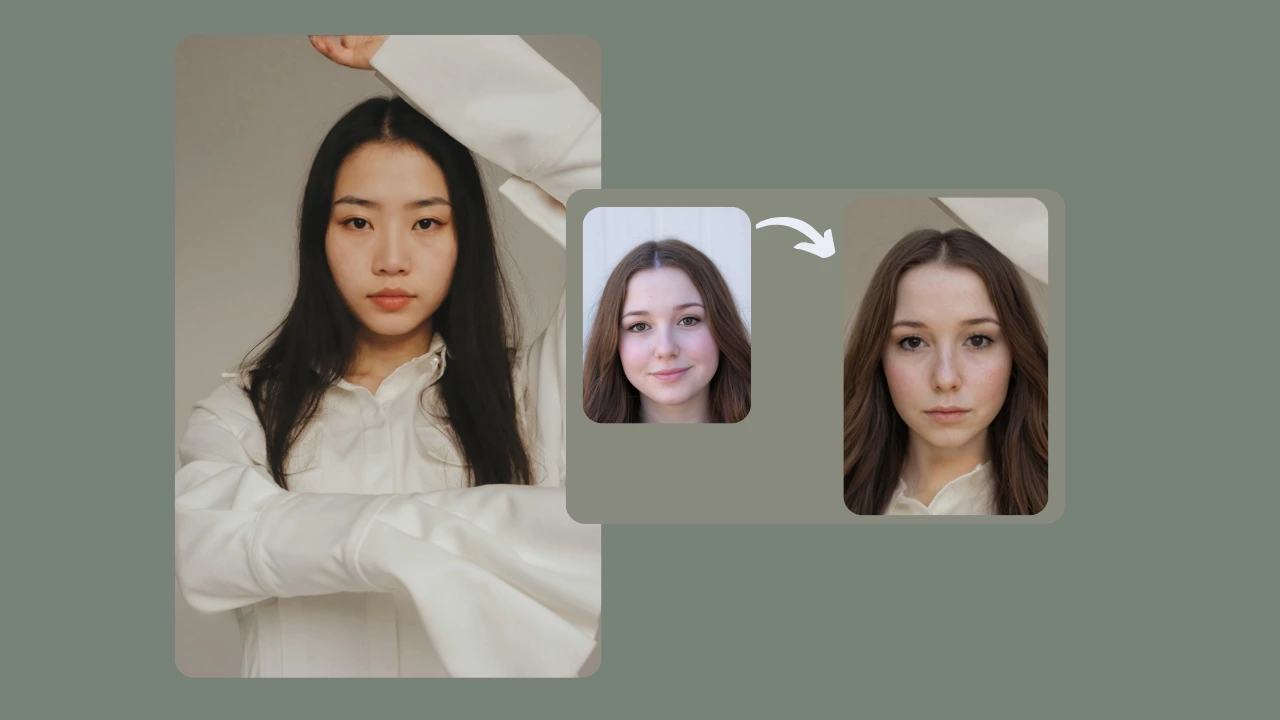
Achieving a realistic AI model face swap requires more than uploading two images. If the goal is to put my face on another body with professional-grade accuracy, the quality and suitability of your input photos directly determine how natural the final output looks. PiktID’s Swap tool is designed to maximize realism, but starting with the right visuals helps the AI preserve skin texture, lighting direction, and facial alignment.
Below are the recommended best practices to ensure seamless results, especially when using AI to put my face on another body for fashion shoots, social media edits, or e-commerce model photography.
5.1 Choosing the Right Face Image
When selecting the face you want to swap, the AI performs best when the facial features are clearly visible. Use a face photo that includes:
- Neutral expression Avoid exaggerated smiles or dramatic expressions. A calm, natural look helps the AI adapt the face to the target body without distortion.
- Good lighting Even, soft lighting allows the model to identify contours accurately. This increases realism when you try to put my face on another body across different poses.
- No strong shadows Shadows create false structure around the jawline and nose. Reducing shadows ensures the final swap blends cleanly with the target model.
- Avoid sunglasses or obstructions Glasses, hair masking the face, or hands covering parts of the cheeks reduce the AI’s ability to map geometry reliably. Clear visibility equals better accuracy.
5.2 Choosing the Right Body Image
To create a natural model-grade output, your background body photo should complement the face image. If you want to put my face on another body convincingly, the target model should match these criteria:
- Similar head angle The closer the head orientation is to your face image, the more realistic the merge. Large angle differences can cause stretching or unnatural blending.
- Natural light Photos taken in soft, ambient light produce more consistent results. This helps PiktID maintain smooth transitions around the jawline and hairline.
- Avoid exaggerated shadows Strong directional shadows make the swapped face appear out of place. Using evenly lit images keeps visual consistency.
- High resolution preferred Higher-quality target photos make it easier to add your facial texture realistically when you choose to put my face on another body for professional use.
5.3 Tips to Make It Look More Real
For creators, influencers, or brands aiming for editorial quality, these refinement steps ensure your face swap looks genuinely photographed rather than AI-generated.
- Use Change Expressions to adjust gaze After swapping, minor eye direction adjustments can dramatically increase believability. If your eyes were facing slightly off-axis originally, realigning them helps when you put my face on another body in a new pose.
- Upscale before swapping for better detail Enhancing resolution before the swap allows the AI to capture cleaner pores, sharper edges, and natural skin gradients.
- Use Edit Background to fix mismatched lighting If the background contrasts strongly with the face tones, you may see lighting inconsistencies. Adjusting or replacing the background resolves this instantly.
- Review natural hair flow and match orientation Hair direction, volume, and parting should visually match the head tilt. This step is crucial when your goal is to put my face on another body without raising suspicion.
6. Use Cases and Inspiration
AI face swapping is no longer limited to entertainment. Today, individuals, influencers, businesses, and creative teams use it to put my face on another body for practical, creative, and commercial purposes. PiktID offers natural blending and lighting consistency, making these use cases viable for high-quality visuals.
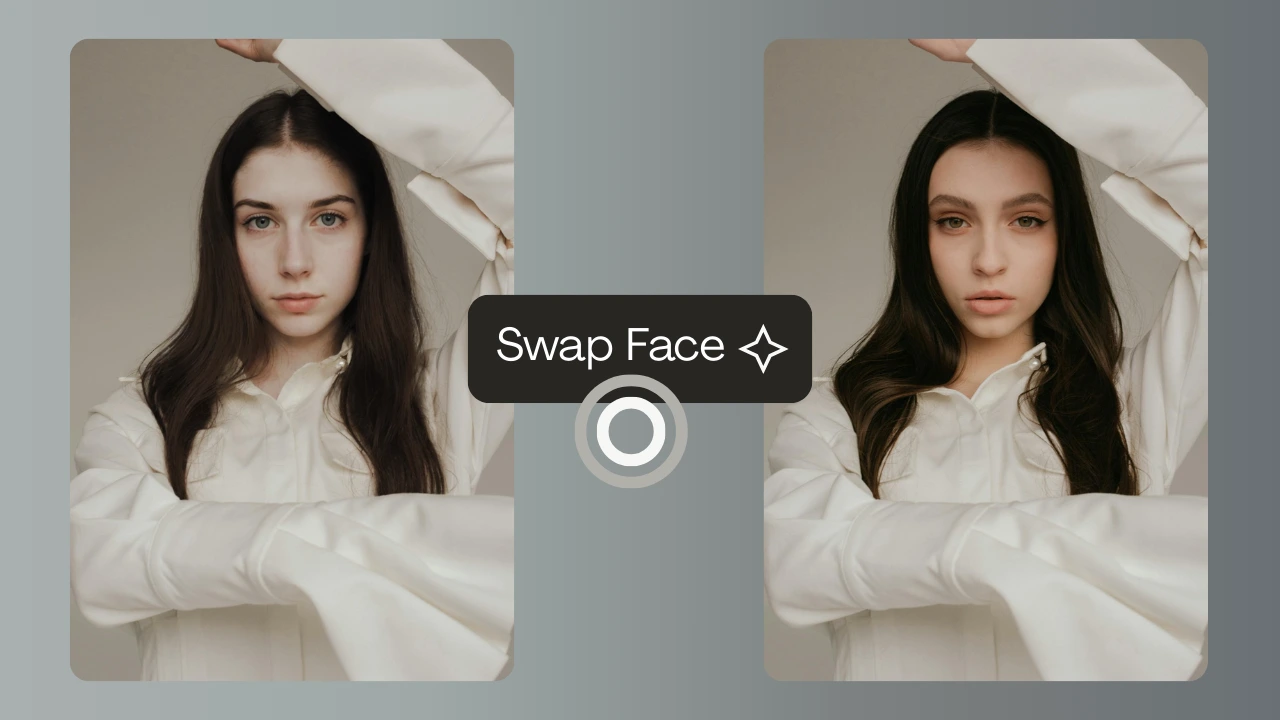
6.1 Personal
Everyday users often experiment with face swaps for fun, creative expression, or personal branding. Examples include:
- Movie posters Replace lead actors with your own face for cinematic-themed posters.
- Gym transformation edits See how your face looks on a fitter body for motivation or progress visualization.
- Digital avatars for gaming Many players prefer a more realistic avatar by choosing to put my face on another body inside their virtual character design.
- Birthday edits or pranks Light-hearted swaps to create humorous or memorable birthday content.
6.2 Influencers and Social Media
Creators use AI face swapping for brand experimentation, content volume, and faster production cycles.
- Thumbnails for YouTube Placing your face onto dynamic poses or different characters helps increase click-through rates.
- Instagram Reels transitions Face swaps improve visual storytelling by blending identities smoothly.
- Influencer content testing Previews of different on-camera looks without shooting multiple outfits allow influencers to put my face on another body and test visual ideas quickly.
6.3 Businesses
Many professional teams use face swapping for commercial-quality outputs.
- Fashion lookbooks Swap consistent faces across multiple outfits for cohesive branding.
- Private label e-commerce photos Brands save on model costs by using AI to put my face on another body or maintain one synthetic model across a full collection.
- Model consistency across product galleries Essential for marketplaces that require uniformity across hundreds of items.
- Corporate identity masking Replace real employee faces with synthetic identities for compliance and privacy.
6.4 Creative Agencies
Agencies use AI face swaps for accelerated production cycles and visual experimentation.
- Concept art Swap faces onto concept frames to present ideas more realistically.
- Advertising mockups Build campaign visuals faster by placing the intended model face onto various poses.
- Storyboarding Improve clarity in narrative planning by choosing to put my face on another body for scenes requiring specific expressions or character traits.
7. Competitor Comparison Table
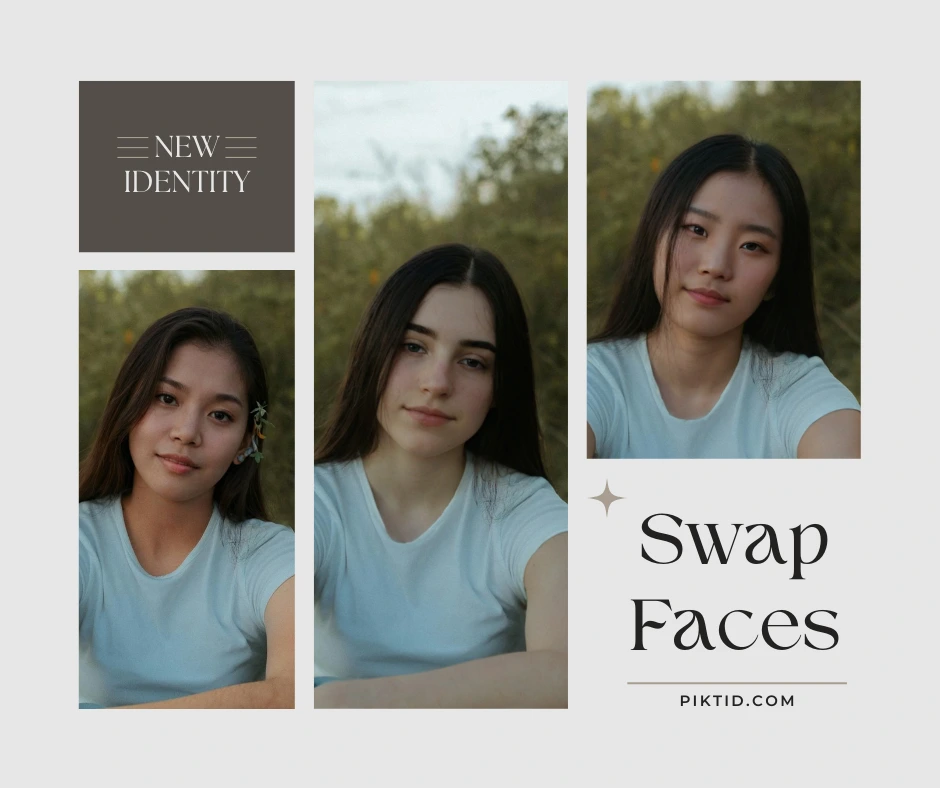
The market for AI face swap tools has grown quickly, with platforms like Reface, Fotor, Remaker AI, and YouCam offering fast, entertainment-oriented swaps. However, professional users who need consistent model photography, accurate lighting, and commercial-ready outputs quickly discover that most mainstream tools are designed for casual experimentation rather than e-commerce or fashion workflows. This becomes especially clear when users need to put my face on another body for lookbooks, catalogs, campaigns, or large-scale content production.
PiktID Swap is built specifically for model-grade realism, brand consistency, and identity-safe workflows. Its engine focuses on preserving natural textures, matching skin tones, aligning hairlines, and blending lighting conditions—elements that directly impact the usability of final images in a commercial setting. Most competitors struggle with either lighting mismatches, soft or blurred results, over-smoothed skin, or inaccurate jawline alignment when users attempt to put my face on another body.
Below is a detailed comparison table covering the technical and practical differences across leading tools.
This table shows why PiktID is more suitable for professional workflows where realism, compliance, and repeatable results are non-negotiable—especially when brands need to put my face on another body for multiple outfits or long-running campaigns.
| Criteria | PiktID Swap | Reface | Fotor | Remaker AI | YouCam |
| Output realism | High, studio-grade | Medium | Medium | Medium | Low–Medium |
| Skin tone accuracy | Excellent | Moderate | Moderate | Good | Low |
| Resolution quality | High-resolution outputs | Low–Medium | Medium | Medium | Low |
| Watermark-free | Yes | Often watermark | Watermark | Watermark-free | Often watermark |
| Privacy/GDPR safety | Full compliance with synthetic identities | Limited | Not specified | Partially | Not specified |
| Cost | Affordable with pay-as-you-go credits | Depends | Freemium | Free/paid tiers | Freemium |
| Reusable identities | Yes, across full catalog | No | No | No | No |
8. Ethics, Privacy & Legality
Ethical and legal use of face swapping is critical, especially as more creators and businesses adopt tools that allow them to put my face on another body in commercial or public-facing content. Misuse can lead to privacy violations, copyright infringements, or reputational risk. This section breaks down when face swapping is allowed, when it is not, and how PiktID ensures safe and compliant usage across all modules.
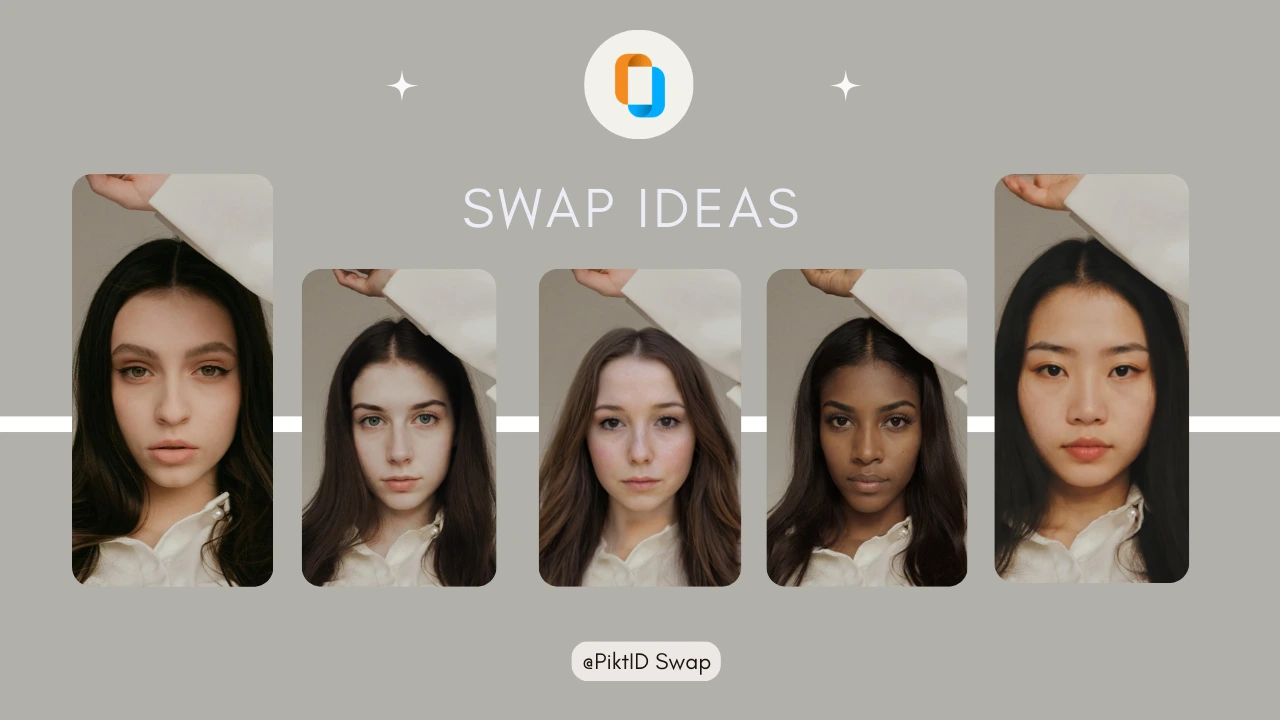
8.1 When Face Swapping Is Legal
Using your own face
You are fully allowed to use AI tools to put my face on another body as long as the face belongs to you. This includes using your likeness for marketing, social media content, virtual modeling, and promotional material. Personal likeness usage does not violate consent or copyright laws.
Using model stock images
Many stock libraries permit face modifications as long as the licenses grant commercial editing rights. When using authorized model photos, you can legally put my face on another body for product pages, lookbooks, or creative projects.
Using synthetic AI faces (Anonymize)
Synthetic faces generated through PiktID’s Anonymize feature cannot be traced back to real individuals. These can be used freely for any commercial or editorial application, including when brands need to put my face on another body in a privacy-safe workflow. This makes them ideal for GDPR-compliant marketing.
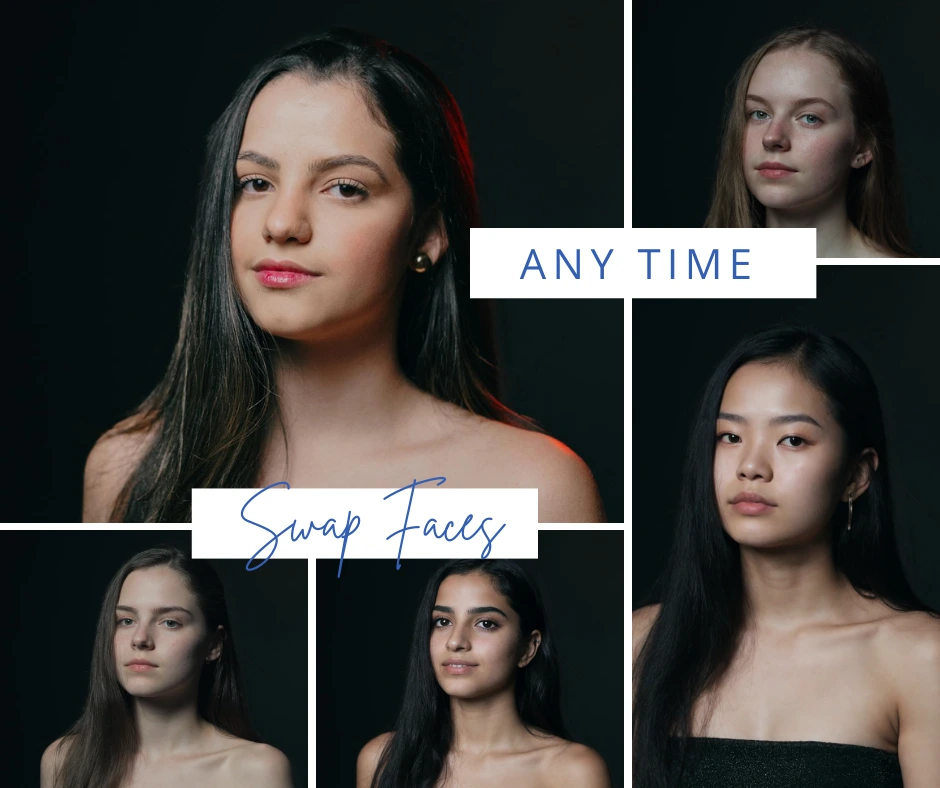
8.2 When It’s Not Legal
Using synthetic AI faces (Anonymize)
Commercial exploitation of celebrity faces without a license is prohibited. Even if the AI output looks realistic, adding a celebrity’s face or attempting to put my face on another body using a public figure’s likeness violates publicity rights.
Using someone else’s face without consent
If the person is identifiable, you must obtain explicit consent before modifying or swapping their face. This includes coworkers, customers, acquaintances, influencers, or anyone whose image appears in a photo you didn’t create.
Misrepresentation, impersonation, or fraud
Face swapping becomes illegal when the output is used to deceive, impersonate, or mislead individuals or businesses. Using AI to put my face on another body in a way that misrepresents identity, intent, or personal characteristics may be considered fraudulent.
8.3 How PiktID Protects Privacy
No data retention
Images are processed securely and not stored after generation. Your photos, including any images used to put my face on another body, are not kept or reused.
GDPR-compliant synthetic identities
PiktID’s Anonymize module generates non-human, AI-created identities that allow brands to create consistent faces without exposing real individuals to risk. These are ideal for scenarios where you want to put my face on another body but require regulatory compliance.
Encrypted uploads
All transfers are encrypted end-to-end. Faces and identities remain protected throughout the process.
No training on user data
User images are never added to training datasets. Whether you swap faces, anonymize, or put my face on another body, the system ensures your data is isolated and private.
9. Swapping into the best identities
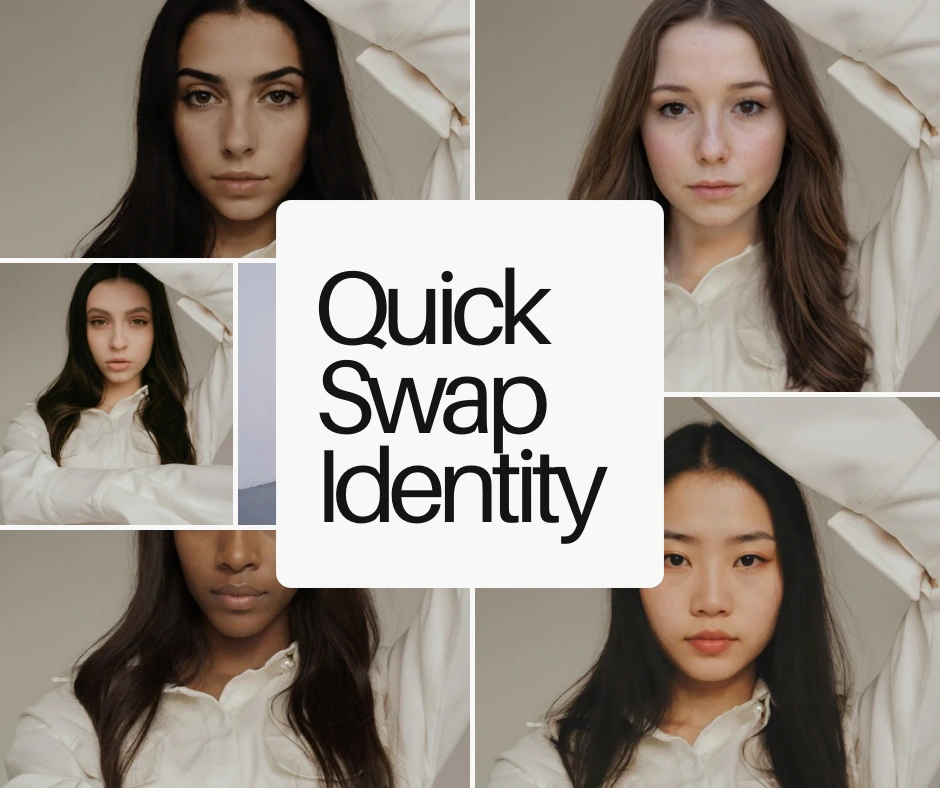
AI-powered face swapping has moved far beyond entertainment and casual mobile apps. Today, creators, brands, and e-commerce teams rely on advanced tools to put my face on another body with high accuracy, consistent lighting, and natural skin blending. As visual standards rise across fashion, retail, and digital marketing, the demand for realistic, model-grade outputs has pushed face swap technology into mainstream professional workflows.
PiktID stands out by delivering results that maintain identity fidelity, preserve fine textures, match hairlines, and align lighting conditions across base and reference photos. Whether someone wants to create lookbook models, enhance product photography, or simply explore how to put my face on another body for creative projects, PiktID ensures the output looks authentic and technically sound.
Getting started is simple. Users can upload a photo, apply the swap, enhance details using Upscale, and generate publish-ready images in seconds. The workflow is designed for both casual creators and enterprise teams who need fast, scalable, and realistic results.
Ready to put your face on another body with ultra-realistic results? Try PiktID’s Face Swap tool with 10 free credits. Visit https://studio.piktid.com/swap to get started.