
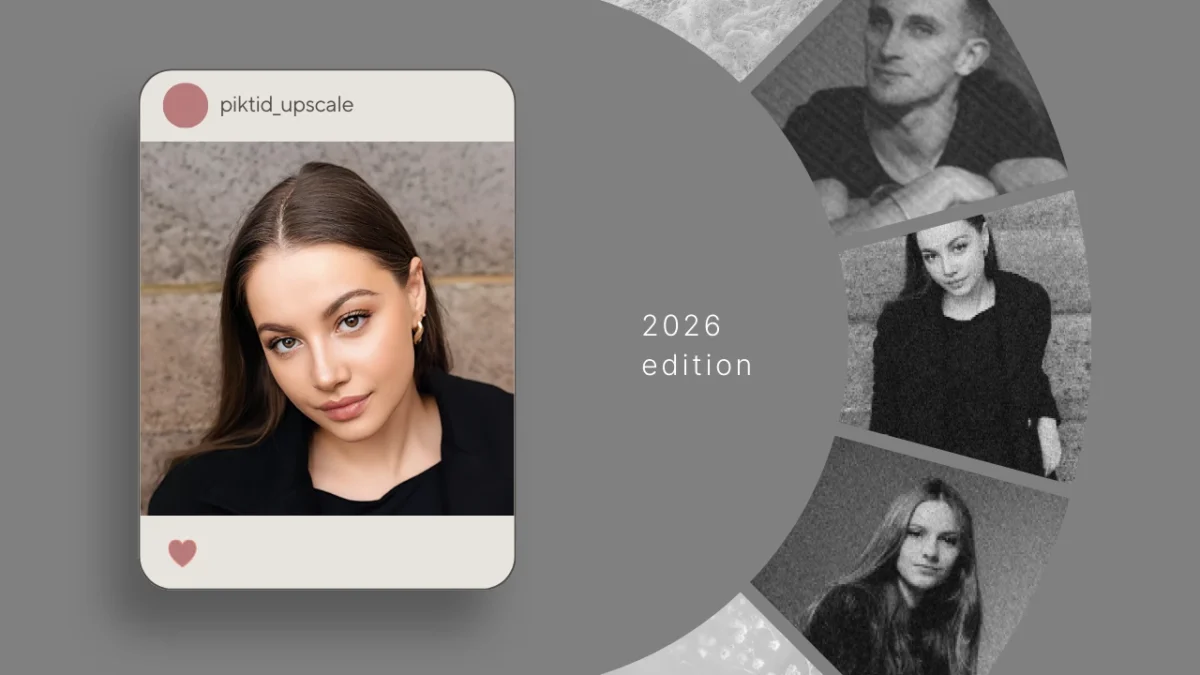
Face Blur refers to a common photo problem where facial details appear soft, unclear, or out of focus. This usually happens when a camera fails to capture enough detail due to movement, poor lighting, digital zoom, or image compression. In many cases, Face Blur makes otherwise usable photos look unprofessional or unusable for publishing.
Artificial intelligence can often reduce Face Blur and improve clarity, but results depend heavily on the type of blur and the quality of the original image. Light blur caused by focus issues or compression is usually easier to fix than heavy motion blur. This is where AI-based enhancement tools become useful.
PiktID Upscale offers a fast, browser-based way to fix Face Blur by increasing image resolution, restoring facial texture, and improving perceived sharpness. It does not simply sharpen pixels but intelligently enhances facial features such as eyes, skin texture, and edges.
This approach works well for:
- E-commerce and marketplace images
- Marketing and advertising creatives
- Profile photos for professional platforms
- Restoring older or low-quality images
- Client deliverables that require clean visuals
What this Guide Covers
- PiktID Upscale stands out by providing professional-grade results specifically designed to address Face Blur in portraits.
Key Takeaways
- Face Blur occurs when images lack sharpness due to movement, poor lighting, or compression, which can harm professionalism.
- AI tools like PiktID Upscale effectively reduce Face Blur by enhancing facial details, increasing resolution, and improving clarity.
- Intentional Face Blur hides identities, while unintentional blur requires restoration; knowing the difference is crucial for users.
- Best practices for fixing Face Blur include using high-quality images and focusing on clarity, especially around key facial features.
- PiktID Upscale stands out by providing professional-grade results specifically designed to address Face Blur in portraits.
1. What “Face Blur” Means
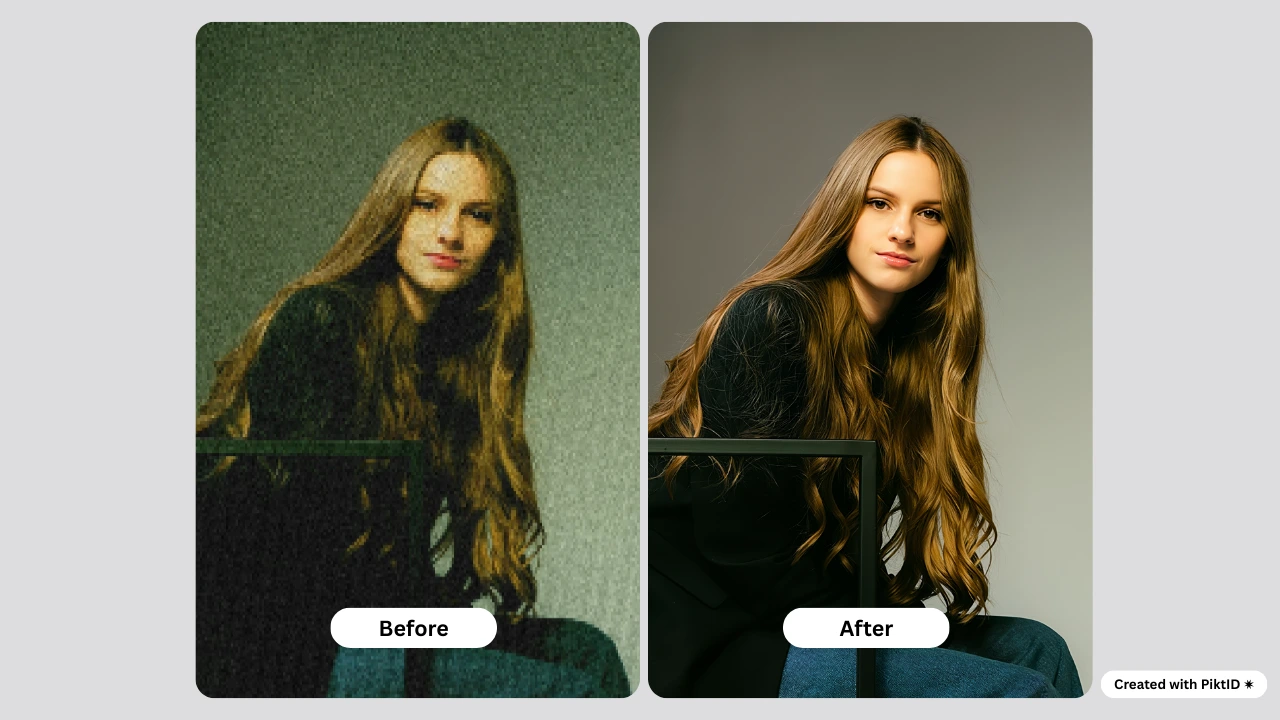
The term Face Blur is used in different ways across the internet, which often confuses users. Some people search for Face Blur because they want to hide a face for privacy reasons, while others want to remove blur and restore facial clarity. To rank well and help readers properly, it is important to separate these two meanings clearly.
Two common meanings of Face Blur
Unintentional Face Blur happens when a photo is captured or processed poorly. Common causes include camera shake, subject movement, low light conditions, incorrect focus, heavy image compression, or using digital zoom. This type of Face Blur is accidental and is the main focus of this guide. Intentional Face Blur is applied on purpose to hide someone’s identity. It is commonly used in journalism, legal content, or social media when privacy is required. This guide does not focus on privacy-based Face Blur or anonymization.Quick decision guide
If your goal is to hide a person’s identity, you should use a face-blur or anonymization tool designed specifically for privacy protection. If your goal is to restore clarity and make a blurry face look sharper and more detailed, you need an AI-based unblur or upscale tool. PiktID Upscale is designed for this purpose and focuses on improving image quality rather than hiding facial features. Many tools ranking for Face Blur focus only on anonymization or fun effects. In contrast, AI restoration tools focus on improving clarity with simple, one-click workflows, which is what most users searching for Face Blur actually need.2) Why Face Blur Happens
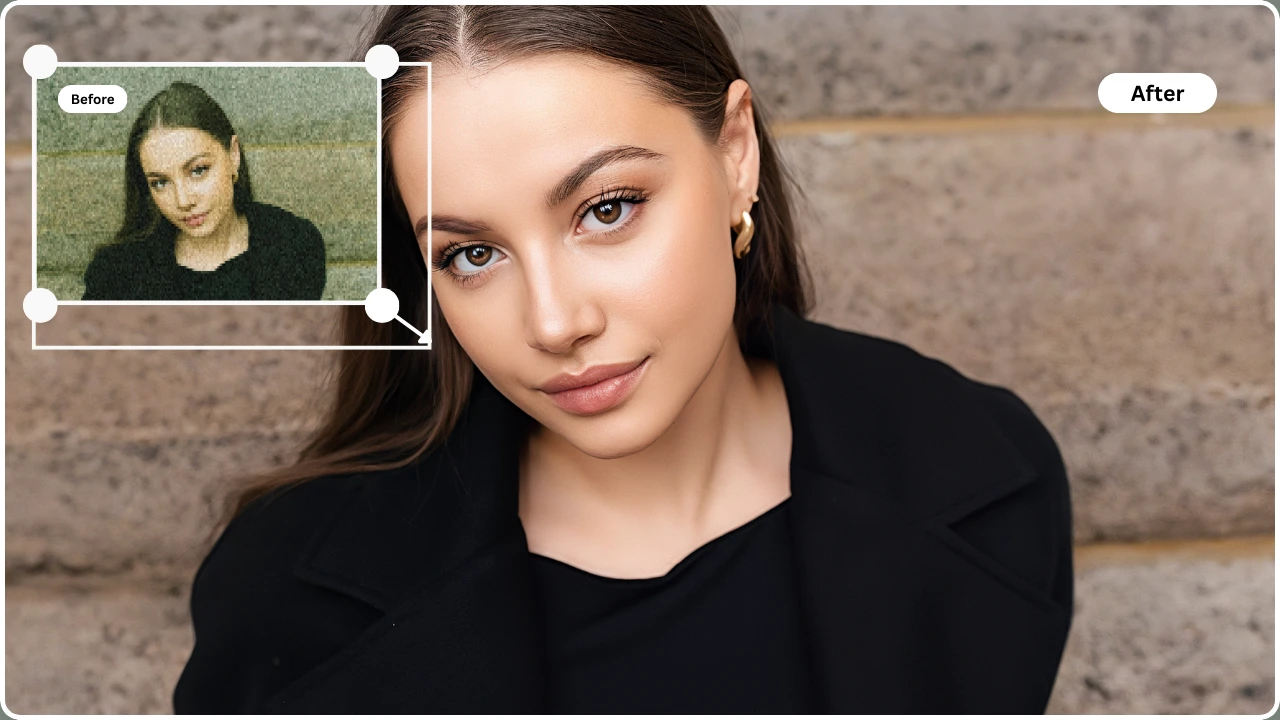
Face Blur usually appears when a camera cannot capture enough clean facial detail at the moment the photo is taken. This can happen even with modern smartphones and professional cameras. Understanding the cause of Face Blur helps set realistic expectations about what AI can improve and where limitations exist.
a. The most common causes of Face Blur
i. Motion blur Face Blur often occurs when the subject moves or the camera shakes during the shot. This is common in low-light environments where the camera uses a slower shutter speed, causing facial features to smear slightly. ii. Focus blur Sometimes the camera focuses on the background instead of the face. When this happens, facial details such as eyes, eyebrows, and lips lose sharpness, creating a soft or unfocused appearance. iii. Low-light blur In dark environments, cameras increase exposure time and digital noise reduction. This process reduces sharpness and creates Face Blur, especially around eyes and skin texture. iv. Digital zoom blur Zooming in digitally reduces real image data. The camera stretches pixels to fill the frame, which causes Blur and makes faces appear soft or muddy. v. Compression blur Sending photos through messaging apps or social platforms compresses the image. Compression removes fine facial details, resulting in Face Blur even if the original photo was sharp. vi. Small face in the frame When a face occupies only a small portion of the image, fewer pixels are available for reconstruction. This makes Face Blur harder to fix, even with AI enhancement.b. What AI can fix vs what it can’t
AI tools are powerful, but they work best when some visual information still exists. It can improve Face Blur by:- Enhancing edge definition around eyes, eyebrows, lips, and jawlines
- Increasing perceived clarity and sharpness
- Upscaling resolution for digital use or printing
- Improving texture realism in skin and hair
- The face is extremely small or heavily cropped
- Facial details are completely lost due to heavy blur
- Strong motion streaks obscure key facial features
3) Why PiktID Upscale Is a Practical Fix for Face Blur
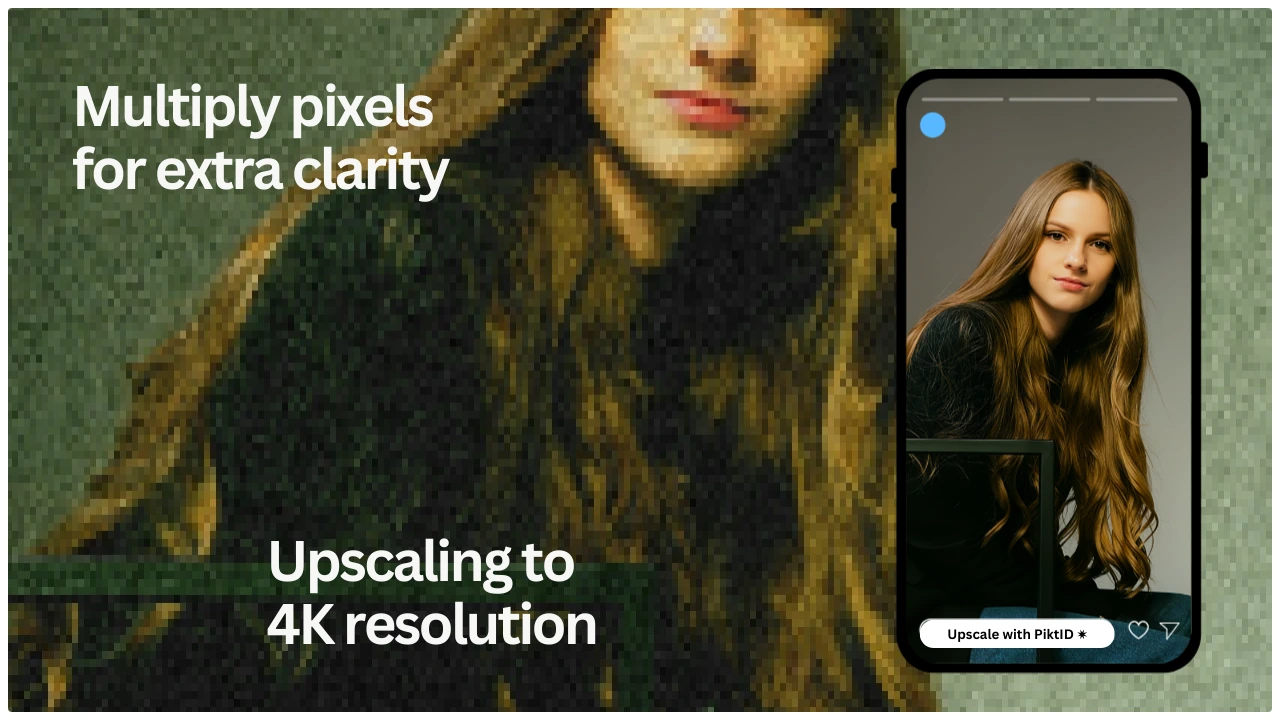
PiktID Upscale is designed to address common Blur issues without requiring advanced editing skills. Instead of manual sharpening or filters, it uses AI to intelligently restore clarity while preserving natural facial structure.
a. What PiktID Upscale does for Face Blur
PiktID Upscale focuses on improving image quality in a realistic and controlled way. It helps by:- Enhancing image resolution to recover perceived facial detail
- Reducing blur artifacts without over-sharpening
- Strengthening facial edges while maintaining natural skin texture
- Improving hair detail and facial contours
- Profile photos and headshots
- E-commerce lifestyle images
- Marketing and advertising creatives
- Print-ready images and catalogs
b. Where it fits in a professional workflow
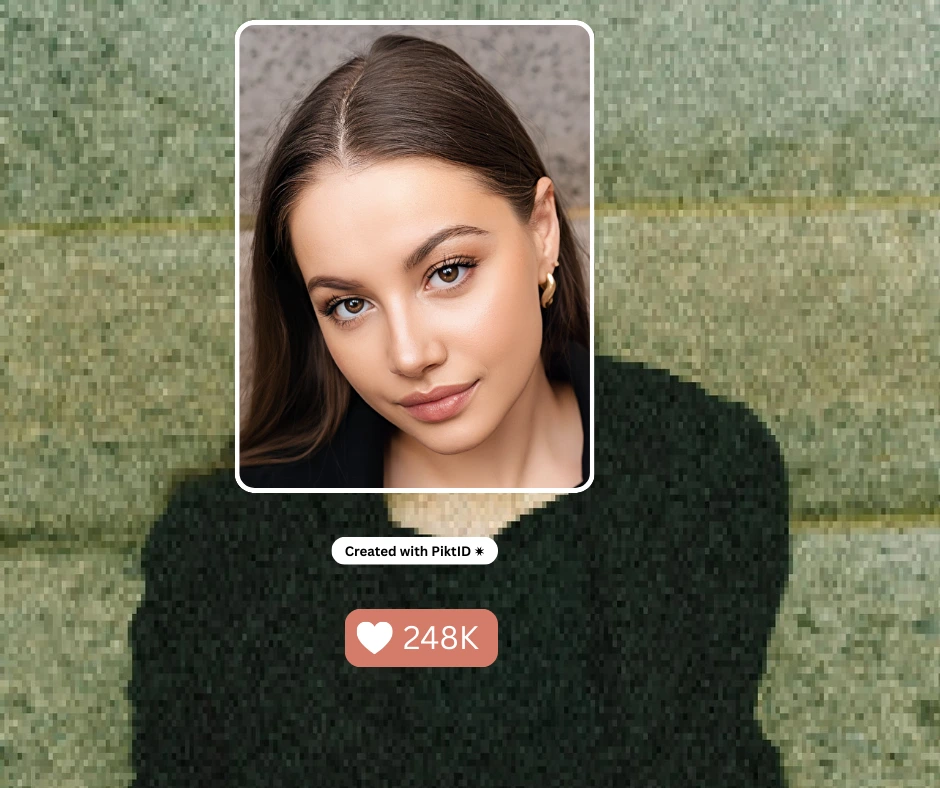
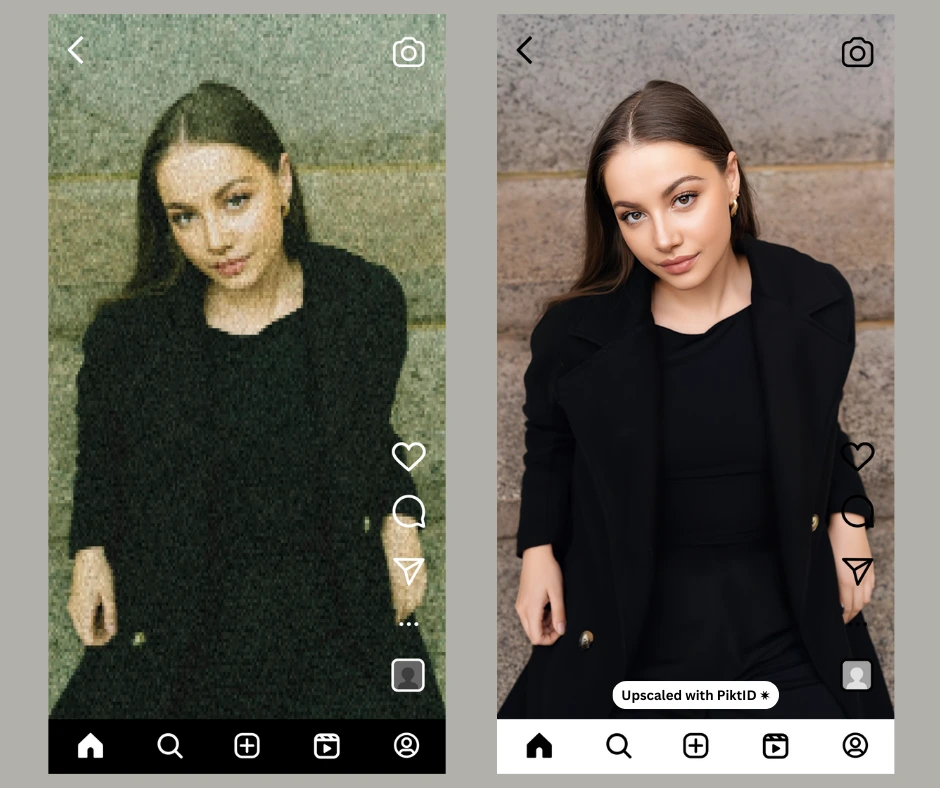
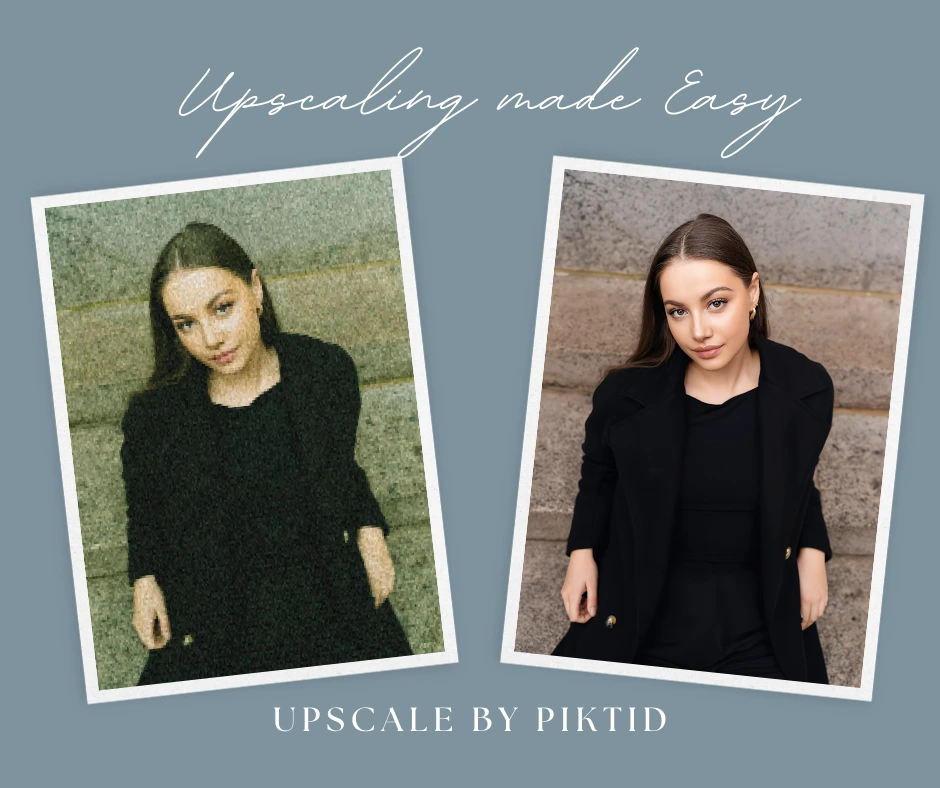
Before using PiktID Upscale You may have an image where blur makes the photo look unprofessional or unusable for publishing. After using PiktID Upscale You get a sharper, cleaner image that looks more natural and ready for real-world use across digital platforms. Optional enhancements within the PiktID ecosystem- If eyes or facial direction feel slightly off after fixing blur, Change Expressions can refine gaze and expression.
- If your goal is privacy rather than restoration, Anonymize should be used instead of attempting to reverse blur.
4) How to Fix Face Blur Using AI Online (Step-by-Step: PiktID Upscale)
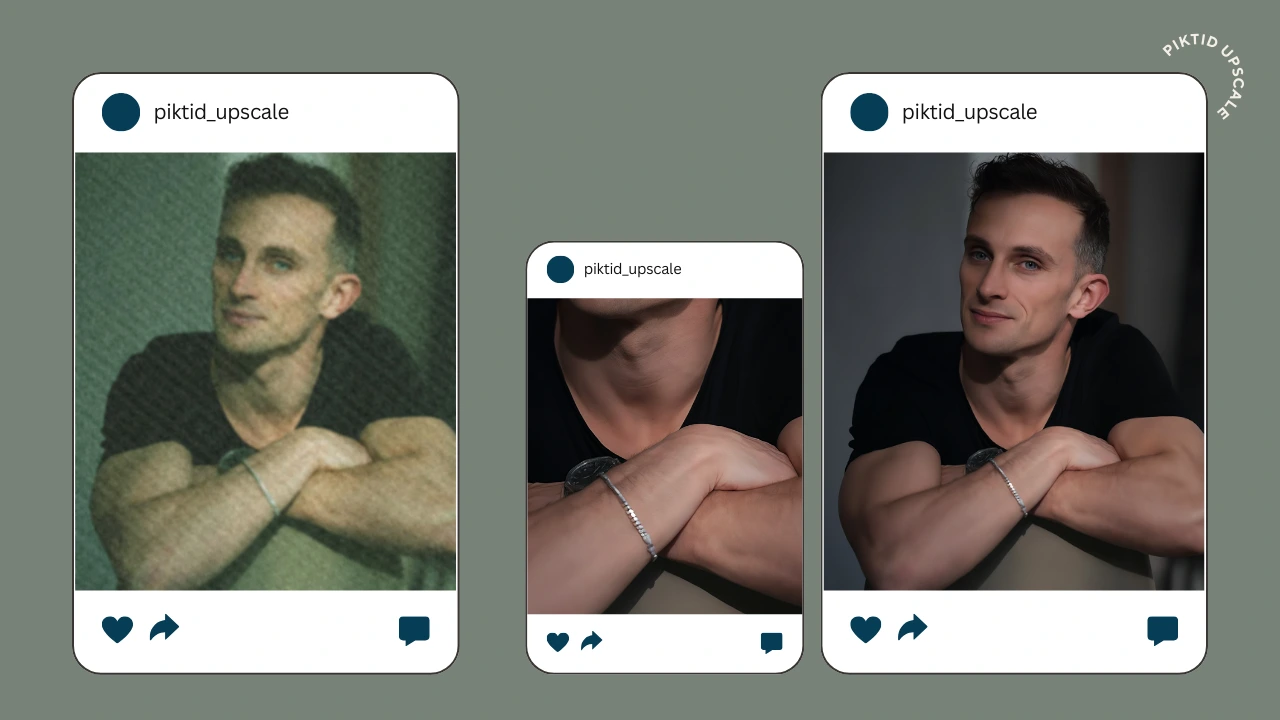
Fixing Face Blur no longer requires professional photo editing skills or complex software. With AI-based tools like PiktID Upscale, you can restore facial clarity in just a few simple steps. This workflow follows the same structure used by top-ranking “unblur image” pages: upload, process, and download.
The key advantage of using AI is speed. Instead of manually sharpening or guessing edits, the system automatically analyzes the face area and enhances missing details while keeping the image natural.
How To Fix Face Blur Using PiktID Upscale (Studio Workflow)
Step 1: Upload your photo
Start by uploading the photo that contains the blur. For best results, always use the highest-quality version available.
Good source images usually have:
- Original camera files instead of screenshots
- Minimal compression
- Clear facial outlines, even if they appear soft
Step 2: Open PiktID Upscale
Once your image is ready, open the PiktID Upscale tool.
Go to: https://studio.piktid.com/upscale
This tool is designed specifically to improve image resolution and reduce Face Blur without creating artificial-looking results.
Step 3: Run the AI Upscale
After uploading, let the AI process the image. During this step, the system focuses on restoring clarity in key facial areas affected by Face Blur.
Pay close attention to:
- Eyes and eyelashes
- Eyebrow edges
- Lip lines
- Hairline and forehead details
Step 4: Download the enhanced result
Once the processing is complete, download the improved image.
You can use the enhanced photo for:
- Websites and landing pages
- Social media profiles
- E-commerce listings
- Marketing creatives
- Print materials
Step 5 (Optional): Improve results further
If the face still looks slightly soft, you can improve the outcome with a few simple adjustments.
Try the following:
- Increase the output resolution to allow the AI more room to refine details
- Start with a less compressed version of the photo if available
- Crop the image so the face occupies more of the frame before running Upscale again
5) Best Practices to Get the Most Realistic Face Blur Fix
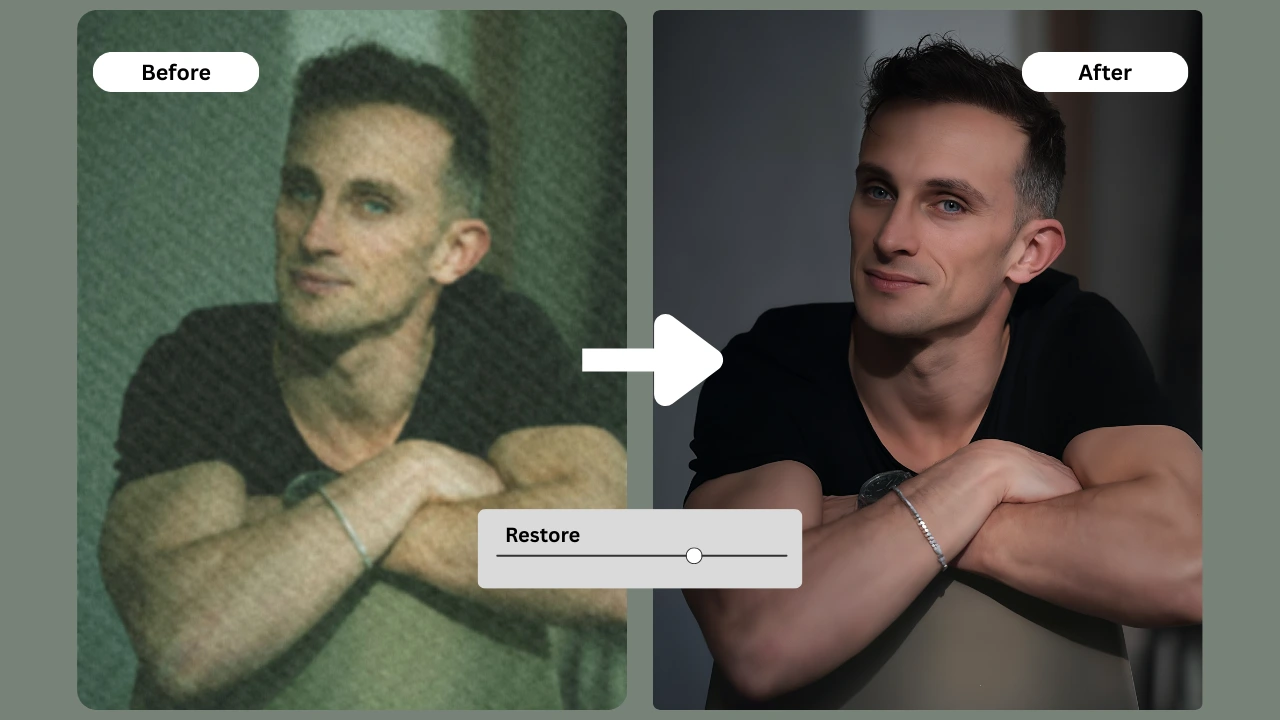
Fixing Face Blur with AI works best when the input image gives the system enough visual information to restore details. Following a few simple preparation and review steps can significantly improve results.
Before You Upscale
Start with the best possible source image. AI can enhance details, but it cannot recreate information that never existed.
- Always use the original photo file when possible Screenshots and shared images often lose facial detail due to compression, making Face Blur harder to fix.
- Avoid images that have been uploaded and downloaded multiple times Each upload typically removes texture and sharpness from facial features.
- Crop the image so the face is larger in the frame More face pixels allow the AI to better analyze eyes, skin texture, and contours, leading to a more natural Face Blur correction.
- Prefer evenly lit photos Balanced lighting helps prevent uneven sharpening or shadow artifacts during enhancement.
After You Upscale
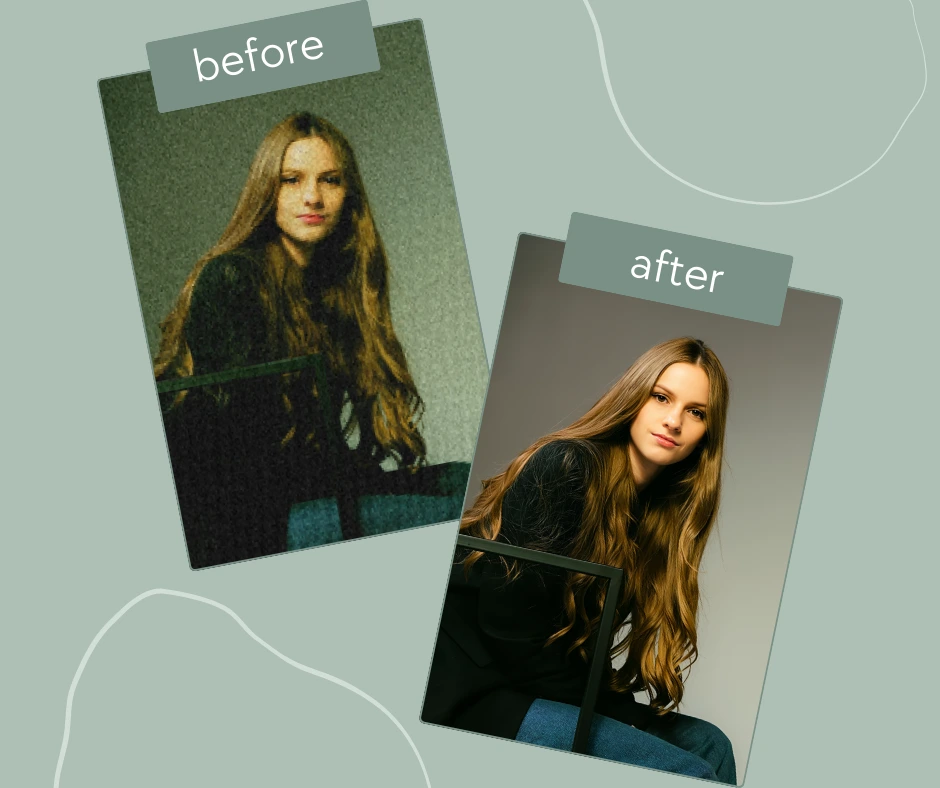
Once the image is processed, take a moment to review the most important facial details.
Focus on key areas:
- Eyes and eyelashes
- Eyebrow edges and shape
- Lip lines and mouth definition
- Hair strands near the forehead and temples
- Running multiple enhancement passes can make skin look overly smooth or artificial.
- If the image starts looking “plastic,” stop and use the first or second result instead.
- Keep lighting consistent across your catalog.
- Avoid aggressive filters after fixing Face Blur, as they can reintroduce softness or distort textures.
6) Common Problems and Troubleshooting
Even with AI tools, some blur issues need practical adjustments. Below are the most common problems and how to fix them.
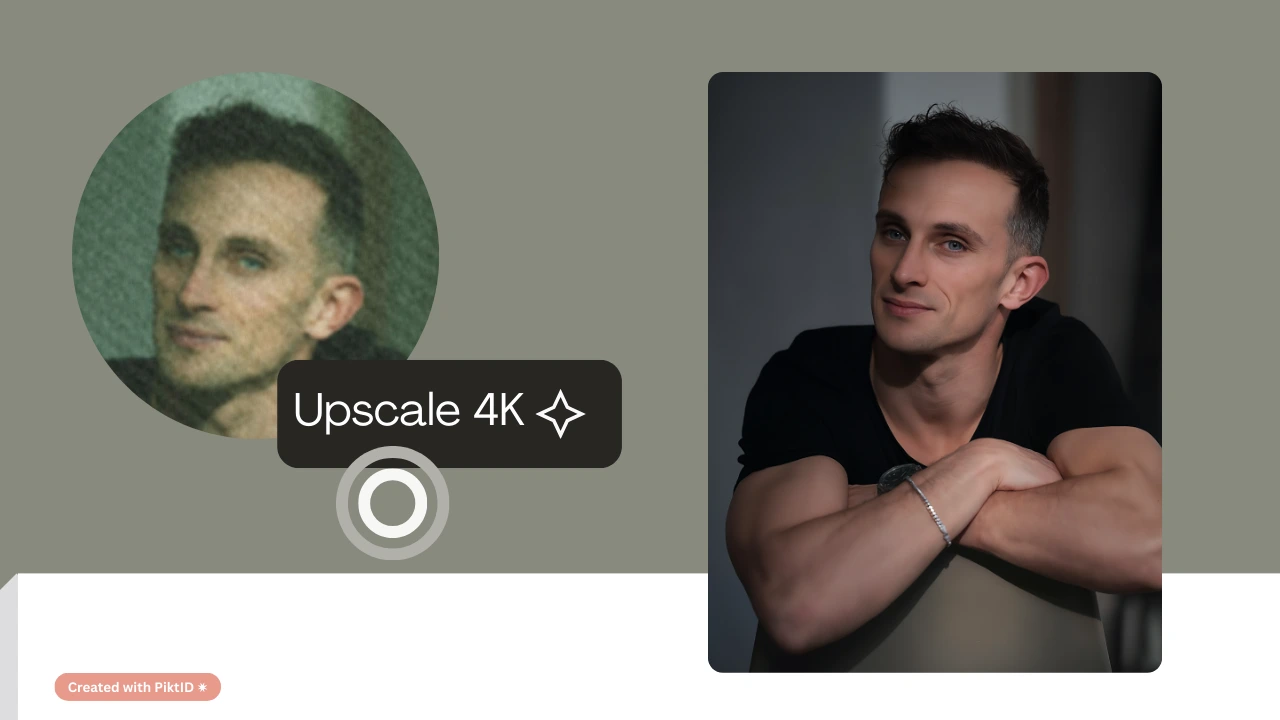
The Face Still Looks Blurry
This usually happens when the original image quality is too low.
Likely causes include:
- The face occupies a very small portion of the image.
- Heavy motion blur from camera shake or subject movement.
- Strong compression from messaging apps or social platforms.
- Look for a higher-quality original image if available.
- Crop the image tighter so the face fills more of the frame, then upscale again.
- If you have multiple shots, choose the sharpest one as your starting point.
The Skin Texture Looks Unnatural
Over-editing is the most common reason for unnatural results after fixing blur.
To avoid this:
- Use fewer enhancement passes.
- Avoid stacking beauty filters on top of AI restoration.
- Keep post-editing minimal, especially for professional or commercial images.
The Eyes Look Odd or Unnatural
Eyes are one of the hardest areas to reconstruct when blur is severe.
This can happen when:
- The original image lacks clear eye detail.
- Motion blur removes eye shape information.
- First improve overall clarity using Upscale.
- Then refine eye direction or expression using PiktID Change Expressions if necessary.
7) Use Cases: When Fixing Face Blur Actually Impacts Results
Face Blur is not just a visual issue. In many cases, it directly affects trust, professionalism, and conversion rates. Fixing blur can significantly improve how an image is perceived, especially in commercial and professional settings.
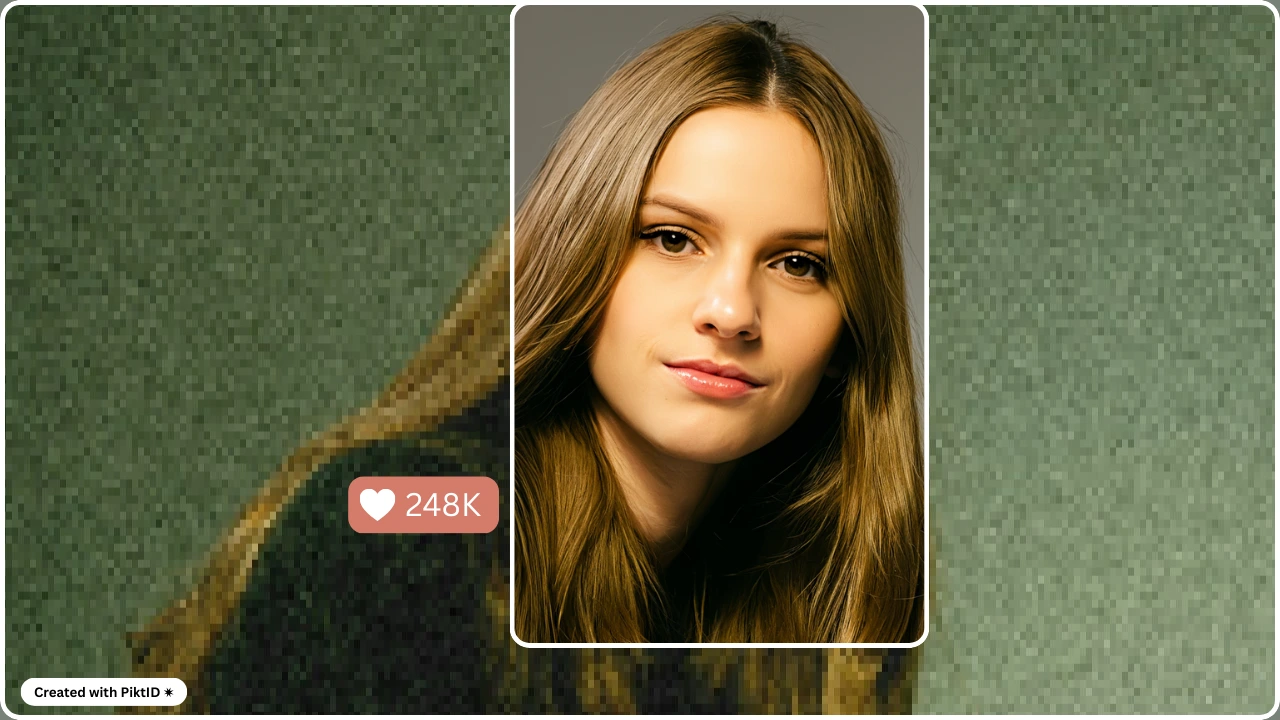
E-commerce and Marketplaces
In online shopping, image quality strongly influences buyer confidence. Face Blur in lifestyle or model images can make listings feel unprofessional or unreliable.
Fixing Face Blur helps by:
- Making model faces appear sharp and natural
- Improving perceived product quality
- Increasing trust in brand imagery
- Creating consistency across product catalogs
Marketing Creatives
Ads compete for attention in crowded feeds. Face Blur in promotional visuals can instantly signal low quality and reduce ad performance.
Removing Face Blur:
- Improves first impressions
- Makes creatives look professionally produced
- Helps ads stand out on social platforms
- Reduces rejection rates for paid ad platforms
Professional Headshots and LinkedIn
A blurred face in a professional profile can weaken credibility. Many people rely on older photos or quick phone captures that suffer from Face Blur.
Using AI upscaling to fix Blurry Images:
- Restores sharpness to facial features
- Improves clarity around eyes and expressions
- Avoids the need for reshoots
- Creates cleaner images for resumes, LinkedIn, and portfolios
Old Photos and Memories
Face Blur is common in older or scanned photographs. While details may be partially lost, AI enhancement can often restore clarity and structure.
Fixing Blur in old photos helps:
- Recover facial definition
- Improve visibility of expressions
- Preserve family memories in better quality
- Prepare images for digital archiving or printing
8) Comparison Table: PiktID Upscale vs Popular “Unblur” Tools
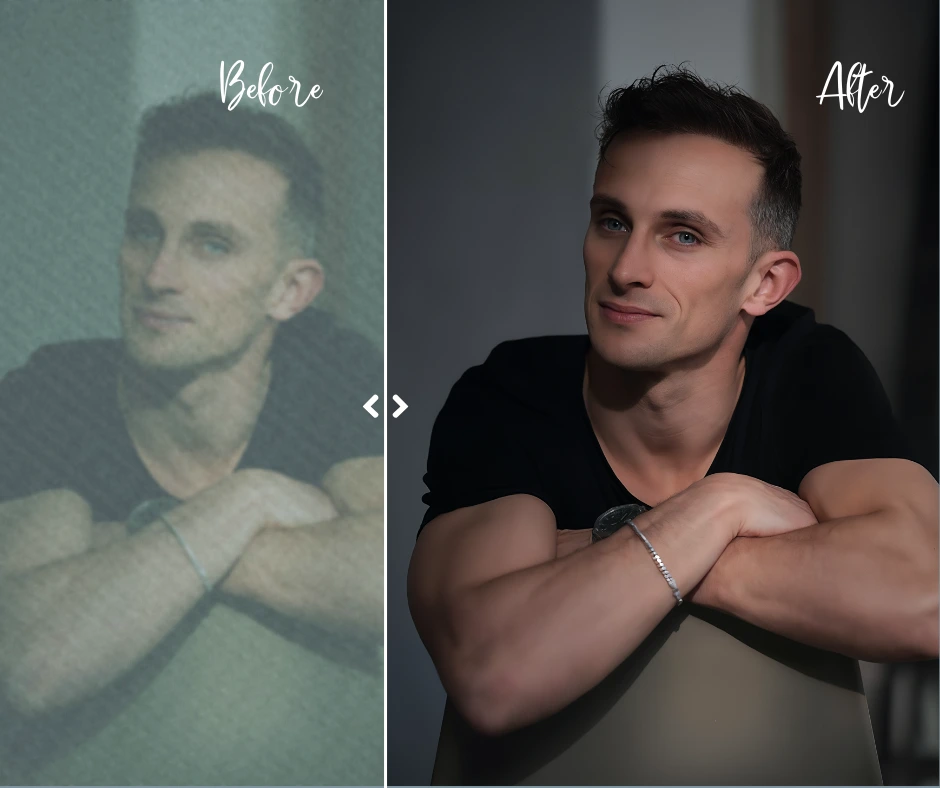
Many tools claim to fix Face Blur, but their effectiveness varies depending on use case. Below is a professional comparison based on real-world needs rather than marketing claims.
Evaluation Criteria Explained
These factors matter most when choosing a blur removal tool:- Ability to restore facial details like eyes and hairlines
- Output resolution suitable for web, social, and print
- Simple workflow with minimal manual steps
- Clean downloads without intrusive watermarks
- Reliability for portraits, not just general images
- Suitability for business and commercial use
Tool Comparison Overview
| Feature / Tool | PiktID Upscale | Canva Unblur | Fotor Unblur | Picsart Unblur | Pixelcut Unblur | PicWish Unblur |
| Face Blur reduction quality | High | Medium | Medium | Medium | Medium | Medium |
| Facial detail recovery | Strong (eyes, skin, hair) | Basic | Moderate | Moderate | Moderate | Moderate |
| Output resolution options | High | Limited | Medium | Medium | Medium | Medium |
| Ease of use | Very easy | Easy | Easy | Easy | Easy | Easy |
| Watermark-free output | Yes | Limited | Limited | Limited | Limited | Limited |
| Best for portraits | Yes | Partial | Partial | Partial | Partial | Partial |
| Business-ready results | Yes | No | Limited | Limited | Limited | Limited |
Why PiktID Upscale Is Better for Face Blur
While many tools focus on general image sharpening, PiktID Upscale is designed to improve Face Blur specifically in portraits and human subjects. It emphasizes:
- Natural facial texture
- Clean edge restoration
- Consistent, repeatable outputs
- Professional-grade results for commercial use
9) Ethics and Privacy Notes
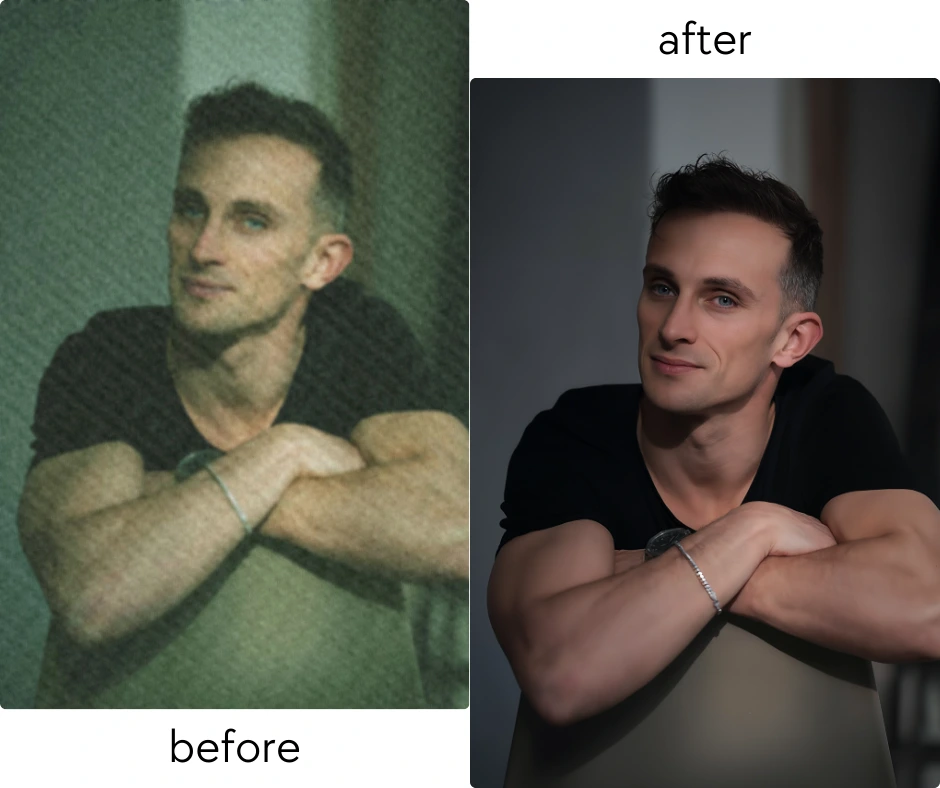
Fixing Face Blur should always be done responsibly. While AI can enhance clarity and improve facial details, it is important to understand when enhancement is appropriate and when it should not be used.
When you should NOT remove Face Blur
Some images are intentionally blurred to protect privacy or identity. In these cases, restoring clarity may be unethical or legally problematic. Examples include:- Faces blurred for privacy in news or journalism
- Surveillance or security footage with masked identities
- Images shared with deliberate anonymization
- Photos involving minors or sensitive situations
Responsible use of Face Blur enhancement
Using AI to fix Face Blur is appropriate when:- You own the image or have permission to edit it
- The blur was caused by camera motion, focus issues, or compression
- The image is intended for professional or personal improvement
- The goal is visual quality, not identity manipulation
Face Blur vs anonymization
It is important to note that many pages ranking for “face blur” focus on anonymization rather than restoration. If your goal is to hide identity, you should use dedicated anonymization tools instead of trying to reverse Face Blur. PiktID offers separate solutions for enhancement and privacy, ensuring the correct tool is used for the correct purpose.10) Conclusion
Face Blur is one of the most common issues in digital photos today. It reduces image quality, weakens visual credibility, and often makes otherwise usable photos unsuitable for professional or public use. Whether the blur comes from motion, low light, poor focus, or compression, the result is the same: facial details look soft, unclear, and unreliable.
Fixing Face Blur is not just about aesthetics. Clear facial details improve:
- Professional appearance in business and personal photos
- Trust in e-commerce and marketing visuals
- Engagement on social platforms and profile images
- Usability of images for print, ads, and catalogs
- Upload your image
- Let AI enhance facial clarity
- Download a sharper, more usable result
11) Frequently Asked Questions for Face Blur
1) What is Face Blur in photos?
Face Blur refers to a loss of sharpness in facial details such as eyes, eyebrows, lips, or skin texture. It usually happens when the camera cannot capture enough detail or when the image is processed heavily. Face Blur makes photos look soft, unclear, or unprofessional, especially when viewed on larger screens or used for work-related purposes.2) How can I fix Face Blur online using AI?
You can fix Face Blur online by using an AI-based image enhancement tool that restores clarity and sharpness. AI analyzes the image, detects blurred facial areas, and enhances resolution to improve detail. With tools like PiktID Upscale, the process is simple:- Upload your image
- Let the AI enhance facial details
- Download the improved version within seconds
3) Can AI really remove Face Blur completely?
AI can significantly improve Face Blur, but it cannot always fully recover details that never existed in the original image. If the face is extremely blurred or very small, AI works by intelligently reconstructing missing details rather than restoring them perfectly. In most real-world cases, AI can:- Improve facial clarity
- Sharpen eyes and contours
- Make images usable for digital and professional needs
4) What causes Face Blur on iPhone or Android photos?
Face Blur on mobile photos usually occurs due to camera or environmental limitations. Common causes include:- Low light conditions
- Hand movement while capturing the photo
- Slow shutter speed
- Digital zoom instead of optical zoom
- Autofocus locking onto the background instead of the face
5) How do I fix motion blur on a face?
Motion blur happens when the subject or camera moves during capture. To fix Face Blur caused by motion:- Use the highest-resolution version of the image
- Avoid screenshots or compressed copies
- Use AI Upscale tools to enhance clarity and reduce softness
6) Why does my face look blurry after sending photos on WhatsApp or Instagram?
Messaging and social platforms compress images to save data. This compression removes fine facial details and introduces Face Blur, especially around eyes and skin. To avoid this:- Share photos as documents instead of images
- Keep original copies for editing
- Use AI upscaling after downloading compressed images to restore clarity
7) What photo quality works best to fix Face Blur with AI?
AI performs best when the original image meets basic quality standards. Ideal photos include:- Clear, front-facing faces
- Minimal shadows
- Decent lighting
- Medium to high resolution
- Limited compression
8) Is AI Face Blur removal the same as sharpening?
No. Sharpening simply increases edge contrast and often creates halos or noise. AI Face Blur removal works differently. AI:- Understands facial structure
- Reconstructs missing texture
- Enhances resolution intelligently
- Avoids artificial or overly sharp results
9) Can I fix Face Blur for e-commerce or marketing images?
Yes. Fixing Face Blur is common in e-commerce, advertising, and branding. Clear faces improve trust, professionalism, and conversion rates. AI-enhanced images are often used for:- Lifestyle product photos
- Brand campaigns
- Team headshots
- Influencer and creator visuals