
Tiempo estimado de lectura: 17 minutos
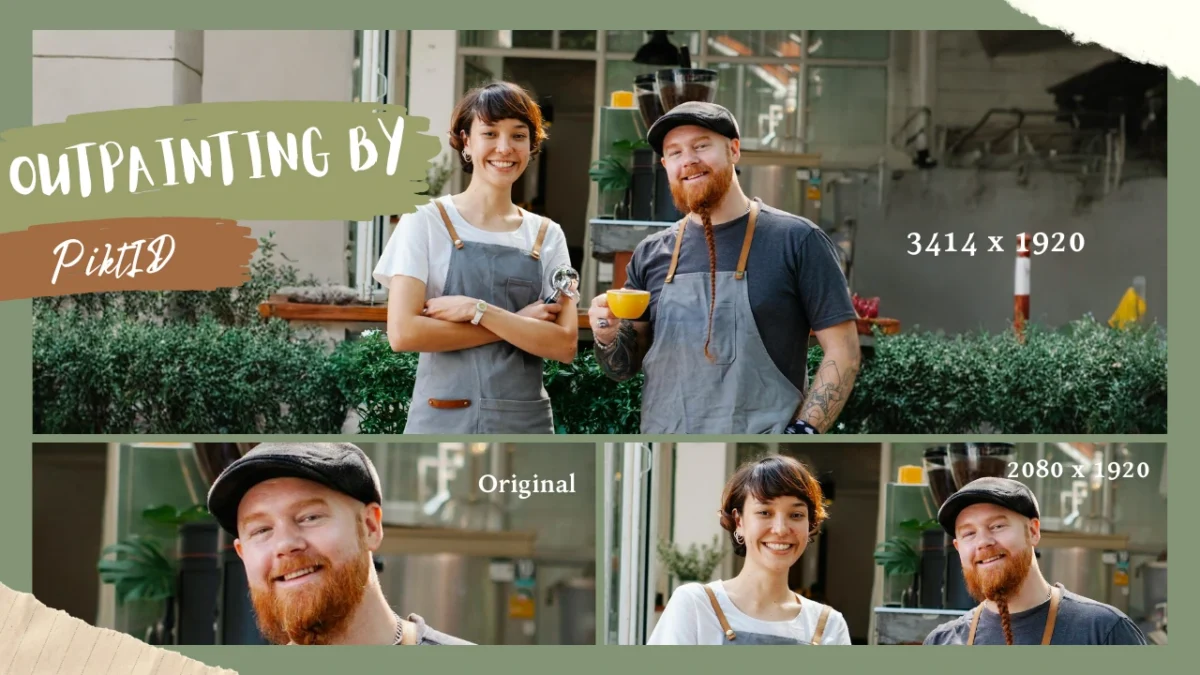
Outpainting es una técnica moderna de edición de imágenes con IA que permite extender una imagen más allá de sus bordes originales en todas las direcciones. En lugar de recortar o estirar una foto, Outpainting genera de forma inteligente nuevo contenido visual que se integra de forma natural con la imagen existente. Esto permite redimensionar imágenes para diferentes formatos sin perder detalles importantes ni alterar la composición.
El retoque de imágenes es especialmente valioso hoy en día, ya que el contenido visual se utiliza en múltiples plataformas, cada una con diferentes requisitos de tamaño y diseño. Desde banners para redes sociales hasta imágenes principales de sitios web, los creadores y las empresas necesitan elementos visuales flexibles que se adapten sin necesidad de rediseñar o volver a fotografiar.
PiktID Expand es una herramienta gratuita con inteligencia artificial diseñada para crear extensiones de imagen realistas y profesionales. Se centra en mantener la coherencia visual preservando la iluminación, la textura, la perspectiva y la continuidad del fondo.
Los beneficios clave incluyen:
- Extensión de fondo sin fisuras en todas las direcciones
- Generación de imágenes con reconocimiento de contexto que coinciden con la escena original.
- Resultados de calidad profesional, aptos para uso creativo y comercial.
Esta guía explica qué es el outpainting, cómo funciona y cómo usar PiktID Expand para extender imágenes de manera eficiente y natural.
1. ¿Qué es el outpainting en la edición de imágenes con IA?

En la edición de imágenes con IA, el proceso de superposición de áreas (outpainting) consiste en extender una imagen existente más allá de su marco original mediante inteligencia artificial. En lugar de modificar el contenido original, genera nuevas áreas a su alrededor, manteniendo intacto el contenido inicial.
Este proceso permite que las imágenes se expandan hacia afuera en cualquier dirección, lo que las hace más adaptables a diferentes diseños y casos de uso.
Comprender los fundamentos del repintado
En esencia, la técnica de superposición de imágenes funciona analizando la información visual dentro de una imagen y prediciendo lo que debería existir fuera de los límites visibles.
Los conceptos clave incluyen:
- La función Outpainting extiende las imágenes en lugar de recortarlas o redimensionarlas.
- La imagen original permanece sin cambios mientras se agregan nuevas áreas.
- La IA predice colores, formas, texturas y patrones más allá del encuadre.
- La pintura exterior funciona en todas las direcciones, incluyendo arriba, abajo, izquierda y derecha.
A diferencia del recorte, que elimina partes de una imagen, la técnica de superposición de imágenes conserva el sujeto y expande el entorno circundante para adaptarlo a nuevas dimensiones.
¿Por qué los creadores y las empresas utilizan Outpainting?
La técnica de outpainting se ha popularizado porque resuelve problemas comunes de diseño y formato sin sacrificar la calidad de la imagen.
Los creadores y las empresas utilizan el despintado para:
- Ajuste de la relación de aspecto para publicaciones y anuncios en redes sociales
- Ampliación de imágenes para banners, encabezados y secciones principales.
- Mejorar el encuadre sin volver a tomar las fotos.
- Mantener la continuidad visual en todas las campañas.
- Apoyar la narración extendiendo las escenas de forma natural.
Esto convierte la técnica de sobrepintado en una solución práctica tanto para la exploración creativa como para la producción comercial.
2. Cómo funciona el repintado por IA entre bastidores

La técnica de superposición de imágenes mediante IA funciona analizando la imagen existente y prediciendo de forma inteligente qué debería aparecer más allá de sus bordes originales. En lugar de generar píxeles de fondo aleatoriamente, el sistema estudia patrones visuales y el contexto para crear extensiones que se ven naturales y creíbles.
En términos generales, los modelos de superposición de imágenes examinan varios elementos clave de la imagen antes de generar contenido nuevo.
Cómo la IA analiza una imagen para realizar superposición de color
Cuando se aplica el despintado, la IA evalúa:
- Bandera:
Se identifican las paletas de colores dominantes y secundarias para que las áreas generadas recientemente se integren a la perfección con la imagen original. - Iluminación:
El modelo detecta las fuentes de luz, la dirección de las sombras y los niveles de brillo. Esto garantiza que las zonas sombreadas coincidan con las condiciones de iluminación existentes, en lugar de parecer planas o artificiales. - Profundidad:
El proceso de superposición de capas tiene en cuenta las capas de primer plano, plano medio y fondo. Esto ayuda a preservar la percepción de profundidad, especialmente en paisajes, interiores o fotografías de productos. - Perspectiva:
Se analizan las líneas, los ángulos y la posición de la cámara para que las áreas extendidas sigan la misma perspectiva visual que el fotograma original. - Patrones de textura:
Las superficies como paredes, cielos, telas, suelos y vegetación se extienden utilizando texturas consistentes en lugar de patrones repetitivos o rellenos borrosos.
Por qué es importante el renderizado sensible al contexto
La principal diferencia entre el realce de alta calidad y el relleno básico del fondo radica en la comprensión del contexto.
Repintado sensible al contexto:
- Comprende lo que representa la imagen.
- Predice extensiones lógicas en lugar de copiar píxeles.
- Mantiene el realismo en toda la composición.
- Evita costuras visibles o transiciones poco naturales.
El relleno de fondo aleatorio o de baja calidad suele provocar colores discordantes, iluminación incorrecta u objetos distorsionados. El repintado de modelos entrenados para el realismo reduce estos problemas al priorizar la continuidad visual.
Cómo PiktID Expand mantiene la continuidad visual
PiktID Expand está diseñado para mantener la imagen extendida visualmente coherente con la original. Garantiza que:
- La iluminación se integra suavemente en las zonas pintadas.
- Las texturas fluyen de forma natural sin repetición.
- Los bordes entre las regiones originales y extendidas son limpios.
- La imagen final se siente como una sola fotografía completa.
Esto hace que la técnica de sobrepintado sea adecuada no solo para la experimentación creativa, sino también para el uso profesional y comercial.
3. Primeros pasos con el Outpainting gratuito usando PiktID Expand

La función Outpainting with PiktID Expand está diseñada para ser sencilla y accesible, incluso para principiantes. No necesitas conocimientos avanzados de edición ni software de diseño para extender imágenes de forma natural.
El proceso es sencillo y se centra en la claridad visual en lugar de en configuraciones complejas.
Subir tu imagen a PiktID Expandir
El primer paso para realizar el retoque fotográfico es subir la imagen a la herramienta PiktID Expand. La plataforma admite formatos comunes y funciona mejor con imágenes nítidas y bien iluminadas.
Los formatos de imagen compatibles incluyen:
- JPG
- PNG
- WebP
Resolución de imagen recomendada:
- Las imágenes de resolución media a alta ofrecen el mejor rendimiento.
- Una mayor resolución proporciona más detalles para un repintado preciso.
- Evite las imágenes muy comprimidas o pixeladas.
Mejores tipos de imágenes para superponer:
- Fotografía (estilo de vida, paisajes, interiores)
- Imágenes de productos para comercio electrónico
- Elementos visuales y banners de marketing
- Diseños y obras de arte digitales
- Creativos en redes sociales
Las imágenes con sujetos nítidos y fondos estables suelen producir los resultados más realistas.
Cómo elegir hasta dónde extender tu imagen
Una vez que hayas subido la imagen, puedes elegir cómo extenderla. La función Outpainting te permite expandirla en una o varias direcciones, según tus necesidades.
Puedes ampliar las imágenes:
- Horizontalmente para banners o encabezados de sitios web
- Verticalmente para historias, carteles o anuncios verticales
- En todas las direcciones para cambios completos de reencuadre o composición.
La función Outpainting es especialmente útil para adaptar una sola imagen a múltiples formatos. Por ejemplo, una fotografía de paisaje se puede ampliar para crear un banner ancho sin recortar elementos importantes.
Cuándo ampliar las imágenes para diferentes casos de uso
Las distintas plataformas requieren distintas dimensiones de imagen. La técnica de superposición de imágenes ayuda a ajustar los elementos visuales sin sacrificar la composición.
Los escenarios más comunes incluyen:
- Ampliación de imágenes para creatividades publicitarias
- Creación de formatos cuadrados o verticales para redes sociales
- Ampliación de fondos para las secciones principales de los sitios web
- Agregar espacio para superposiciones de texto o llamadas a la acción.
Cómo mantener el equilibrio en composiciones extensas
Si bien la técnica de pintar sobre superficies irregulares es poderosa, mantener el equilibrio visual es importante. Extenderse demasiado sin considerar la composición puede hacer que las imágenes se vean vacías o inconexas.
Para mantener el equilibrio:
- Mantén el sujeto principal centrado o anclado visualmente.
- Evite la expansión excesiva cerca de detalles importantes.
- Extienda gradualmente cuando trabaje con escenas complejas.
- Revisar la uniformidad de la iluminación en toda la imagen.
PiktID Expand ayuda a gestionar esto generando extensiones que se ven proporcionales y visualmente alineadas con el marco original.
4. Guía paso a paso: Cómo extender imágenes en todas las direcciones usando Outpainting

Esta guía paso a paso explica cómo utilizar la técnica de desenfoque para expandir una imagen más allá de sus bordes originales, manteniendo un resultado natural y visualmente coherente.
Paso 1: Cargar una imagen
Para empezar, sube tu imagen al cuadro de carga.
Puedes arrastrar y soltar el archivo o seleccionarlo manualmente desde tu dispositivo.
Esto funciona mejor con imágenes que tengan:
- Temas claros
- Iluminación equilibrada
- Contexto suficiente
Paso 2: Ajustar los lados de expansión
Una vez que la imagen se cargue, elige cuánto quieres extenderla.
Puede:
- Añade píxeles en la parte superior, inferior, izquierda o derecha.
- Extenderse en múltiples direcciones al mismo tiempo.
- Arrastre los bordes de la imagen directamente en la vista previa para un control visual.
Esta flexibilidad permite adaptarlo a banners, publicaciones en redes sociales o diseños de gran formato.
Paso 3: Seleccione una relación de aspecto (opcional)
Si está diseñando para una plataforma específica, seleccione una relación de aspecto.
Utilizar el selector de relación de aspecto ayuda a:
- Mantener el equilibrio visual
- Evita recortes incómodos
- Cumplir con los requisitos de la plataforma, como redes sociales, anuncios o encabezados de sitios web.
Rellena automáticamente el espacio sobrante, conservando la composición original.
Paso 4: Configurar opciones avanzadas (opcional)
Para un mayor control, abra la configuración avanzada.
Aquí puedes:
- Agregue una indicación para guiar la generación de nuevas áreas.
- Utilice una semilla para mantener la coherencia visual en varias imágenes.
Esto resulta útil al trabajar con una serie de imágenes que deben tener un aspecto uniforme.
Paso 5: Generar la imagen despintada
Haz clic en Generar para iniciar el proceso de renderizado.
Una vez completado:
- La imagen ampliada aparece en la vista previa.
- Todas las imágenes generadas se almacenan en la pestaña Historial para esta sesión.
- Puedes descargar, regenerar o refinar el resultado.
Nota importante
Todas las imágenes subidas y editadas se eliminan automáticamente después de 24 horas.
Esto garantiza la privacidad, pero las imágenes eliminadas no se pueden recuperar.
Generación y selección del mejor resultado
El proceso de pintura de contorno puede producir resultados ligeramente diferentes en cada ocasión. Revisar cuidadosamente los resultados ayuda a garantizar la calidad.
Al seleccionar el mejor resultado:
- Busque transiciones suaves entre las áreas originales y extendidas.
- Comprueba que las texturas fluyan de forma natural sin cambios bruscos.
- Asegúrese de que la dirección de la iluminación se mantenga constante.
- Confirme que no aparecen artefactos visuales cerca de los bordes.
Si el resultado no parece correcto, vuelva a generar el código utilizando tamaños de expansión ajustados o indicaciones más precisas.
5. Mejores prácticas para obtener resultados de repintado de alta calidad.

La calidad del realce de imágenes depende tanto de la imagen original como de cómo se gestione la expansión.
Directrices sobre resolución y calidad de imagen
Las imágenes de mayor resolución generalmente producen mejores resultados. Un mayor nivel de detalle permite a la IA reproducir texturas, patrones y profundidad con mayor precisión.
Para mejorar la calidad de la salida:
- Utilice imágenes nítidas y de alta resolución siempre que sea posible.
- Evite entradas muy comprimidas o borrosas.
- No estire las imágenes antes de aplicar el retoque de color.
Tras ampliar la imagen, procesarla con PiktID Upscale puede mejorar aún más la nitidez y la claridad de la textura.
Mantener el estilo y la coherencia visual.
La coherencia visual es esencial al utilizar la técnica de repintado para proyectos profesionales o comerciales.
Para mantener el realismo:
- Adapta la dirección de la iluminación a la de la imagen original.
- Mantén la coherencia en los tonos de color y los niveles de exposición.
- Evite extender demasiado las áreas con detalles complejos.
- Esté atento al ruido visual o a patrones poco naturales en regiones extensas.
Esta herramienta funciona mejor cuando amplía la escena de forma sutil en lugar de introducir elementos visuales completamente nuevos.
6. Casos de uso prácticos para el superrecorte con IA

La función de superposición de imágenes mediante IA permite extender las imágenes más allá de sus bordes originales, conservando el contexto, la iluminación y la continuidad visual. Esto la hace útil en fotografía, diseño y flujos de trabajo comerciales donde el redimensionamiento o el recorte normalmente comprometerían la composición.
Retoques de pintura para fotografía y redes sociales
Los fotógrafos y creadores de contenido a menudo necesitan que la misma imagen se adapte a múltiples plataformas. La técnica de "outpainting" resuelve este problema expandiendo la escena en lugar de recortar elementos importantes.
Entre los casos de uso más comunes se incluyen:
- Ampliar fotos horizontal o verticalmente para Instagram, LinkedIn, banners web y anuncios publicitarios.
- Ajustar las proporciones sin recortar rostros, productos o sujetos clave.
- Crear más espacio alrededor del sujeto para subtítulos o superposiciones.
Con esta herramienta, la imagen original permanece intacta mientras que el espacio circundante se genera de forma natural, manteniendo la misma iluminación y estilo visual.
Retoques de pintura para diseñadores y artistas conceptuales
Los diseñadores e ilustradores utilizan el retoque digital como una herramienta creativa, más que como una simple solución técnica. Ayuda a transformar un solo fotograma en un concepto visual más amplio.
El despintado se utiliza comúnmente para:
- Ampliando las escenas más allá del lienzo original.
- Construyendo entornos más grandes a partir de una sola imagen.
- Ampliación de los paneles de inspiración para presentaciones y propuestas.
- Creación de continuidad de fondo para el arte conceptual
Dado que la técnica de despintado respeta la perspectiva y la profundidad, permite a los diseñadores explorar ideas sin tener que reiniciar el proceso ni pintar manualmente las áreas que faltan.
Recorte de color para comercio electrónico e imágenes de productos
Las imágenes de productos suelen requerir reglas específicas de espaciado y diseño. La técnica de superposición de imágenes ayuda a adaptar las imágenes existentes a estos requisitos sin necesidad de volver a fotografiar los productos.
Las aplicaciones prácticas incluyen:
- Agregar espacio negativo alrededor de los productos para superposiciones de texto y precios.
- Crear fondos uniformes y consistentes en todos los catálogos.
- Adaptar las imágenes a las directrices de plataformas como Amazon o Shopify.
- Preparación de fotografías de productos para banners, anuncios y diseños promocionales.
El proceso de desenfoque garantiza que el producto permanezca centrado y sin distorsiones, mientras que el fondo se expande de forma natural.
7. Problemas comunes al pintar fuera de los límites del lienzo y cómo solucionarlos.

Si bien la técnica de superposición de imágenes produce resultados realistas, pueden surgir algunos problemas dependiendo de la calidad y la complejidad de la imagen. Saber cómo solucionarlos mejora la calidad del resultado final.
Garantizar transiciones sin problemas
Una de las preocupaciones más comunes con esta herramienta son los bordes visibles entre la imagen original y el área ampliada. Esto suele ocurrir cuando la iluminación o la textura no se alinean perfectamente.
Para mejorar las transiciones:
- Utilice imágenes de origen con iluminación uniforme y consistente.
- Evite expandirse demasiado agresivamente en una sola pasada.
- Regenerar si los bordes se ven abruptos o desalineados.
- Refinar los resultados cuando solo se observan pequeñas inconsistencias
Si la transición no parece natural, regenerar el proceso suele producir una mayor continuidad que la corrección manual.
Cómo corregir resultados de IA poco naturales o inexactos
En ocasiones, puede generar contenido que se percibe visualmente incorrecto o desvinculado de la imagen original. Esto suele deberse a un contexto insuficiente o a áreas de expansión excesivamente grandes.
Para solucionar esto:
- Ajusta cuánto se extiende la imagen en cada dirección.
- Regenerar expansiones más pequeñas para escenas complejas.
- Utilice herramientas de edición de fondo para refinar texturas o colores.
- Asegúrese de que la imagen original defina claramente la escena y la perspectiva.
Combinar el retoque de detalles con herramientas de edición de fondo o de escalado puede mejorar significativamente el realismo y la coherencia.
8. Combinación de Outpainting con otras herramientas PiktID

La función Outpainting se vuelve mucho más potente cuando se utiliza como parte del ecosistema PiktID. Mientras que la herramienta Expand se encarga de la extensión de la imagen en todas las direcciones, otras herramientas de PiktID ayudan a refinar y mejorar el resultado final, garantizando resultados de calidad profesional aptos para su uso en el mundo real.
Mejorar imágenes despintadas con alta resolución
Tras el retoque, las áreas recién generadas pueden beneficiarse de un mayor perfeccionamiento, especialmente cuando las imágenes se utilizan para marketing, impresión o pantallas de gran formato. El escalado contribuye a mejorar la nitidez y la coherencia generales.
Utilice Upscale para:
- Mejora la nitidez de las áreas de imagen extendidas creadas mediante el proceso de superposición de colores.
- Mejora los detalles de textura fina como tela, piel o superficies.
- Ajusta la resolución de la imagen original a las regiones ampliadas.
- Prepare imágenes con colores superpuestos para casos de uso de alta resolución, como banners o listados de comercio electrónico.
Esta combinación garantiza que los resultados se mantengan nítidos y visualmente uniformes en toda la imagen.
Edición y perfeccionamiento con herramientas de fondo
El retoque de fondo suele introducir nuevos elementos que pueden requerir retoques sutiles o un mayor perfeccionamiento creativo. Las herramientas de fondo de PiktID permiten un control preciso sobre las áreas extendidas sin afectar al sujeto original.
Estas herramientas son útiles para:
- Limpieza de pequeños defectos introducidos durante el proceso de repintado.
- Transiciones suaves entre las regiones originales y extendidas.
- Sustituir los fondos extendidos por alternativas más limpias o de marca.
- Estilización de fondos pintados para uso comercial o editorial.
Al combinar el retoque fotográfico con la edición del fondo, los creadores pueden mantener un control creativo total a la vez que preservan el realismo.
9. Ejemplos creativos y profesionales de pintura exterior

La técnica de desglose visual se utiliza ampliamente en diversos sectores porque resuelve un problema común: las imágenes que no se ajustan a los requisitos de diseño modernos. En lugar de recortar o rediseñar las imágenes, esta técnica permite a los creadores ampliar el contenido de forma natural.
Ampliación de campañas visuales y activos de marca
El outpainting es especialmente valioso para los equipos de marketing y branding que trabajan con múltiples formatos. Permite que una sola imagen se adapte a diferentes ubicaciones sin comprometer la composición.
Entre los casos de uso más comunes se incluyen:
- Anuncios tipo banner que requieren formatos anchos o altos.
- Imágenes principales de sitios web que necesitan más espacio para respirar visualmente
- Imágenes editoriales adaptadas para maquetación de revistas o publicaciones digitales.
Esta herramienta ayuda a preservar el sujeto original al tiempo que amplía la escena de una manera que se percibe intencional y coherente.
Uso de Outpainting para la conceptualización y la narración visual.
Más allá de su uso comercial, la técnica de superposición de imágenes es una poderosa herramienta creativa. Permite a artistas, diseñadores y narradores extender las escenas más allá del encuadre original, añadiendo contexto y profundidad.
El repintado se utiliza a menudo para:
- Entornos en expansión en el arte conceptual
- Creación de imágenes panorámicas a partir de imágenes estándar.
- Apoyo a proyectos creativos o narrativos de larga duración.
- Creación de paneles de inspiración con continuidad visual extendida
Mediante esta herramienta, los creadores pueden convertir una sola imagen en una historia visual más amplia sin tener que empezar desde cero.
10. Relleno de fondo vs. Relleno de fondo vs. Extensión de fondo

La edición de imágenes mediante IA incluye varias técnicas que a menudo se confunden entre sí. Comprender la diferencia entre el relleno de bordes, el relleno de interiores y la extensión de fondo tradicional ayuda a elegir el enfoque adecuado para cada tarea visual.
¿Qué es el outpaint?
El proceso de superposición de bordes consiste en extender una imagen más allá de sus límites originales. La IA analiza la imagen existente y genera contenido nuevo a su alrededor, manteniendo la continuidad visual.
El repintado se utiliza normalmente para:
- Ampliar las imágenes horizontal o verticalmente.
- Añade espacio alrededor de los sujetos sin recortarlos.
- Adapta las imágenes a nuevas relaciones de aspecto.
- Crea escenas más amplias a partir de fotos estrechas.
Esta técnica funciona en todas las direcciones y está diseñada para preservar la iluminación, las texturas y la perspectiva.
¿Qué es el retoque fotográfico?
La técnica de relleno de imágenes se centra en rellenar o reemplazar áreas dentro de una imagen existente. En lugar de extender la imagen hacia afuera, edita o repara regiones seleccionadas.
El relleno de imágenes se utiliza comúnmente para:
- Eliminar objetos no deseados
- Reparación de zonas dañadas
- Reemplazar pequeñas secciones de fondo
- Eliminar las distracciones dentro del encuadre
La técnica de relleno de imágenes funciona mejor cuando las dimensiones de la imagen permanecen sin cambios.
¿Qué es una extensión de fondo?
La extensión de fondo es un término más general que puede referirse tanto a la edición manual como a la expansión asistida por IA. La extensión de fondo tradicional suele basarse en la clonación o en superposiciones de imágenes predefinidas, lo que puede generar patrones repetitivos o resultados poco realistas.
La técnica de superposición de imágenes basada en IA mejora este proceso al generar contenido nuevo que se ajusta al contexto de la imagen de forma natural.
¿Cuándo usar el despintado exterior en lugar del despintado interior?
El repintado es la mejor opción cuando necesitas:
- Añade espacio alrededor de un tema.
- Modificar las proporciones para redes sociales, anuncios o banners.
- Evite recortar elementos importantes
- Amplíe paisajes, tomas de estudio o fotos de productos.
La técnica de relleno interno es más adecuada para ediciones internas, mientras que esta herramienta es ideal para ampliar el lienzo visual.
Por qué el despintado exterior es ideal para extender imágenes hacia afuera
La técnica de pintura exterior está diseñada específicamente para expandirse más allá del marco original. Conserva:
- Dirección de la iluminación y sombras
- Profundidad y perspectiva
- Gradación de color y consistencia de la textura
Esto convierte al retoque fotográfico en la técnica más eficaz para extender imágenes de una manera que parezca natural e intencionada.
11. Ética, derechos de autor y uso responsable del superposición de imágenes mediante IA

Si bien la técnica de superposición de colores es una poderosa herramienta creativa, debe utilizarse de forma responsable, especialmente en contenidos comerciales y dirigidos al público.
Propiedad de las imágenes originales
Antes de utilizar el despintado, asegúrese de lo siguiente:
- Posee la imagen original.
- Tengo permiso para modificarlo
- Se permite crear obras derivadas
La superposición de imágenes mediante IA no reemplaza la propiedad de los derechos de autor. Simplemente modifica o amplía el contenido visual que usted proporciona.
Uso de imágenes con licencia o de propiedad exclusiva
Para uso profesional o comercial, es importante:
- Utiliza imágenes que hayas creado tú mismo.
- Trabaja con fotografías de archivo con licencia.
- Confirme que las licencias de imágenes permiten la modificación mediante IA.
El uso de contenido con la licencia adecuada garantiza que su flujo de trabajo cumpla con las directrices legales y de la plataforma.
Evitar el uso de imágenes engañosas o fraudulentas
El retoque fotográfico puede cambiar la percepción de una imagen. El uso responsable implica:
- Evitar la tergiversación en el periodismo o en el contenido fáctico.
- No alterar las imágenes de forma que engañen al público.
- Ser transparente cuando las imágenes se editan con IA.
Para fines de marketing, creatividad y diseño, esta herramienta es ampliamente aceptada cuando se utiliza de forma ética y clara.
12. Amplíe las imágenes sin problemas con la función gratuita de superposición de imágenes mediante IA.
La técnica de recorte de imágenes ha transformado la forma en que se redimensionan, reutilizan y adaptan las imágenes a las plataformas digitales modernas. En lugar de recortar detalles importantes o estirar los fondos, esta técnica permite extender las imágenes de forma natural en todas las direcciones, conservando su contexto original.
Gracias a la optimización de imágenes mediante IA, los creadores ya no necesitan rediseñar los elementos visuales para cada formato. Una sola imagen se puede ampliar para sitios web, redes sociales, anuncios y banners sin perder composición ni realismo. Esto hace que la optimización de imágenes sea especialmente valiosa para equipos que trabajan con rapidez o gestionan grandes volúmenes de contenido.
Por qué la técnica de pintar por encima funciona tan bien
- Extiende las imágenes más allá de sus bordes originales sin costuras visibles.
- Conserva la iluminación, las sombras y la perspectiva.
- Mantiene la consistencia de la textura en áreas nuevas.
- Elimina la necesidad de edición manual del fondo.
- Ahorra tiempo en comparación con las herramientas de diseño tradicionales.
¿Por qué destaca el PiktID Expand?
PiktID Expand está diseñado para que el retoque de imágenes sea sencillo, rápido y realista. La herramienta analiza la imagen existente antes de generar nuevas áreas, asegurando que las secciones extendidas se integren de forma natural con la foto original. Esto la hace ideal tanto para la exploración creativa como para flujos de trabajo profesionales.
La función Outpainting de PiktID Expand fomenta la experimentación sin comprometer la calidad de los resultados. Tanto si ajustas las proporciones de las imágenes como si creas composiciones completamente nuevas, el proceso sigue siendo intuitivo y fiable.
Prueba gratuita de Outpainting
¿Listo para ampliar tus imágenes sin problemas utilizando la técnica de superposición de imágenes mediante IA?
Prueba PiktID Expand con créditos gratuitos y crea extensiones de imagen realistas en todas las direcciones.
Visita https://studio.piktid.com/expand Para empezar hoy mismo.
13. Preguntas frecuentes sobre la técnica de pintura exterior
1. ¿Qué es el outpainting en la edición de imágenes con IA?
El Outpainting es una técnica basada en IA que expande una imagen más allá de su marco original. Genera nuevo contenido visual alrededor de los bordes, manteniendo el estilo, la iluminación y la textura de la imagen original. El Outpainting se usa comúnmente para reencuadrar imágenes y adaptarlas a diferentes formatos sin recortar elementos importantes.
2. ¿En qué se diferencia el retoque de pintura del reemplazo de fondo?
La técnica de superposición de fondo se basa en la imagen existente en lugar de reemplazarla. El reemplazo de fondo elimina el entorno original e inserta una nueva escena, mientras que la superposición de fondo extiende el entorno actual. Esto hace que la superposición de fondo sea más natural cuando se desea conservar la composición original.
3. ¿Puede la técnica de superposición de imágenes extender las imágenes en todas las direcciones?
Sí, la función de superposición de imágenes mediante IA permite extender las imágenes hacia la izquierda, la derecha, arriba, abajo o en varias direcciones a la vez. Esta flexibilidad permite a los creadores ajustar la relación de aspecto o añadir espacio para texto, productos o elementos de diseño.
4. ¿El uso de la función de superposición de imágenes mediante IA es gratuito?
Muchas plataformas ofrecen acceso gratuito limitado. PiktID Expand proporciona créditos gratuitos para que los usuarios puedan probar Outpainting sin compromiso. Esto facilita probar la herramienta antes de usarla en proyectos profesionales.
5. ¿El proceso de superposición de bordes reduce la calidad de la imagen?
Cuando se realiza correctamente, el relleno de áreas no reduce la calidad de la imagen. Las herramientas de alta calidad conservan la nitidez, la iluminación y las texturas. Para obtener mejores resultados, comenzar con una imagen nítida y de alta resolución mejora la precisión con la que la IA genera las áreas extendidas.
6. ¿Qué imágenes funcionan mejor para el retoque fotográfico?
Las imágenes con iluminación uniforme y fondos nítidos suelen ofrecer los mejores resultados de retoque. Las fotografías con sombras extremas o patrones muy complejos pueden requerir varias generaciones para lograr una continuidad óptima.
7. ¿Puedo utilizar imágenes superpuestas con fines comerciales?
Sí, las imágenes retocadas con la técnica de outpainting se pueden usar comercialmente siempre que se tengan los derechos de la imagen original. Muchas empresas utilizan outpainting para anuncios, sitios web, listados de productos y material visual de marketing.
8. ¿Dónde puedo probar el retoque de pintura gratuito en línea?
Puedes probar la función de ampliación de imágenes gratuita con PiktID Expand. Esta herramienta te permite subir imágenes, ampliarlas de forma natural y exportar resultados de alta calidad.
Visita https://studio.piktid.com/expand Comience a utilizar el repintado con IA hoy mismo.
Blogs similares para leer:
- Soluciones de moda con modelos de IA
- Estirador de imágenes con IA | Amplía tus fotos en segundos con Magic Expand
- AI Image Extender: La mejor manera de mejorar tus fotos
- La mejor aplicación para cambiar la dirección de los ojos en una foto fácilmente
- La mejor aplicación para cambiar la dirección de los ojos y obtener fotos especiales