
Tiempo estimado de lectura: 15 minutos
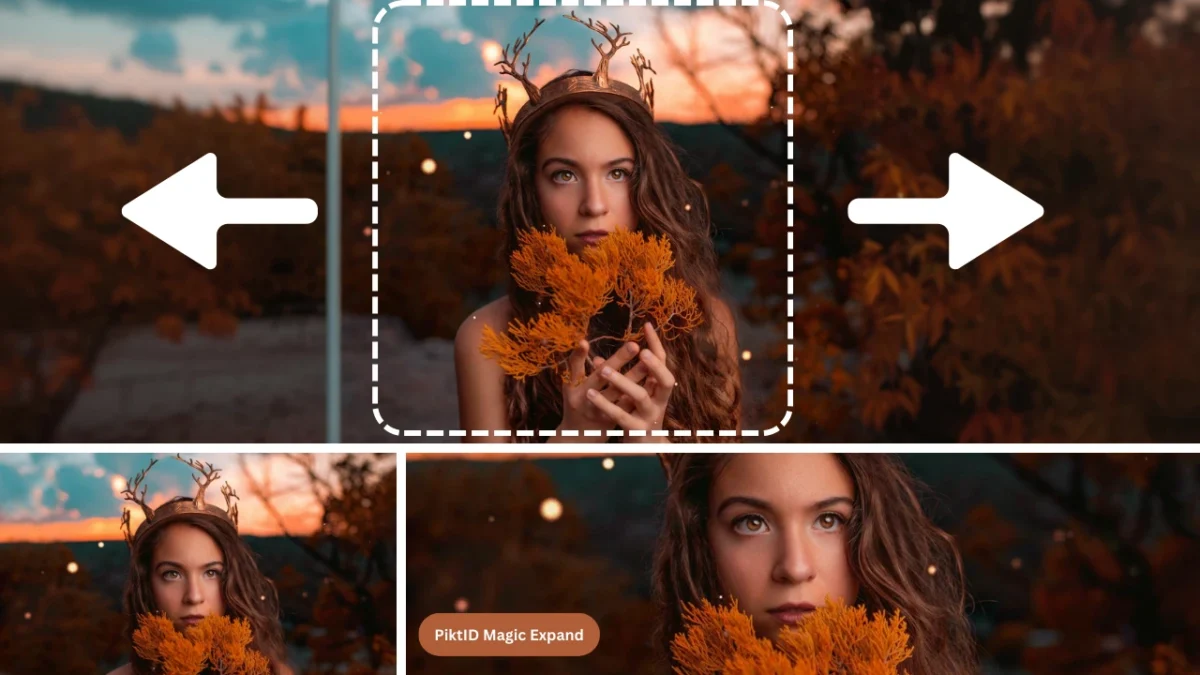
La técnica de relleno de imágenes mediante IA permite extender las imágenes más allá de sus bordes originales de forma natural y visualmente coherente. En lugar de recortar elementos importantes o estirar fondos, esta técnica genera de forma inteligente nuevas áreas que se integran a la perfección con el contenido original. Esto posibilita reencuadrar imágenes, cambiar la relación de aspecto o añadir espacio alrededor de los sujetos sin perder calidad visual.
A diferencia de las herramientas simples de redimensionamiento o relleno de fondo, la función de superposición de imágenes mediante IA comprende el contexto de la imagen. Analiza los colores, las texturas, la dirección de la iluminación, la profundidad y la perspectiva para predecir qué debería existir más allá del encuadre visible. El resultado es una imagen ampliada que luce completa e intencionada, sin edición artificial.
PiktID Expand está diseñado específicamente para el renderizado de imágenes con IA de alta calidad. Se centra en la extensión realista de imágenes, preservando la coherencia de la iluminación, las texturas de la superficie y la profundidad de la escena. Tanto si necesita más espacio para texto, composiciones más amplias o formatos flexibles, esta herramienta ofrece resultados nítidos y profesionales.
Entre los casos de uso más comunes se incluyen banners publicitarios, imágenes de productos para comercio electrónico, creatividades para redes sociales, secciones principales de sitios web y proyectos de diseño donde las imágenes deben adaptarse a múltiples diseños sin necesidad de volver a fotografiarlas o rediseñarlas.
1. ¿Qué es el Outpainting de IA? Explicación de la extensión de imagen.

El retoque de imágenes mediante IA consiste en extender una imagen más allá de sus límites originales utilizando inteligencia artificial. La IA analiza la imagen existente y genera nuevo contenido visual que continúa la escena de forma natural fuera del marco. Esto incluye la coincidencia de colores, texturas, iluminación y relaciones espaciales para que las áreas expandidas parezcan una verdadera extensión de la imagen original.
A nivel técnico, la técnica de superposición de imágenes mediante IA funciona prediciendo lo que lógicamente podría existir más allá de los bordes visibles. Analiza patrones como degradados de fondo, texturas repetitivas, líneas arquitectónicas o elementos del entorno, y luego crea nuevos píxeles que se alinean con esos patrones. Esto permite que la imagen crezca sin costuras ni interrupciones visuales evidentes.
La superposición de imágenes mediante IA puede extender las imágenes de múltiples maneras:
- Horizontalmente, añadiendo espacio a la izquierda o a la derecha.
- Verticalmente, expandiendo la parte superior o inferior.
- En diagonal, mediante el crecimiento natural de las esquinas
- En todas las direcciones, para una expansión completa del lienzo.
Este enfoque es mucho más avanzado que la sustitución de fondo o el relleno. La sustitución de fondo cambia la escena por completo, lo que a menudo rompe el realismo. El relleno simplemente añade espacio vacío o borroso sin contexto. El renderizado con IA, en cambio, genera contenido visual significativo que respeta la composición y la intención originales de la imagen, lo que lo hace apto para uso profesional y comercial.
2. Por qué la superposición de imágenes mediante IA es importante para la creación de contenido moderna.

El contenido moderno ya no se crea para una sola plataforma. Una misma imagen puede utilizarse en sitios web, redes sociales, anuncios y mercados, cada uno con diferentes requisitos de tamaño y diseño. La función de superposición de imágenes mediante IA resuelve este problema al permitir a los creadores extender las imágenes más allá de sus límites originales en lugar de recortarlas o redimensionarlas.
El redimensionamiento tradicional de imágenes suele generar problemas que reducen la calidad visual y el impacto:
- Las partes importantes del sujeto quedan recortadas.
- Los fondos se ven incompletos o estirados.
- Se pierde la composición y el equilibrio.
- La coherencia visual se rompe en todas las plataformas.
La técnica de superposición de imágenes mediante IA aborda la edición de imágenes de forma diferente. En lugar de reducir o recortar la imagen, expande el lienzo de forma inteligente, conservando la escena original. La IA analiza los píxeles circundantes y genera nuevas áreas que resultan naturales y visualmente coherentes.
Los elementos clave que se conservan mediante el renderizado por IA incluyen:
- Contexto y composición de la imagen original
- Dirección de la iluminación y continuidad de las sombras
- Patrones de perspectiva, profundidad y fondo
Para creadores, marcas y profesionales del marketing que trabajan a gran escala, esta capacidad es fundamental. Las campañas suelen requerir docenas de tamaños de imagen para plataformas como Instagram, Google Ads, Shopify y páginas de destino. El renderizado con IA reduce el tiempo de producción, elimina la edición manual y garantiza que la imagen de marca se mantenga coherente en todos los formatos.
3. Casos de uso comunes para el superposición de imágenes mediante IA
La superposición de imágenes mediante IA se utiliza en flujos de trabajo creativos y comerciales donde la flexibilidad y la calidad de la imagen son fundamentales. Permite a los equipos adaptar las imágenes sin necesidad de volver a grabar ni rediseñar, lo que la convierte en una herramienta práctica para la producción de contenido diaria.
Redes sociales y plataformas digitales
Las distintas plataformas requieren diferentes relaciones de aspecto. El renderizado por IA ayuda a extender las imágenes para:
- Publicaciones, historias y reels de Instagram
- miniaturas de YouTube
- Banners de LinkedIn
- Pinterest y creatividad publicitaria
En lugar de recortar rostros o productos, la imagen se expande de forma natural.
Fotografía de productos y comercio electrónico
Las tiendas online suelen necesitar fondos más amplios y limpios para los listados de productos. El renderizado mediante IA permite:
- Ampliando los fondos de estudio
- Ajustar el encuadre del producto sin volver a fotografiarlo.
- Mantener una presentación coherente en todos los catálogos.
Marketing y publicidad
Para banners y anuncios, el espacio es esencial para el texto y los elementos de diseño. El renderizado con IA ayuda de la siguiente manera:
- Ampliación de fondos para anuncios gráficos
- Creación de variaciones de anuncios horizontales y verticales
- Preservar la estética de la marca en todas las campañas.
Sitios web y páginas de destino
Las secciones principales y las páginas de destino suelen necesitar imágenes de gran tamaño. El renderizado por IA permite:
- Ampliar las imágenes para que se ajusten a diseños de ancho completo.
- Mantener el equilibrio visual sin distorsión.
- Cómo crear primeras impresiones de alto impacto
Fotografía y flujos de trabajo creativos
Los fotógrafos y diseñadores utilizan la técnica de retoque con IA para reencuadrar las imágenes después de una sesión fotográfica. Esto evita tener que volver a fotografiar y, al mismo tiempo, permite:
- Mejor narración a través de la composición
- Recorte flexible para diferentes resultados
Moda, estilo de vida y contenido generado por IA
El retoque digital mediante IA resulta especialmente valioso para imágenes de moda y estilo de vida, donde los fondos desempeñan un papel fundamental. Además, ayuda a perfeccionar las imágenes generadas por IA al ampliar las escenas y añadir contexto visual, logrando que se vean más completas y realistas.
4. Presentamos PiktID Expand: Superpintura con IA diseñada para el realismo.

PiktID Expand es una herramienta profesional de IA para ampliar imágenes, diseñada para extenderlas más allá de sus bordes originales sin romper la continuidad visual. En lugar de estirar píxeles o repetir patrones de fondo, genera de forma inteligente nuevas áreas de imagen que se integran de forma natural con la escena existente.
La función de ampliación de imágenes mediante IA de PiktID Expand está diseñada para creadores y empresas que necesitan una ampliación de imagen realista para uso comercial. La herramienta comprende el contexto, la profundidad y la iluminación, lo que le permite obtener resultados adecuados para flujos de trabajo de marketing, comercio electrónico, diseño y fotografía.
¿Qué hace que la expansión PiktID sea diferente?
PiktID Expand se centra en el realismo de la imagen en lugar de en los rellenos decorativos. Cada generación de superposición de imágenes mediante IA se guía por la información visual ya presente en la imagen.
Entre sus principales capacidades se incluyen:
- Imágenes que se extienden en todas las direcciones, incluyendo arriba, abajo, izquierda y derecha.
- Conservar la dirección de la luz original y las sombras naturales.
- Mantener la consistencia de la textura en fondos y superficies.
- Adaptación a la gradación de color y profundidad visual existentes
- Evitar costuras visibles, desenfoque o bordes artificiales.
Esto hace que los resultados de superposición de imágenes mediante IA parezcan intencionados, no generados automáticamente.
Integración con el ecosistema de estudio PiktID
PiktID Expand funciona a la perfección con otras herramientas de PiktID Studio, lo que permite un refinamiento completo de la imagen en un único flujo de trabajo:
- La función de mejora de resolución se puede aplicar después del renderizado con IA para aumentar la resolución y mejorar la nitidez de las texturas.
- La opción Editar fondo permite una mayor limpieza o estilización de áreas extendidas.
- La función Crear imagen se puede utilizar para generar nuevos elementos visuales que se integren en la escena ampliada.
Este enfoque integrado garantiza que el retoque fotográfico mediante IA no sea un paso aislado, sino parte de un proceso completo de producción visual.
5. Paso a paso: Cómo usar el superpintado de IA con PiktID Expand

Utilizar la función de superposición de imágenes mediante IA en PiktID Expand es sencillo y flexible, incluso para usuarios principiantes. La interfaz permite un control preciso sobre cómo y dónde se extiende la imagen.
Paso 1: Cargar una imagen
Sube tu imagen usando el cuadro de carga. La herramienta permite arrastrar y soltar para un acceso rápido. Las imágenes de alta resolución con buena iluminación ofrecen los mejores resultados.
Paso 2: Ajustar los laterales de expansión
Elige cuánto espacio quieres añadir a cada lado de la imagen.
Puede:
- Introduzca los valores en píxeles para la parte superior, inferior, izquierda y derecha.
- Arrastre los bordes de la imagen directamente en la vista previa para un control visual.
Esto permite ampliar la imagen en una sola dirección o de forma uniforme en todas las direcciones.
Paso 3: Seleccionar relación de aspecto (opcional)
Si está diseñando para una plataforma específica, utilice el selector de relación de aspecto.
Esto ayuda a mantener la coherencia en:
- Publicaciones en redes sociales
- Banners para sitios web
- Listados de productos
- Creativos publicitarios
El motor de renderizado por IA ajusta automáticamente la expansión para que coincida con la proporción seleccionada.
Paso 4: Configurar opciones avanzadas (opcional)
Para un mayor control, abra el panel Avanzado.
Aquí puedes:
- Agregue una indicación para guiar el estilo de superposición de la IA.
- Utilice un valor semilla para reproducir resultados similares en varias imágenes.
Esto resulta útil al ampliar múltiples elementos visuales para la misma campaña o marca.
Paso 5: Generar la imagen superpuesta
Haz clic en Generar para iniciar el proceso de renderizado por IA.
Una vez finalizada la sesión, podrá acceder a todas las imágenes generadas a través de la pestaña Historial para revisarlas y descargarlas fácilmente.
Nota importante sobre el almacenamiento de imágenes
Todas las imágenes subidas y editadas se eliminan automáticamente después de 24 horas. Este proceso es irreversible, así que asegúrese de descargar los resultados antes de que expire el plazo.
6. Mejores prácticas para obtener resultados de superposición de imágenes de IA de alta calidad

La superposición de imágenes mediante IA funciona mejor cuando la imagen original proporciona al modelo suficiente contexto visual para extender la escena de forma natural. Seguir algunas pautas prácticas puede mejorar significativamente el realismo, la continuidad y la calidad del resultado final.
Comience con imágenes claras y de alta resolución.
El renderizado mediante IA depende en gran medida de la información visual existente. Las imágenes con mayor resolución proporcionan más detalles para que la IA comprenda las texturas, los gradientes de iluminación y la profundidad de la escena.
- Los bordes definidos y los detalles precisos ayudan a generar extensiones realistas.
- Las imágenes de baja resolución o borrosas suelen dar lugar a zonas sombreadas suaves o inconsistentes.
- Los insumos de alta calidad reducen la necesidad de múltiples regeneraciones.
Evite recortes extremos cerca de sujetos importantes.
Si el sujeto se recorta demasiado, la IA tiene un contexto limitado para predecir qué debería aparecer más allá del encuadre.
- Deje suficiente espacio alrededor de los rostros, productos u objetos clave.
- Los recortes muy ajustados aumentan el riesgo de distorsión anatómica o patrones de fondo poco naturales.
- El renderizado mediante IA funciona mejor cuando puede inferir la escena de forma lógica.
Asegúrese de que la iluminación sea uniforme en la foto original.
La uniformidad de la iluminación es uno de los factores más importantes para lograr un renderizado por IA creíble.
- Una iluminación uniforme produce transiciones más suaves entre las áreas originales y extendidas.
- Las sombras intensas o las fuentes de luz mixtas pueden confundir al modelo.
- La luz natural o la iluminación controlada del estudio suelen dar los mejores resultados.

Ampliar gradualmente para escenas complejas.
Para entornos detallados como paisajes urbanos, interiores o sesiones de fotos de moda, la expansión gradual proporciona una mejor continuidad.
- Extienda una dirección a la vez para imágenes complejas.
- Revisa cada expansión antes de continuar.
- Este enfoque ayuda a mantener la perspectiva, la escala y la coherencia del contexto.
Utilice la función de escalado después del repintado con IA para obtener resultados más nítidos.
Una vez ampliada la imagen, someterla a un proceso de escalado mejora la calidad general.
- Mejora las texturas en las áreas recién generadas.
- Mejora la nitidez en impresiones, anuncios o pantallas grandes.
- Ayuda a unificar las regiones originales y las ya repintadas.
Sepa cuándo regenerar para una mejor continuidad.
En ocasiones, el primer resultado puede no coincidir perfectamente con la imagen original.
- Regenerar si las texturas se repiten de forma antinatural.
- Inténtalo de nuevo si la perspectiva o la profundidad no son correctas.
- Pequeñas variaciones pueden mejorar significativamente el realismo.
El retoque fotográfico mediante IA resulta más eficaz cuando se trata como un proceso de refinamiento en lugar de una acción que se realiza con un solo clic.
7. Retoque de imágenes mediante IA frente a métodos tradicionales de edición de imágenes

Antes de la aplicación de la IA para ampliar imágenes, se requería trabajo de diseño manual o concesiones visuales. La comparación de la IA moderna con los métodos tradicionales pone de manifiesto por qué se ha convertido en la solución preferida.
Extensión de fondo manual de Photoshop
La extensión de fondo tradicional implica clonación, enmascaramiento y pintura a mano.
- Requiere habilidades de diseño avanzadas.
- Requiere mucho tiempo y es difícil de escalar.
- Alto riesgo de repetición visible o artefactos de patrón.
- No es práctico para grandes volúmenes de imágenes.
La superposición de imágenes mediante IA automatiza este proceso al comprender el contexto y generar contenido nuevo de forma inteligente, reduciendo horas de trabajo manual a segundos.
Limitaciones de relleno según el contenido
El relleno según el contenido funciona bien para pequeños huecos, pero tiene dificultades con expansiones más grandes.
- A menudo repite texturas cercanas de forma poco natural.
- Comprensión limitada de la profundidad y la lógica de la escena.
- Se descompone al extenderse más allá de fondos simples.
La superposición de imágenes mediante IA va más allá de simplemente tapar huecos y, en su lugar, crea nuevas imágenes que tienen en cuenta el contexto y se alinean con la composición original.
Superposiciones de fondo de stock
El uso de imágenes de archivo para ampliar o reemplazar fondos introduce inconsistencias visuales.
- Iluminación y perspectiva desiguales
- Es difícil difuminar los bordes de forma natural.
- Los resultados suelen parecer artificiales o preparados.
La técnica de superposición mediante IA genera extensiones que coinciden con la iluminación, el tono de color y la profundidad de la imagen original, creando un resultado impecable.
Compromisos al redimensionar y recortar
Al redimensionar o recortar imágenes para adaptarlas a diferentes formatos, a menudo se sacrifica la composición.
- Es posible que se interrumpan elementos importantes.
- Se pierde el equilibrio visual.
- Flexibilidad limitada entre plataformas
La técnica de superposición de imágenes mediante IA resuelve este problema expandiendo la imagen en lugar de reducirla, preservando así la intención original y la ubicación del sujeto.
Por qué el repintado con IA es el mejor enfoque
El renderizado mediante IA ofrece claras ventajas para los flujos de trabajo modernos:
- Expansión de imagen más rápida sin edición manual
- Resultados más naturales que respetan la iluminación y la textura.
- Menores costes de producción en comparación con los métodos que requieren mucho diseño.
- Fácil escalabilidad para equipos de marketing, comercio electrónico y contenido.
- Resultados consistentes en múltiples formatos y plataformas.
Para los creadores y las empresas que necesitan flexibilidad sin sacrificar la calidad, el retoque fotográfico mediante IA representa una mejora significativa con respecto a las técnicas tradicionales de edición de imágenes.
8. Tabla comparativa: PiktID Expand frente a otras herramientas de superposición de imágenes mediante IA

No todas las herramientas de retoque de imágenes con IA están diseñadas específicamente para extender imágenes en un contexto profesional o comercial. Muchas herramientas populares se centran en ediciones rápidas o experimentos creativos, mientras que otras requieren configuración técnica o producen resultados inconsistentes. La siguiente tabla compara PiktID Expand con soluciones de retoque de imágenes con IA de uso común, destacando las ventajas y limitaciones de cada herramienta.
Explicación de los criterios clave de comparación
Antes de mirar la tabla, aquí está el significado de cada factor en el uso práctico:
- La compatibilidad con la expansión direccional se refiere a si la herramienta puede extender una imagen por todos los lados (izquierda, derecha, arriba, abajo) en lugar de un lienzo fijo.
- La preservación de texturas e iluminación mide qué tan bien la IA mantiene las sombras, la gradación de color, la profundidad y el detalle de la superficie en las áreas recién generadas.
- La facilidad de uso evalúa la rapidez con la que los usuarios no técnicos pueden obtener resultados limpios.
- La resolución de salida es importante para la impresión, la publicidad y los recursos digitales de alta calidad.
- La preparación para el uso comercial refleja la claridad de las licencias y su idoneidad para el uso empresarial.
- La disponibilidad de uso gratuito indica si los usuarios pueden probar esta herramienta sin pagar.
Comparación de herramientas de superposición de imágenes mediante IA
| Función / Herramienta | PiktID Expand | Lienzo | Luciérnaga de Adobe | DALL·E Superar la pintura | Pista |
| Expansión de imagen direccional | Sí, en todas las direcciones. | Limitado | Parcial | Parcial | Limitado |
| Conservación de la textura y la iluminación | Alto y constante | Medio | Alto | Medio | Medio |
| Facilidad de uso | Muy fácil, sin curva de aprendizaje. | Fácil | Moderado | Fácil | Moderado |
| Resolución de salida | Exportación de alta resolución | Medio | Alto | Medio | Medio |
| Preparación para uso comercial | Soporte completo | Limitado | Compatible | No claro | Limitado |
| Acceso gratuito a la superposición de pintura por IA | Sí (créditos gratuitos) | Limitado | Limitado | Limitado | Basado en ensayos |
Por qué PiktID Expand ofrece un mejor rendimiento en el despintado de IA
El PiktID Expand está diseñado específicamente para la extensión de imágenes, no para el diseño general ni la generación experimental. Este enfoque permite obtener resultados más fiables al extender imágenes en todas las direcciones.
Las principales ventajas incluyen:
- Iluminación uniforme y continuidad de sombras en áreas ampliadas.
- Generación de textura natural que coincide con la imagen original.
- Controles sencillos que no requieren una intervención de ingeniería inmediata.
- Exportaciones limpias aptas para el comercio electrónico, el marketing y el uso web.
- Derechos claros de uso comercial
Por el contrario, muchas de las herramientas mencionadas anteriormente tratan el renderizado por IA como una función secundaria, lo que a menudo da lugar a resultados recortados, texturas que no coinciden o un control limitado sobre la dirección de expansión.
Cuándo pueden resultar útiles otras herramientas de superposición de imágenes mediante IA
Dependiendo del objetivo, pueden resultar útiles otras herramientas:
- Canva funciona bien para diseños sencillos, pero tiene dificultades con la extensión de imágenes realistas.
- Adobe Firefly ofrece una gran calidad, pero una flexibilidad limitada y es gratuito.
- La técnica de superposición de texturas DALL·E resulta útil para la experimentación creativa más que para extensiones precisas.
- Runway se centra más en el vídeo y los flujos de trabajo creativos que en la precisión de las imágenes fijas.
- Los editores estables basados en difusión ofrecen flexibilidad, pero requieren conocimientos técnicos y ajustes.
9. Consideraciones éticas, legales y creativas

A medida que el retoque de imágenes mediante IA se vuelve más común, su uso responsable es esencial, especialmente para el contenido comercial y dirigido al público.
Uso responsable del repintado con IA
La superposición de imágenes mediante IA debe mejorar una imagen sin distorsionar la realidad. Se recomienda su uso para extender fondos, mejorar el encuadre o adaptar imágenes a diferentes formatos, en lugar de alterar el sujeto principal de forma engañosa.
El uso responsable incluye:
- Ampliar los entornos, no fabricar contextos falsos.
- Preservar la intención original de la imagen
- Evitar la manipulación que pueda engañar a los espectadores.
Evitar imágenes engañosas o confusas
En marketing y medios de comunicación, la superposición de imágenes mediante IA no debe utilizarse para sugerir escenas o escenarios inexistentes. Por ejemplo, ampliar un fondo para dar la impresión de un espacio mayor es aceptable, pero alterar el entorno para cambiar la narrativa de una imagen puede resultar engañoso.
La transparencia genera confianza, especialmente en la publicidad y el contenido editorial.

Consideraciones sobre derechos de autor
La superposición de imágenes mediante IA solo debe aplicarse a imágenes de su propiedad, para las que tenga licencia o autorización para modificar. El uso de material protegido por derechos de autor sin autorización puede acarrear problemas legales, incluso si la IA genera nuevos píxeles.
Las mejores prácticas incluyen:
- Utilizando fotografías originales
- Utilizando imágenes de archivo con licencia
- Evitar el contenido protegido o de marca.
Cuándo es aceptable el retoque de imágenes mediante IA para contenido comercial
El repintado por IA es ampliamente aceptado para:
- Banners publicitarios
- Imágenes principales del sitio web
- Fotos de productos de comercio electrónico
- Creativos en redes sociales
- Imágenes de moda y estilo de vida
El problema surge únicamente cuando se alteran los hechos o se tergiversan los productos o las ubicaciones.
Mantener la transparencia en las imágenes editadas
Para mantener la credibilidad profesional, es recomendable indicar cuándo se han realizado ediciones con ayuda de IA. Muchas marcas ya señalan cuándo las imágenes se han mejorado con IA, lo que ayuda a mantener los estándares éticos sin dejar de beneficiarse de los flujos de trabajo.
Utilizada correctamente, la superposición de imágenes mediante IA permite una producción más rápida, una mayor flexibilidad de diseño y una estética visual coherente sin comprometer la confianza ni la legalidad.
10. Conclusión

La técnica de retoque digital mediante IA ha transformado la adaptación de imágenes para el uso digital moderno. En lugar de recortar elementos importantes o distorsionar los fondos de forma artificial, esta técnica permite extender las imágenes en todas las direcciones manteniendo la escena original intacta. Esto posibilita reutilizar una misma imagen en múltiples formatos sin perder composición ni calidad visual.
Con el retoque de pintura mediante IA, los creadores pueden:
- Amplíe las imágenes horizontal o verticalmente para obtener diferentes relaciones de aspecto.
- Agregue un espacio de fondo realista alrededor de los sujetos.
- Conservar la iluminación, la perspectiva y la profundidad originales.
- Evite ediciones manuales que consumen mucho tiempo o nuevas tomas.
PiktID Expand está diseñado específicamente para este propósito. Analiza la imagen existente y genera nuevas áreas que se integran de forma natural con el contenido original. Las texturas se mantienen consistentes, la iluminación fluye correctamente hacia las regiones extendidas y la imagen final luce coherente en lugar de artificialmente rellena.
Para creadores, profesionales del marketing y empresas, adoptar el retoque de imágenes mediante IA significa flujos de trabajo más rápidos y mayor flexibilidad. Ahora, una misma imagen puede adaptarse a sitios web, anuncios, redes sociales y banners publicitarios sin necesidad de empezar desde cero. Esto reduce el esfuerzo de producción manteniendo estándares visuales profesionales.
¿Listo para ampliar tus imágenes sin esfuerzo? Prueba PiktID Expand con 10 créditos gratis.
Visita https://studio.piktid.com/expand para empezar hoy mismo.
11. Preguntas frecuentes sobre el repintado con IA

1. ¿Qué es el repintado por IA?
La técnica de superposición de imágenes mediante IA permite extender una imagen más allá de sus límites originales utilizando inteligencia artificial. La IA predice y genera nuevo contenido visual que se ajusta a la escena existente, lo que permite que la imagen crezca en cualquier dirección manteniendo el realismo.
2. ¿Cómo extiende la técnica de superposición de imágenes mediante IA las imágenes en todas las direcciones?
La técnica de superposición de píxeles mediante IA analiza los colores, las texturas, la iluminación y los patrones de la imagen original. A partir de este contexto, crea nuevos píxeles fuera del marco que se alinean con el entorno existente. Este proceso funciona horizontal, vertical y diagonalmente, lo que permite la expansión completa de la imagen.
3. ¿El uso de la función de superposición de imágenes mediante IA es gratuito?
Algunas herramientas ofrecen un uso gratuito limitado. PiktID Expand permite a los usuarios probar el retoque de imágenes mediante IA con créditos gratuitos, lo que facilita la prueba de la expansión de imágenes antes de comprometerse con proyectos más grandes.
4. ¿En qué se diferencia el retoque digital mediante IA del retoque interno?
La técnica de relleno por IA añade contenido nuevo fuera de los límites de la imagen, mientras que la de relleno completa las áreas que faltan o han sido eliminadas dentro de la misma. El relleno por IA se utiliza para extender la imagen, mientras que la de relleno se centra en la reparación o la eliminación de objetos.
5. ¿Afecta la superposición de imágenes mediante IA a la calidad de la imagen?
Cuando se realiza correctamente, el relleno con IA preserva la calidad de la imagen. El uso de imágenes de origen de alta resolución ayuda a garantizar que las texturas y los detalles se mantengan nítidos. Herramientas como PiktID Expand están diseñadas para mantener la coherencia en la iluminación y la profundidad en las áreas extendidas.
6. ¿Puedo utilizar la superposición de imágenes mediante IA para proyectos comerciales?
Sí, la función de retoque digital mediante IA puede utilizarse con fines comerciales siempre que se posean los derechos de la imagen original. Muchas marcas la utilizan para material publicitario, imágenes de productos y elementos visuales de sus sitios web.
7. ¿Qué imágenes funcionan mejor para el retoque digital mediante IA?
Las imágenes con sujetos nítidos, iluminación uniforme y mínimo ruido visual suelen ofrecer los mejores resultados. Las fotos con fondos naturales y suficiente detalle proporcionan a la IA más contexto para generar extensiones realistas.
8. ¿Qué tan precisa es la extensión PiktID Expand para el fondo?
La función PiktID Expand está diseñada para ofrecer una alta precisión. Mantiene la continuidad visual al igualar texturas, sombras y perspectiva, lo que permite que las áreas extendidas se integren armoniosamente con la imagen original.
9. ¿Puedo usar imágenes con colores más vivos para redes sociales y anuncios?
Sí, la técnica de retoque digital mediante IA se utiliza habitualmente para adaptar imágenes a las diferentes relaciones de aspecto que exigen las plataformas de redes sociales y las redes publicitarias. Permite que una misma imagen se ajuste a múltiples diseños sin recortar elementos clave.
10. ¿Dónde puedo probar la técnica de superposición de imágenes mediante IA de forma gratuita?
Puedes probar el retoque de imágenes con IA usando PiktID Expand, que ofrece créditos gratuitos para empezar. Visita https://studio.piktid.com/expand para subir una imagen y extenderla en cualquier dirección.
Enlaces relacionados:
- Soluciones de moda con modelos de IA
- Estirador de imágenes con IA | Amplía tus fotos en segundos con Magic Expand
- AI Image Extender: La mejor manera de mejorar tus fotos
- La mejor IA para cambiar la dirección de los ojos en las fotografías para profesionales del marketing
- La mejor aplicación para cambiar la dirección de los ojos en una foto fácilmente