
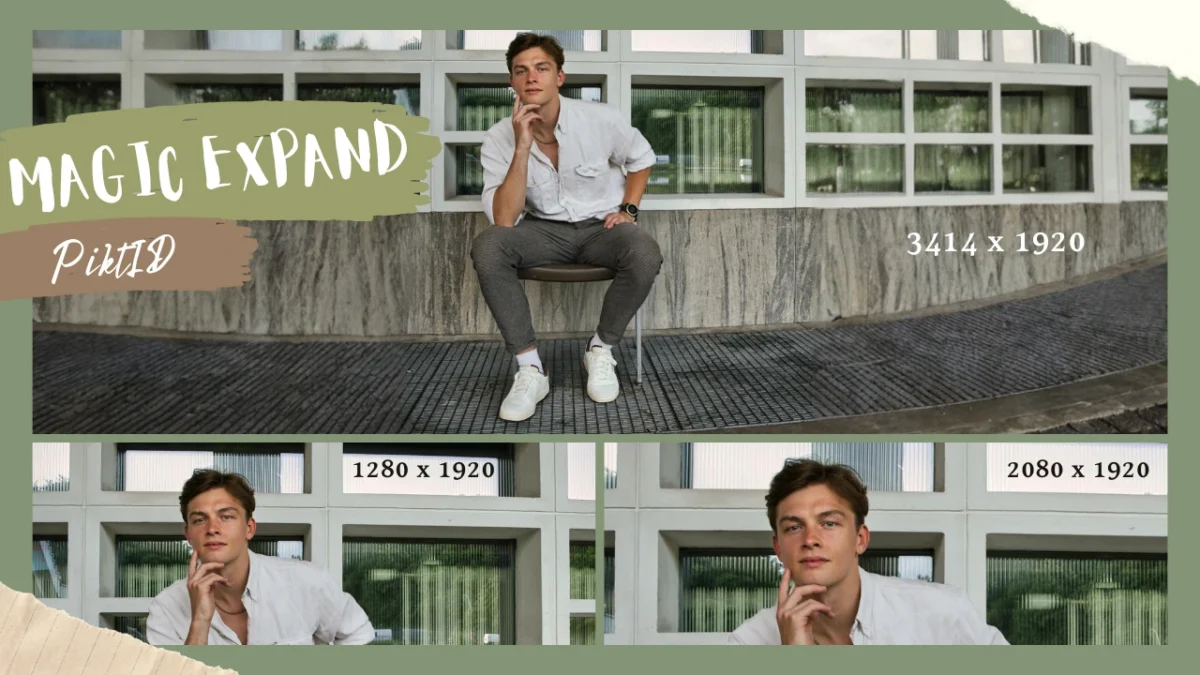
Tiempo estimado de lectura: 11 minutos
1. Resumen del extensor de imágenes basado en IA
Un estirador de imágenes se utiliza para ampliar los límites de una fotografía y adaptarla a nuevos formatos sin alterar su sujeto ni composición originales. Los creadores lo utilizan cuando una imagen está recortada demasiado, cuando faltan detalles importantes del fondo o cuando un retrato necesita convertirse a un formato más amplio para plataformas como sitios web, anuncios, publicaciones en redes sociales y material impreso. Estas limitaciones suelen impedir que un mismo recurso se reutilice en múltiples canales y pueden ralentizar la producción.
Magic Expand aborda estos desafíos mediante un análisis basado en IA que comprende la escena, las texturas, la iluminación y la profundidad de la imagen. Rellena las áreas faltantes mediante generación contextual en lugar de duplicación, lo que garantiza que las secciones extendidas luzcan naturales y consistentes. Las texturas se mantienen fluidas, la iluminación coincide con el fotograma original y los bordes se expanden sin distorsión. El resultado es un flujo de trabajo rápido y preciso que permite a diseñadores, profesionales del marketing y empresas adaptar los recursos existentes a cualquier tamaño o formato con precisión profesional.
2. Por qué es importante el estiramiento de imágenes
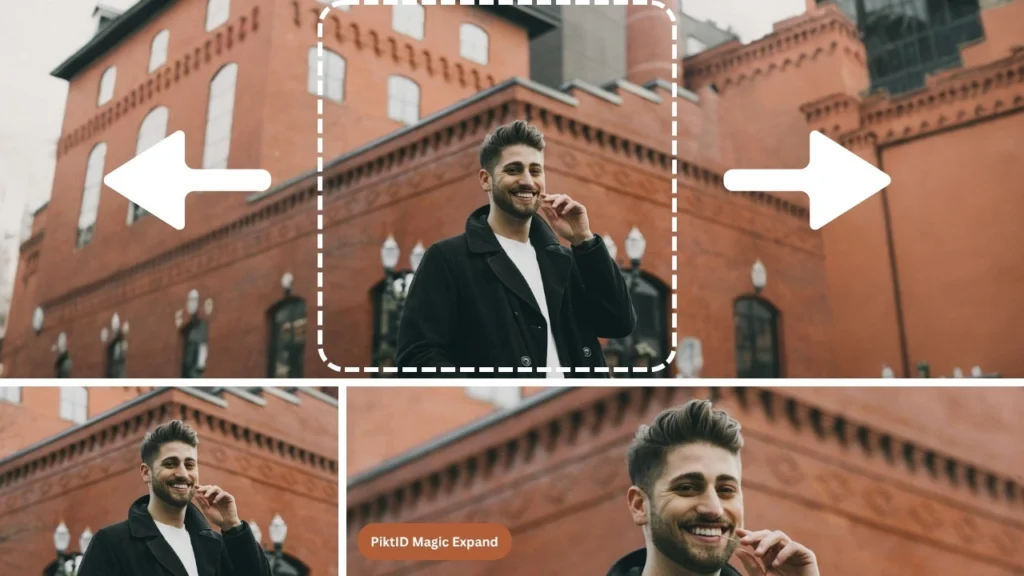
Hoy en día, se espera que el contenido visual funcione en una amplia gama de formatos. Un mismo elemento puede necesitar funcionar como publicación vertical, banner horizontal, miniatura cuadrada o encabezado de sitio web panorámico. Esta demanda de flexibilidad ha convertido el estiramiento de imágenes en una parte esencial de la producción de contenido moderna.
Muchos equipos tienen dificultades cuando la foto original se tomó con una relación de aspecto incorrecta o carece de suficiente espacio alrededor del sujeto. Los problemas más comunes incluyen un encuadre demasiado ajustado, la ausencia de fondo, espacio limitado para superposiciones de texto o imágenes que no se pueden reutilizar para diferentes ubicaciones. Sin la posibilidad de ajustar la composición, las marcas a menudo se ven obligadas a recrear o volver a tomar el contenido.
Las herramientas de edición tradicionales ofrecen soluciones, pero requieren trabajo manual. Técnicas como la clonación, el estampado y la corrección pueden recrear áreas faltantes, pero el proceso es lento y a menudo inconsistente. Lograr que las texturas, las sombras y los elementos del entorno coincidan con la realidad requiere habilidad, y los resultados varían mucho entre los editores.
Las herramientas basadas en IA han transformado este panorama al automatizar el proceso de expansión. En lugar de reconstruir manualmente las secciones, el sistema interpreta el contenido circundante y genera extensiones realistas que se integran a la perfección con la imagen original. Los fondos, la iluminación y los detalles ambientales se recrean con un mínimo esfuerzo.
Magic Expand integra esta funcionalidad en un flujo de trabajo optimizado. Los usuarios pueden ampliar imágenes en cualquier dirección, ajustar la relación de aspecto y perfeccionar los resultados sin necesidad de conocimientos técnicos. Permite a los equipos creativos generar rápidamente variaciones listas para la plataforma, mantener la coherencia entre campañas y maximizar el valor de cada recurso visual.
3. Cómo funciona la expansión mágica de PiktID

Magic Expand de PiktID está diseñado para funcionar como un estirador de imágenes de calidad profesional que mantiene el realismo visual al extender cualquier foto en todas las direcciones. El sistema se basa en una IA que analiza el contexto, las texturas, la profundidad y la iluminación del entorno antes de generar nuevos píxeles. Esto garantiza que las áreas extendidas parezcan una continuación natural de la imagen original, en lugar de un parche artificial.
Las capacidades principales incluyen:
- Síntesis de fondo sensible al contexto que recrea las áreas faltantes mediante el análisis de patrones, objetos y señales ambientales.
- Detección inteligente de bordes y fusión perfecta que garantiza la ausencia de bordes visibles o transiciones poco naturales.
- Iluminación automática y continuidad de sombras para que las regiones ampliadas coincidan con la exposición original, la temperatura de color y la dirección de la luz.
- Admite la expansión multidireccional, incluyendo la extensión superior, inferior, izquierda, derecha o de todo el lienzo.
- Expansión de píxeles ajustable que permite a los creadores especificar con exactitud cuánto espacio adicional se necesita para los diseños, los formatos para redes sociales o los márgenes de impresión seguros.
- Opciones predefinidas de relación de aspecto como 1:1, 9:16, 16:9 y 4:5, que permiten un reencuadre rápido para redes sociales, comercio electrónico y publicidad.
- Generación avanzada de entornos basada en indicaciones para guiar la extensión, como "extender las olas del océano", "continuar la escena de la calle" o "añadir árboles al fondo".“
- Control de semillas para generar resultados repetibles y consistentes en múltiples imágenes o conjuntos de campañas.
- Un panel de historial detallado que almacena resultados anteriores para una rápida regeneración o comparación visual lado a lado.
- Una interfaz de arrastrar para expandir que mejora la productividad y permite a los usuarios sin conocimientos técnicos estirar una imagen de forma intuitiva.
En conjunto, estas características crean un flujo de trabajo fiable para fotógrafos, profesionales del marketing, diseñadores y equipos de comercio electrónico que necesitan un estirador de imágenes preciso y realista para realizar ajustes de encuadre y ampliar la creatividad.
4. Guía paso a paso: Cómo estirar una imagen con Magic Expand

4.1 Flujo de trabajo en el estudio (no se requieren conocimientos técnicos)
- Carga una imagen subiéndola o arrastrándola directamente al lienzo.
- Ajuste los lados de expansión utilizando los controles direccionales o arrastrando los bordes del lienzo hacia afuera.
- Seleccione una relación de aspecto si es necesario; Magic Expand se adaptará de forma inteligente al formato elegido.
- Utilice las opciones avanzadas para introducir una sugerencia opcional que guíe a la IA, como por ejemplo "extender el jardín" o "continuar con las montañas".“
- Haz clic en Generar para permitir que la IA extienda la foto sin problemas.
- Revise los resultados en el panel Historial, donde se almacenan todas las variaciones de la sesión para una consulta o comparación rápida.
4.2 Flujo de trabajo de la API (opcional para desarrolladores)
Los desarrolladores pueden integrar el estirador de imágenes directamente en sus aplicaciones, editores o sistemas DAM, lo que permite flujos de trabajo de expansión automatizados o masivos a gran escala. Los pasos típicos de integración incluyen:
- Envío de una solicitud API que contiene la imagen de origen y los parámetros de expansión.
- Ajuste de los campos JSON para la extensión del píxel, la dirección, el valor semilla o la guía de indicaciones.
- Automatización de casos de uso como el redimensionamiento de imágenes para comercio electrónico, la producción creativa por lotes o la generación de contenido dinámico para plataformas publicitarias.
Esta flexibilidad permite a los equipos crear flujos de trabajo personalizados donde el estiramiento de imágenes se convierte en una parte integral del flujo de trabajo creativo o de producción.
5. Mejores prácticas y consejos para la resolución de problemas

Utilizar un estirador de imágenes como Magic Expand resulta mucho más eficaz si se sigue un método estructurado. La herramienta puede manejar escenas complejas, pero ciertas prácticas te ayudarán a conseguir extensiones más limpias y realistas.
- Utilice indicaciones descriptivas al trabajar con fondos complejos, patrones o iluminación mixta. Estas indicaciones ayudan a la IA a igualar con mayor precisión las texturas, la simetría y los elementos del entorno.
- Mantén el sujeto principal centrado en el encuadre antes de realizar grandes extensiones direccionales. Esto evita la distorsión en los bordes y garantiza que la IA tenga suficiente contexto para reconstruir las áreas circundantes de forma natural.
- Para imágenes con mucho cielo, agua o tierra, utilice ajustes preestablecidos de relación de aspecto. Estos crean gradientes más suaves y evitan bandas o patrones repetitivos no deseados.
- Al experimentar con diferentes enfoques creativos, genera expansiones varias veces. La variación ayuda a comparar distintas interpretaciones y a elegir el resultado más natural.
- Utilice el control de semillas al producir múltiples variaciones para catálogos de marca o imágenes de productos. Esto crea un encuadre, tonos de color y continuidad ambiental consistentes en todo el conjunto.
- Evita estirar imágenes con una resolución extremadamente baja. Primero, amplíalas para que la IA tenga suficiente detalle para una extensión perfecta.
- Si aparecen artefactos o zonas borrosas, reduzca ligeramente el tamaño de la extensión y expándala en incrementos más pequeños.
- Para imágenes con líneas geométricas definidas, como interiores o arquitectura, active la opción de conservar las líneas rectas o utilice indicaciones específicas para mantener la simetría.
6. Casos de uso y ejemplos del mundo real

Las herramientas de expansión con IA y un flujo de trabajo para estirar imágenes permiten realizar una amplia gama de tareas profesionales y creativas. A continuación, se detalla cómo los diferentes grupos de usuarios se benefician de la extensión de imágenes optimizada.
a. Para creadores
- Transforma selfies cerradas o tomas verticales en miniaturas anchas para YouTube.
- Adapta los fondos de los retratos para que se ajusten a los formatos de las redes sociales o a las composiciones cinematográficas.
- Para contar mejor la historia, deja espacio alrededor de las imágenes de estilo de vida, viajes o paisajes.
- Crea diseños más dinámicos para boletines informativos, encabezados de blogs o fotos de portada.
b. Para comercio electrónico
- Amplíe las tomas de producto para cumplir con los requisitos del mercado de formato 1:1, 3:4 o 4:5 sin necesidad de volver a fotografiarlas.
- Crea un margen uniforme alrededor de los artículos para los listados de Shopify, Amazon y Etsy.
- Corrija las imágenes estrechas o recortadas de forma excesiva para los anuncios publicitarios que requieren espacio en blanco adicional.
- Adapta las imágenes principales de los productos para las campañas de temporada ampliando los fondos y añadiendo espacio temático.
do. Para marcas y agencias
- Cambia el tamaño de los recursos para múltiples plataformas sin perder elementos visuales importantes.
- Crea anuncios con más espacio para superposiciones de texto, llamadas a la acción o elementos de marca.
- Amplíe las imágenes de la campaña para admitir la distribución en múltiples formatos, como 1080×1080, 1080×1920 o banners web panorámicos.
- Mantenga la coherencia visual en todas las campañas mediante el uso de indicaciones estructuradas y el control de la fuente inicial.
d. Para fotógrafos
- Recuperar fotografías mal encuadradas donde el sujeto está demasiado cerca del borde.
- Al recomponer fotografías horizontales o verticales, añade más cielo, primer plano o espacio lateral.
- Restaura la simetría en imágenes arquitectónicas o de interiores mediante extensiones direccionales.
- Mejora tus fotografías antiguas creando extensiones ambientales naturales sin necesidad de sesiones fotográficas adicionales.
7. Tabla comparativa (PiktID frente a la competencia)

La elección de la herramienta de estiramiento o expansión de imagen adecuada depende de la calidad, el control y la fiabilidad del resultado. Si bien muchas plataformas ofrecen relleno o espaciado de fondo básico, muy pocas proporcionan una expansión que tenga en cuenta el contexto y que preserve la composición, la iluminación y la textura. PiktID Magic Expand está diseñado para creadores y marcas que necesitan resultados precisos y listos para producción sin retoques manuales. La siguiente tabla compara las características clave de las principales plataformas y destaca las ventajas de PiktID como alternativa más robusta y optimizada para el flujo de trabajo.
La comparativa se centra en factores clave en entornos creativos y comerciales reales, como la expansión multidireccional, el control instantáneo y la precisión a nivel de píxel. Esto ayuda a los usuarios a elegir la herramienta adecuada, ya sea que necesiten soluciones rápidas para redes sociales, extensiones listas para comercio electrónico, flexibilidad de diseño o procesamiento por lotes.
Comparación de características
| Característica | PiktID Expansión Mágica | Photoshop Generativo Expandir | Canva Magic Expand | Fotor | Pixlr |
| Relleno sensible al contexto | Alta calidad | Bien | Moderado | Básico | Básico |
| Expansión multidireccional | ✔ | ✔ | ✖ | ✖ | ✖ |
| Ajuste a nivel de píxel | ✔ | ✖ | ✖ | ✖ | ✖ |
| Automatización de la relación de aspecto | ✔ | ✖ | ✔ | ✖ | ✖ |
| Control basado en avisos | ✔ | Limitado | ✖ | ✖ | ✖ |
| créditos gratis | 10 créditos | ✖ | Limitado | Limitado | Limitado |
Conclusiones clave
- El PiktID ofrece un análisis de contexto avanzado para garantizar que las áreas ampliadas se integren a la perfección con la imagen original.
- Herramientas como Fotor y Pixlr son adecuadas para ediciones básicas, pero carecen de modelado de contexto avanzado.
- Canva y Photoshop admiten flujos de trabajo creativos más amplios, pero ofrecen un control granular limitado sobre el comportamiento de expansión.
- El control a nivel de píxel y el refinamiento basado en indicaciones de la PiktID la hacen ideal para equipos profesionales que requieren resultados uniformes en grandes lotes de imágenes.
- La disponibilidad de créditos gratuitos permite realizar pruebas antes de integrarlo en un proceso de producción.
8. Notas sobre ética y privacidad

La función Magic Expand de PiktID está diseñada para mejorar el encuadre y ampliar los fondos, garantizando al mismo tiempo un manejo ético y comercialmente seguro de las imágenes. El sistema extiende únicamente el entorno contextual, como paisajes, texturas o espacios negativos, sin modificar la identidad ni las características biométricas del sujeto.
Principios clave seguidos en el diseño de la función:
- Durante la expansión, solo se generan elementos de fondo y elementos que no son de identidad.
- Adecuado para uso comercial y editorial, incluyendo publicidad, comercio electrónico, impresión y catálogos de productos.
- No se permite la creación de identidades sintéticas a menos que el usuario aplique intencionalmente otras herramientas específicas como Anonymize o SwapID.
- No se recopilan, almacenan ni utilizan datos faciales ni biométricos para la formación o la personalización.
- Cumple con los requisitos de privacidad habituales para agencias y marcas que trabajan con modelos, conjuntos de datos sensibles o identidades protegidas.
Estas directrices garantizan que el flujo de trabajo de estiramiento de imágenes siga siendo seguro, transparente y adecuado tanto para entornos profesionales como empresariales.
9. Conclusión

Magic Expand ofrece una forma rápida y fiable de ampliar imágenes sin distorsión ni edición manual. Entre sus principales ventajas se incluyen:
- Extensión de fondo instantánea
- No se requieren conocimientos de Photoshop.
- Control a nivel de píxel
- Mezcla natural impulsada por IA
- Resultados rápidos, precisos y repetibles
Usando PiktID como expansión mágica
- Un estirador de imágenes es una herramienta que extiende los límites de una fotografía mediante inteligencia artificial, manteniendo la composición y el realismo.
- Magic Expand automatiza este proceso, rellenando de forma natural las zonas que faltan mediante el análisis de texturas e iluminación.
- Ayuda a los creadores a producir imágenes adaptables a diversos formatos sin necesidad de retoques ni recortes manuales.
- Los usuarios pueden integrar fácilmente Magic Expand en sus flujos de trabajo, ya sea para uso individual o para la integración mediante API.
- Esta herramienta es compatible con diversas aplicaciones, desde redes sociales hasta comercio electrónico, lo que mejora la eficiencia en la producción de contenido visual.
¿Listo para ampliar tus fotos con IA? Prueba Magic Expand de PiktID y obtén 10 créditos gratis.
Visita https://studio.piktid.com/expand Para empezar hoy mismo.
10. Preguntas frecuentes

1. ¿Qué es un estirador de imágenes?
Un estirador de imágenes es una herramienta que expande los bordes de una foto para crear más espacio alrededor del sujeto. Utiliza inteligencia artificial para generar nuevos píxeles que coinciden con el fondo, la iluminación y la textura originales, lo que permite ampliar o extender una imagen sin recortarla ni distorsionarla.
2. ¿Cómo estira la IA una imagen sin distorsionarla?
Los modelos de IA analizan el contenido existente, identifican patrones y texturas, y predicen cómo deben continuar esos elementos más allá de los límites originales. Esto permite que el área estirada se integre a la perfección, evitando píxeles distorsionados o imágenes deformadas.
3. ¿Estirar una foto es lo mismo que recortarla o redimensionarla?
No. Recortar elimina partes de la imagen, y redimensionar cambia las dimensiones sin añadir contenido nuevo. Estirar expande el lienzo generando nuevos detalles de fondo realistas, lo que te ayuda a corregir encuadres ajustados o a extender composiciones de forma natural.
4. ¿Puede Magic Expand corregir fotos mal encuadradas?
Sí. Magic Expand puede recuperar los bordes que faltan, crear espacio alrededor de los sujetos, ampliar tomas estrechas y corregir imágenes capturadas demasiado cerradas. Restablece el equilibrio en la composición sin necesidad de repetir la toma.
5. ¿Cómo ampliar el fondo de una foto de forma natural?
Sube tu imagen, elige la dirección de extensión y aplica la función Expansión Mágica. La herramienta analiza la iluminación, la profundidad y la estructura del fondo para generar contenido nuevo que coincida con la escena original. Para un mayor control, puedes extender la imagen varias veces en diferentes direcciones.
6. ¿Qué relaciones de aspecto funcionan mejor para las redes sociales?
Las distintas plataformas requieren formatos específicos:
- Feed de Instagram: 1:1 o 4:5
- Historias/Reels de Instagram: 9:16
- Publicaciones de Facebook: 1,91:1
- Pinterest: 2:3
- Miniaturas de YouTube: 16:9
El uso de un programa para estirar imágenes ayuda a convertirlas a cualquier relación de aspecto requerida sin recortar detalles importantes.
7. ¿Estirar una imagen reduce su calidad?
No, al usar la expansión basada en IA. Magic Expand recrea nuevos píxeles en alta resolución, lo que garantiza que el resultado final mantenga la nitidez y la claridad. La herramienta también evita la distorsión al preservar la integridad de los píxeles originales.
8. ¿Puedo añadir cielo, suelo o paisaje adicionales?
Sí. Magic Expand puede generar cielo adicional para fotografías de paisajes, más terreno para retratos de cuerpo entero y escenarios extendidos para fotos de viajes o productos. El resultado se mantiene visualmente coherente con la foto original.
9. ¿Cómo puedo mantener la coherencia en los resultados entre varias imágenes?
Utilice encuadres, condiciones de iluminación y direcciones de expansión similares. Para sesiones fotográficas de marca o listados de productos, aplique Magic Expand con ajustes de relación de aspecto uniformes. La coherencia garantiza que todas las imágenes mantengan una identidad visual cohesiva.
10. ¿Puedo probar PiktID Magic Expand gratis?
Sí. Puedes usar Magic Expand con 10 créditos gratuitos para probar la extensión de fondo, la restauración de bordes y la expansión de fotograma completo.
Enlaces similares al blog
- AI Image Extender: La mejor manera de mejorar tus fotos
- La mejor herramienta de intercambio de cuerpos con IA para obtener resultados fotorrealistas.
- Cómo hacer que un PNG tenga una resolución más alta con facilidad
- Cómo cambiar el fondo de una imagen : ProductID
- Generador de fondos de productos con IA: las mejores fotos de productos rápidamente